February 6, 2016
Answered

Problems with installation of CC 2015 and Photoshop

  • February 6, 2016
  • 2 replies
  • 327 views

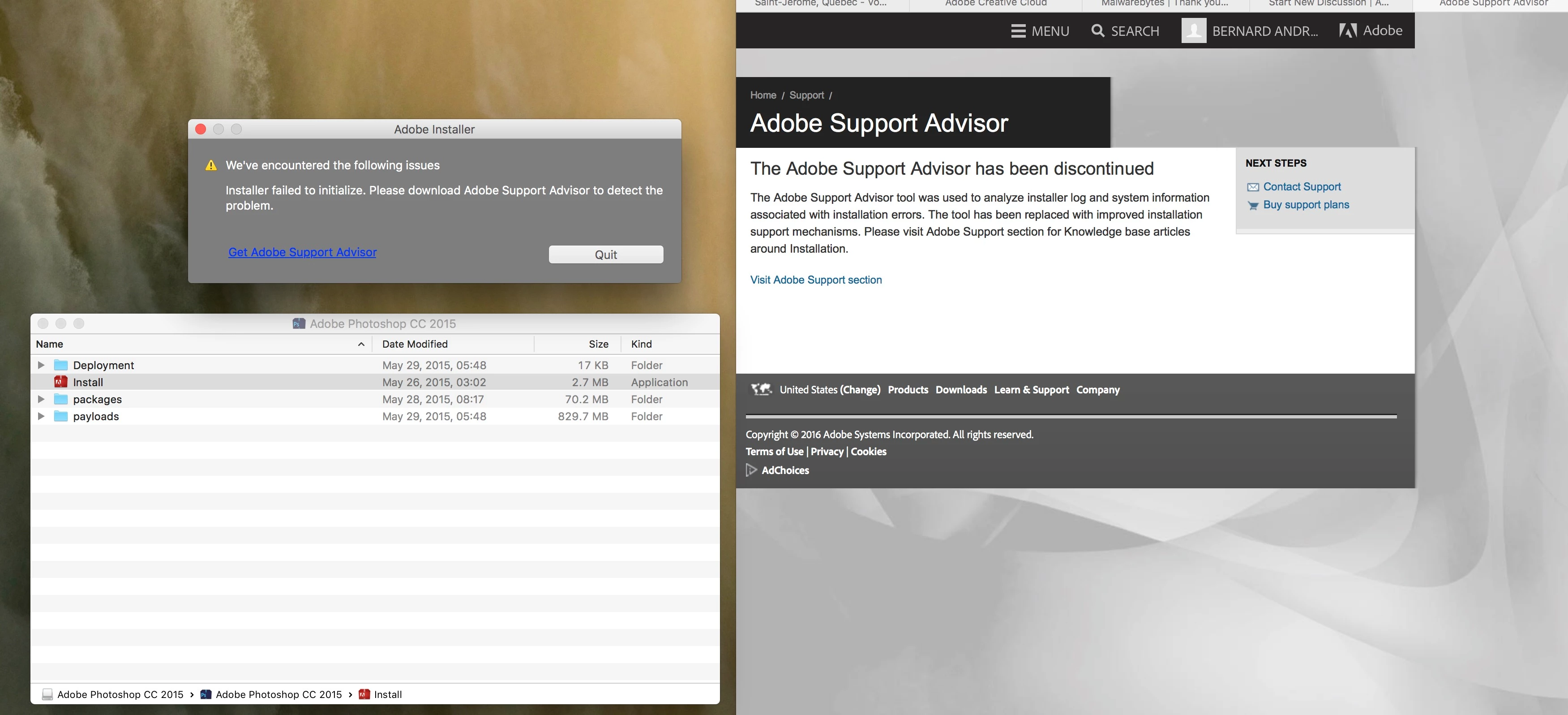
When I try to install Creative Cloud, a CC window appears and when I select Apps, there is a wheel turning non stop. If I try to install Photoshop, I get a window saying there was an error initializing the installer. Then when I click on "Get Adobe Advisor" I get another message saying it is obsolete as shown in the attached image. What is wrong? Thanks.

This topic has been closed for replies.
Correct answer kglad

start at the top and work your way down applying applicable fixes until your problem is resolved.

if cc (win):  https://helpx.adobe.com/creative-cloud/kb/creative-cloud-desktop-application-failed.html

if, your error is:

"Installer failed to initialize. File not found." or "Installer failed to initialize. This could be due to missing files."

first, rename OOBE Folder to OOBE.old.

to find OOBE:

64 bit win OS: Program Files x86\Common Files\Adobe\OOBE

32 bit win OS: Program Files \Common Files\Adobe\OOBE

mac os: HD>library>application support>adobe>caps

mac os: USER>library>application support>adobe>OOB

if that fails or isn't the exact error you see, uninstall, clean (http://www.adobe.com/support/contact/cscleanertool.html) and reinstall.

if you're using a dvd to install:

copy the disc contents to a desktop directory and install from that directory.

if you're using a mac:

1. Try to Create a new user account in Mac with Administrator Priviledges.

2. Login to the New user, Navigate to Mac HD> Application> Utilities> Adobe Installer folder, Locate products like Adobe Reader, Adobe Flash, Adobe Air and un-install them

3. Navigate to User Library> Application Support> Adobe and move Adobe to Trash.

4. Navigate to Mac HD> Library> Application Support> Adobe and move Adobe to Trash.

5. Start the installation again.

if everything applicable above fails, check your installation logs:

http://helpx.adobe.com/photoshop-elements/kb/troubleshoot-install-using-logs-elements.html
2 replies

Pattie-F
Legend
February 12, 2016

I am moving this discussion to the Creative Cloud Download & Install forum.

kglad
Community Expert
kgladCommunity ExpertCorrect answer
Community Expert
February 6, 2016

start at the top and work your way down applying applicable fixes until your problem is resolved.

if cc (win):  https://helpx.adobe.com/creative-cloud/kb/creative-cloud-desktop-application-failed.html

if, your error is:

"Installer failed to initialize. File not found." or "Installer failed to initialize. This could be due to missing files."

first, rename OOBE Folder to OOBE.old.

to find OOBE:

64 bit win OS: Program Files x86\Common Files\Adobe\OOBE

32 bit win OS: Program Files \Common Files\Adobe\OOBE

mac os: HD>library>application support>adobe>caps

mac os: USER>library>application support>adobe>OOB

if that fails or isn't the exact error you see, uninstall, clean (http://www.adobe.com/support/contact/cscleanertool.html) and reinstall.

if you're using a dvd to install:

copy the disc contents to a desktop directory and install from that directory.

if you're using a mac:

1. Try to Create a new user account in Mac with Administrator Priviledges.

2. Login to the New user, Navigate to Mac HD> Application> Utilities> Adobe Installer folder, Locate products like Adobe Reader, Adobe Flash, Adobe Air and un-install them

3. Navigate to User Library> Application Support> Adobe and move Adobe to Trash.

4. Navigate to Mac HD> Library> Application Support> Adobe and move Adobe to Trash.

5. Start the installation again.

if everything applicable above fails, check your installation logs:

http://helpx.adobe.com/photoshop-elements/kb/troubleshoot-install-using-logs-elements.html

February 12, 2016

Thank you very much, it worked!

kglad
Community Expert
Community Expert
February 12, 2016

you're welcome.