Participant
November 21, 2017
Answered

Re: Error P22 installing on new Mac with case sensitive drive

  • November 21, 2017
  • 1 reply
  • 19316 views

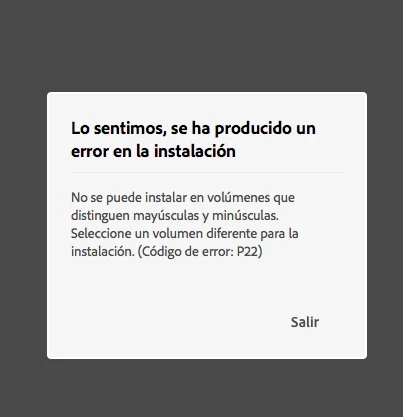
I have the same problem with adobe creative cloud, error p22, how can I choose another disk for installation? Thanks
This topic has been closed for replies.
Correct answer Bani Verma

(Branched out as a new discussion)

Hi Ángel%20Rivera,

As you have mentioned you are getting Error P22 when trying to install Adobe Creative Cloud apps on your machine.

You cannot install Adobe products on a volume that uses a case-sensitive file system, such as HSFX (HFS+) or UFS. This limitation applies to both the startup drive as well as the drive onto which the software is installed.

To know more about this see: Adobe error "Case-sensitive drives not supported" or similar install error | Mac OS.

You can install apps on a different drive of your machine however we would suggest you to install your application on the primary drive or C drive only.

You can configure the installation destination from within the Creative Cloud app preferences. Please be aware that there will still be shared resources stored to your primary drive, In addition during the install process temporary files will also be created on your primary drive.

Please see the screen shot below for more information:
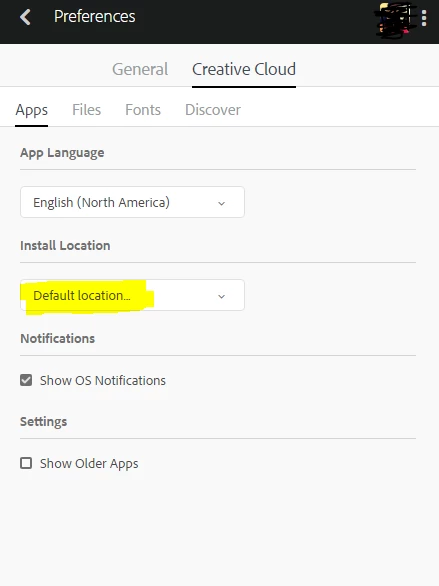
Note: If you have already installed apps then you'll have to uninstall them and make the location changes in Creative Cloud Desktop app, after that reboot the machine and now install your apps again and it should install on new selected location.

Let us know if this helps.

1 reply

Bani Verma
Bani VermaCorrect answer
Legend
November 21, 2017

(Branched out as a new discussion)

Hi Ángel%20Rivera,

As you have mentioned you are getting Error P22 when trying to install Adobe Creative Cloud apps on your machine.

You cannot install Adobe products on a volume that uses a case-sensitive file system, such as HSFX (HFS+) or UFS. This limitation applies to both the startup drive as well as the drive onto which the software is installed.

To know more about this see: Adobe error "Case-sensitive drives not supported" or similar install error | Mac OS.

You can install apps on a different drive of your machine however we would suggest you to install your application on the primary drive or C drive only.

You can configure the installation destination from within the Creative Cloud app preferences. Please be aware that there will still be shared resources stored to your primary drive, In addition during the install process temporary files will also be created on your primary drive.

Please see the screen shot below for more information:

Note: If you have already installed apps then you'll have to uninstall them and make the location changes in Creative Cloud Desktop app, after that reboot the machine and now install your apps again and it should install on new selected location.

Let us know if this helps.

casism
Participant
June 20, 2018

No, it does not help. Creative Cloud Desktop app also needs the same file system to be installed, so I cannot change the install location. We are paying for a product that does not work in the newest operative system for mac (thumbs up).

Jeffrey_A_Wright
Legend
June 20, 2018

Casism, it is not necessary to run macOS 10.12 or later using a case-sensitive file system.  You can find details on how to format the drive so that case-sensitive is no longer selected at Erase a volume using Disk Utility on Mac - Apple Support .  I would also recommend reviewing How to choose between APFS and Mac OS Extended when formatting a disk for Mac - Apple Support which provides additional guidance on the use of files systems with macOS High Sierra.