Participant
October 17, 2015
Answered

Réinstallation Lightroom 6

  • October 17, 2015
  • 1 reply
  • 641 views

Bonjour,

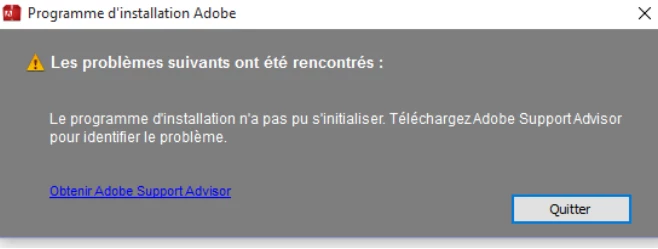
Suite à des erreurs de lecture vidéos j'ai désinstallé LR6. Je veux le réinstaller mais ça me donne le message d'erreur suivant:

Et le programme Support Advisor me renvoie dans une queue de poisson.

En bref je ne peux plus télécharger LR6! Et pourtant j'ai la clef du produit et le .exe.

Comment faire pour m'en sortir?

Merci à la bonne âme qui peut m'aider!

This topic has been closed for replies.
Correct answer kglad

start at the top and work your way down applying applicable fixes until your problem is resolved.

if cc (win):  https://helpx.adobe.com/creative-cloud/kb/creative-cloud-desktop-application-failed.html

if, your error is:

"Installer failed to initialize. File not found." or "Installer failed to initialize. This could be due to missing files."

first, rename OOBE Folder to OOBE.old.

to find OOBE:

64 bit win OS: Program Files x86\Common Files\Adobe\OOBE

32 bit win OS: Program Files \Common Files\Adobe\OOBE

mac os: HD>library>application support>adobe>caps

mac os: USER>library>application support>adobe>OOB

if that fails or isn't the exact error you see, uninstall, clean (http://www.adobe.com/support/contact/cscleanertool.html) and reinstall.

if you're using a dvd to install:

copy the disc contents to a desktop directory and install from that directory.

if you're using a mac:

1. Try to Create a new user account in Mac with Administrator Priviledges.

2. Login to the New user, Navigate to Mac HD> Application> Utilities> Adobe Installer folder, Locate products like Adobe Reader, Adobe Flash, Adobe Air and un-install them

3. Navigate to User Library> Application Support> Adobe and move Adobe to Trash.

4. Navigate to Mac HD> Library> Application Support> Adobe and move Adobe to Trash.

5. Start the installation again.

if everything applicable above fails, check your installation logs:

http://helpx.adobe.com/photoshop-elements/kb/troubleshoot-install-using-logs-elements.html
1 reply

kglad
Community Expert
kgladCommunity ExpertCorrect answer
Community Expert
October 17, 2015

start at the top and work your way down applying applicable fixes until your problem is resolved.

if cc (win):  https://helpx.adobe.com/creative-cloud/kb/creative-cloud-desktop-application-failed.html

if, your error is:

"Installer failed to initialize. File not found." or "Installer failed to initialize. This could be due to missing files."

first, rename OOBE Folder to OOBE.old.

to find OOBE:

64 bit win OS: Program Files x86\Common Files\Adobe\OOBE

32 bit win OS: Program Files \Common Files\Adobe\OOBE

mac os: HD>library>application support>adobe>caps

mac os: USER>library>application support>adobe>OOB

if that fails or isn't the exact error you see, uninstall, clean (http://www.adobe.com/support/contact/cscleanertool.html) and reinstall.

if you're using a dvd to install:

copy the disc contents to a desktop directory and install from that directory.

if you're using a mac:

1. Try to Create a new user account in Mac with Administrator Priviledges.

2. Login to the New user, Navigate to Mac HD> Application> Utilities> Adobe Installer folder, Locate products like Adobe Reader, Adobe Flash, Adobe Air and un-install them

3. Navigate to User Library> Application Support> Adobe and move Adobe to Trash.

4. Navigate to Mac HD> Library> Application Support> Adobe and move Adobe to Trash.

5. Start the installation again.

if everything applicable above fails, check your installation logs:

http://helpx.adobe.com/photoshop-elements/kb/troubleshoot-install-using-logs-elements.html

ylj33Author
Participant
October 17, 2015

Hi Kglad,

Thank you for you help. I was able to reinstall LR6, but it cannot start. I received following message:

I used to change the OOBE as you mentioned

How can I go further?

kglad
Community Expert
Community Expert
October 17, 2015
  1. On the Internet Explorer Tools menu, click Internet Options.
  2. In the Internet Options dialog box, click the Advanced tab.
  3. In the Security category, check Use TLS 1.0, Use TLS 1.1, and Use TLS 1.2 (if available).
  4. Note It is important to check consecutive versions. Not selecting consecutive versions (e.g. checking TLS 1.0 and 1.2, but not checking 1.1) could result in connection errors.
  5. Click OK