


MaxL23
Participant
January 3, 2016
Answered

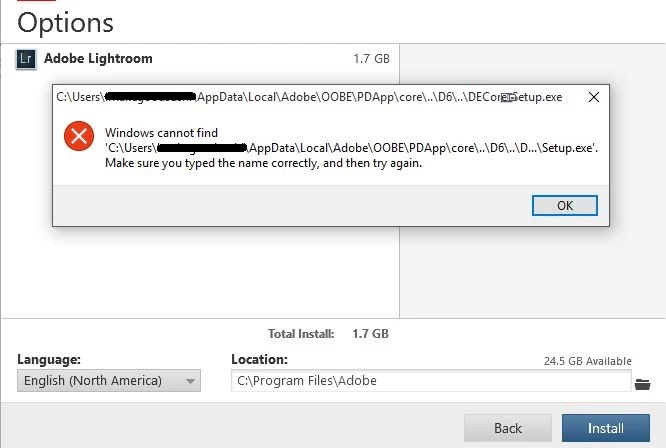
Setup file error - windows cannot find 'C:\Users\------\AppData\Local\Adobe\OOBE\PDapp\core\..\D6\..\D...\Setup.exe'

  • January 3, 2016
  • 2 replies
  • 21805 views

Every time I try to install an adobe application I get to the menu where you select the programs to install and install folder location and when I click "install" an error pops up saying "Windows cannot find 'C:\Users\[user]\AppData\Local\Adobe\OOBE\PDapp\core\..\D6\..\D...\Setup.exe'"

(I have had an issue with windows 10 where it doesn't recognise the file extension in the filename, so if I was able to find the file I might be able to fix the issue by renaming it to "setup.exe", but the folder/file in question doesn't exist)

This topic has been closed for replies.
Correct answer Atul_Saini

Kindly try to remove Adobe Application Manager using Cleaner tool and try to reinstall the product. In case that doesn't work, please rename OOBE folder from both the following location after removing Adobe Application Manager from cleaner tool and retry.


  • %localappdata%/Adobe
  • C:\Program Files (x86)\Common Files\Adobe\OOBE

2 replies

Participant
January 6, 2016

I have the same problem and cannot find a solution anywhere online.  I am attempting to upgrade from Lightroom 5 to Lightroom 6.  I did install a CC trial about six month back but have since uninstalled it.  I have also tried the Creative Cloud Cleanup tool as suggested in a related forum thread and that also did not work.

I've explored the AppData\Local\Adobe\OOBE\PDapp\  file directories, but the directory structure referenced in the error message doesn't exist.  Instead, under PDapp, the Setup.exe file is in the D6 folder.  The core folder contains reference files only.

I am running Windows 10.

Adobe?  Some help on this?

Atul_Saini
Community Manager
Atul_SainiCommunity ManagerCorrect answer
Community Manager
January 15, 2016

Kindly try to remove Adobe Application Manager using Cleaner tool and try to reinstall the product. In case that doesn't work, please rename OOBE folder from both the following location after removing Adobe Application Manager from cleaner tool and retry.


  • %localappdata%/Adobe
  • C:\Program Files (x86)\Common Files\Adobe\OOBE
Participant
November 14, 2023

Unfortunately attempting to "remove Adobe Application Manager using Cleaner tool" results in the same error for the cleaner tool file, and the "Acrobat_DC_Web_x64_WWMUI\Adobe Acrobat\setup.exe". Bizarre that other Adobe downloads cannot be found despite being in the downloads folder... 

John T Smith
Community Expert
Community Expert
January 3, 2016

You don't specify... Cloud or pre-Cloud programs?

An idea that MAY work to install and/or run old programs in Windows 10

-http://www.tenforums.com/tutorials/15523-compatibility-mode-settings-apps-change-windows-10-a.html

Win10 runtime https://www.microsoft.com/en-au/download/confirmation.aspx?id=30679 reinstall may help

Doing Run as Administrator http://forums.adobe.com/thread/969395 [says Encore and also for All Adobe programs] will sometimes fix "odd" or "permission" errors in Windows

MaxL23
MaxL23Author
Participant
January 3, 2016

Have tried both cloud and pre-cloud. Same error each time. And compatibility mode, run as admin, and Win10 runtime reinstall does nothing :/

(Thanks for the suggestions though)