Participant
July 7, 2015
Answered

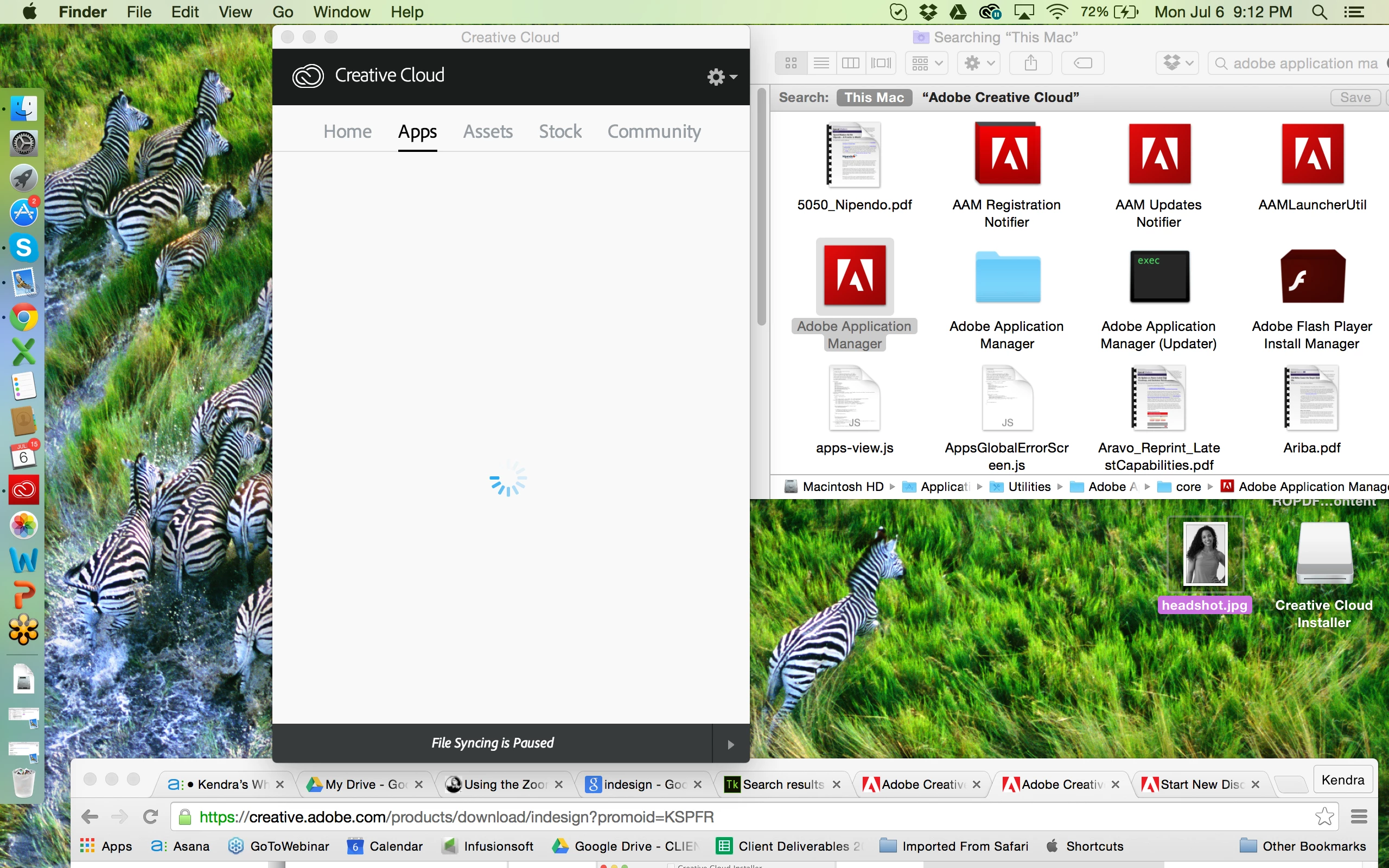
Trying to download indesign but apps to download are not appearing in creative cloud desktop app.

  • July 7, 2015
  • 2 replies
  • 628 views

Hi there! Please help.

I downloaded the Creative Cloud app and need to download the indesign app but when I click on the "apps" tab there are no app options listed to download. I have a strong internet connection, and also tried repowering my mac and reinstalling the app but still, nothing.  The Creative Cloud app screen keeps getting stuck (see photo below).  Any suggestions??? I've been dealing with this for over an hour with no luck.

This topic has been closed for replies.
Correct answer Bani Verma

Hi,

1- Click on the settings wheel on the top right corner of Creative Cloud app > preferences > sign out

2- Force Quit all Adobe related processes from Activity Monitor (eg- Creative Cloud, Core sync, CC library, Adobe Desktop Services, Adobe IPC broker, Adobe Crash daemon etc.)

3- Right click on Finder icon and  select "Go-To" Folder option.

You will get a text box, type-in below command and then hit 'Return' key.( " Do not miss ~ symbol " )

~/library ( It will open User Library folder. )

4- Then navigate to Application Support>Adobe> trash OOBE folder and AAM Updater folder as well

5- Go to Apple icon > System preferences > security and privacy > firewall > TURN OFF ( to do this you will have to click on the padlock in the left bottom corner of this machine and then enter your mac password)

6- Go to Apple icon > System preferences > security and privacy > General > Allow apps downloaded from should be on ANYWHERE

7- make sure there are no other Internet security program enabled - if not then go ahead and launch CC app and sign in and check

Hope this will help resolve the issue

Regards,

Bani
2 replies

Adobe Employee
July 7, 2015

Hi,

You could check this link to fix issue.

App doesn't open | Progress wheel spins continually

Regards

Akshey Malhotra

Bani Verma
Bani VermaCorrect answer
Legend
July 7, 2015

Hi,

1- Click on the settings wheel on the top right corner of Creative Cloud app > preferences > sign out

2- Force Quit all Adobe related processes from Activity Monitor (eg- Creative Cloud, Core sync, CC library, Adobe Desktop Services, Adobe IPC broker, Adobe Crash daemon etc.)

3- Right click on Finder icon and  select "Go-To" Folder option.

You will get a text box, type-in below command and then hit 'Return' key.( " Do not miss ~ symbol " )

~/library ( It will open User Library folder. )

4- Then navigate to Application Support>Adobe> trash OOBE folder and AAM Updater folder as well

5- Go to Apple icon > System preferences > security and privacy > firewall > TURN OFF ( to do this you will have to click on the padlock in the left bottom corner of this machine and then enter your mac password)

6- Go to Apple icon > System preferences > security and privacy > General > Allow apps downloaded from should be on ANYWHERE

7- make sure there are no other Internet security program enabled - if not then go ahead and launch CC app and sign in and check

Hope this will help resolve the issue

Regards,

Bani

Participant
July 7, 2015

You saved the day!!! Thank you so much.