Inspiring
April 3, 2026
Answered

unable to access to the apps in my creative cloud desktop

Hello,

I have no more access to the apps in my creative cloud desktop.

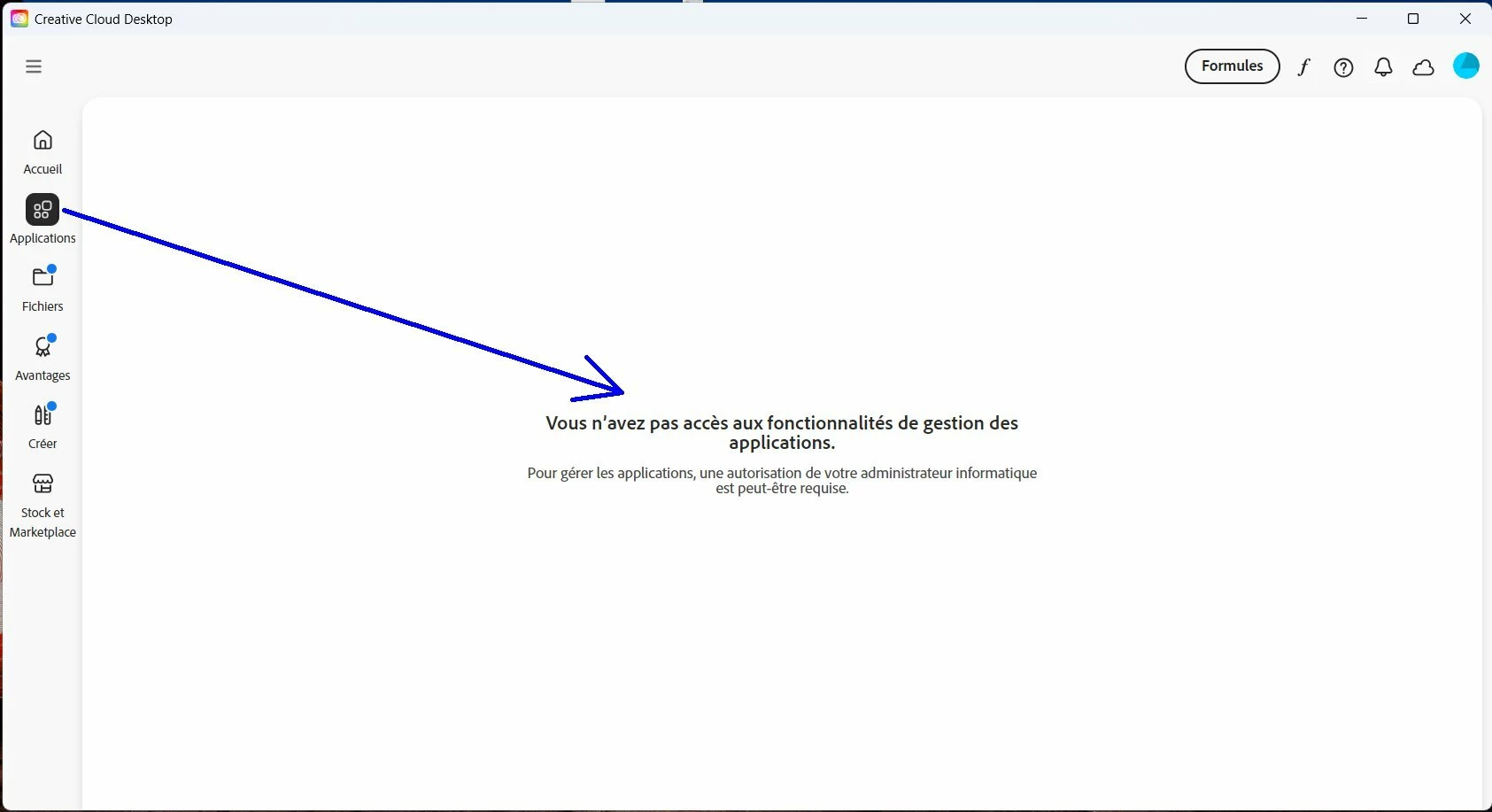
Creative cloud desktop says me (see screenshot) : "You do not have access to application management features. To manage applications, authorization from your IT administrator may be required."

Have you a solution in order to have access to the apps in the creative cloud desktop.


    Jeff_A_Wright
    Jeff_A_WrightCorrect answer
    Community Manager
    September 28, 2026

    Thread summary
    A poster has expressed concerns about their ability to access applications in the Creative Cloud desktop app. They encountered a message stating, "You do not have access to application management features. Authorization from your IT administrator may be required to manage applications." Upon checking the Apps tab in the Creative Cloud desktop app, they noticed that no applications were listed. 
    Troubleshooting steps / guidance mentioned by other participants

    • Nancy O'Shea (Community Expert) recommended alternating between personal and work/school accounts to ensure the app is signed in under the correct account type.
    • Kglad (Community Expert) inquired if any changes could have modified the app configuration value from true to false, leading the user to identify the FrameMaker 18.00 installation as the likely cause.

    Suggested solutions by Adobe

    1. Fully sign out of the Creative Cloud desktop app and then sign back in with the correct profile, ensuring you select the right personal or work/school account associated with your plan.
    Creative Cloud app prompts to sign in repeatedly for current versions
    2. Uninstall and reinstall the Creative Cloud desktop app. If the Apps tab is empty or app management remains disabled, the desktop app may be corrupted. Use the dedicated uninstaller to uninstall it.
    Uninstall Creative Cloud desktop app
    3. Edit the ServiceConfig.xml file to enable the App panel. If the ServiceConfig.xml is set to false, the app panel will be hidden.
    Customize using the ServiceConfig file
    4. Resolve a failed installation. If reinstalling the Creative Cloud app doesn't resolve the issue, or if the management features are unavailable, follow the troubleshooting steps for installation failures.
    Installation failed for Creative Cloud desktop app

     

    23 replies

    Jeff_A_Wright
    Community Manager
    Jeff_A_WrightCommunity ManagerCorrect answer
    Community Manager
    September 28, 2026

    Thread summary
    A poster has expressed concerns about their ability to access applications in the Creative Cloud desktop app. They encountered a message stating, "You do not have access to application management features. Authorization from your IT administrator may be required to manage applications." Upon checking the Apps tab in the Creative Cloud desktop app, they noticed that no applications were listed. 
    Troubleshooting steps / guidance mentioned by other participants

    • Nancy O'Shea (Community Expert) recommended alternating between personal and work/school accounts to ensure the app is signed in under the correct account type.
    • Kglad (Community Expert) inquired if any changes could have modified the app configuration value from true to false, leading the user to identify the FrameMaker 18.00 installation as the likely cause.

    Suggested solutions by Adobe

    1. Fully sign out of the Creative Cloud desktop app and then sign back in with the correct profile, ensuring you select the right personal or work/school account associated with your plan.
    Creative Cloud app prompts to sign in repeatedly for current versions
    2. Uninstall and reinstall the Creative Cloud desktop app. If the Apps tab is empty or app management remains disabled, the desktop app may be corrupted. Use the dedicated uninstaller to uninstall it.
    Uninstall Creative Cloud desktop app
    3. Edit the ServiceConfig.xml file to enable the App panel. If the ServiceConfig.xml is set to false, the app panel will be hidden.
    Customize using the ServiceConfig file
    4. Resolve a failed installation. If reinstalling the Creative Cloud app doesn't resolve the issue, or if the management features are unavailable, follow the troubleshooting steps for installation failures.
    Installation failed for Creative Cloud desktop app

     

    Translate
    Inspiring
    April 4, 2026

    Finally, I found the solution :

    1. Close the Creative Cloud Desktop application.
    2. Navigate to the following path:
      C:\Program Files (x86)\Common Files\Adobe\OOBE\configs
    3. Locate the file named serviceConfig.xml and copy it to your desktop.
    4. Open the file using a text editor such as Notepad.
    5. Update the value for “app panel” from FALSE to TRUE, then save the changes.
    6. Replace the original file in the same location with the modified file.
    7. Restart your computer
    Translate
    kglad
    Community Expert
    Community Expert
    April 4, 2026

    ​@pierret18811376 


    are you aware of anything that could have altered that value from true to false?

    Translate
    Inspiring
    April 4, 2026

    ​@kglad 

    In my case, I had this problem after having installed the last version of Adobe FrameMaker 18.00. I have noticed that this install was using as setup a “creative cloud packager”. So it seems that this installation has caused problems to the creative cloud desktop itself.

    Translate
    Nancy OShea
    Community Expert
    Community Expert
    April 3, 2026

    Switch between personal & work/school accounts.

    https://helpx.adobe.com/in/enterprise/kb/enterprise-id-faq.html


    Translate
    Nancy O'Shea— Product User & Community Expert
    kglad
    Community Expert
    Community Expert
    April 3, 2026

    sign out and then sign back in to your cc desktop app choosing the correct profile.

    Translate
    Inspiring
    April 3, 2026

    I gone in the creative cloud desktop app, then I sign out, then I sign in (with the correct profile), but if I go in the “app tab” of CC desktop, there is nothing displayed.

    Translate
    Tarun Saini
    Community Manager
    Community Manager
    April 3, 2026

    Hi ​@pierret18811376,


    Welcome to the community! We’re sorry to hear about this. Could you please let us know if you have an Individual, Teams, or Enterprise subscription?


    Regards,

    Tarun

    Translate