christianv60308384
Participant
January 8, 2018
Answered

Unable to uninstall old versions of adobe apps

  • January 8, 2018
  • 1 reply
  • 14314 views

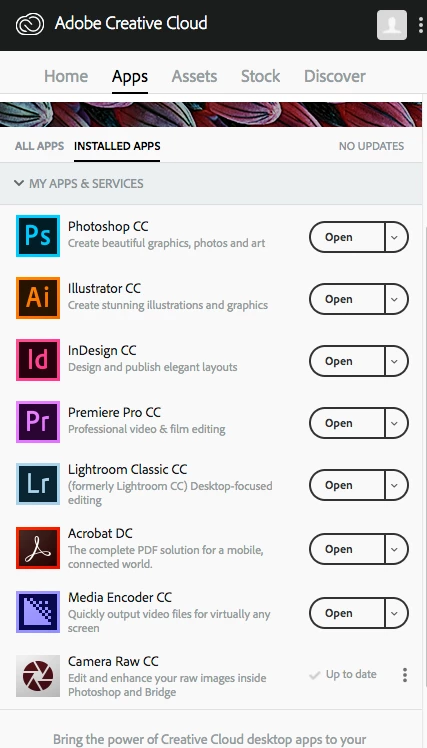
I have updated all my adobe apps to CC (2018), All apps are up to date in my creative cloud app. But in my applications folder I see all apps in both 2017 and 2018 versions. This takes up a lot of space on my computer. Old files default to 2017, and new files default to 2018 (indesign 2018 files wont open in 2017 etc) How can I uninstall the old versions (2017) when they are not listed in my creative cloud app?

This topic has been closed for replies.
Correct answer Bani Verma

I would recommend you to use the Cleaner tool to remove these apps: Use the Creative Cloud Cleaner Tool to solve installation problems , make sure you are selecting the correct version from the list to remove.

1 reply

Bani Verma
Community Manager
Community Manager
January 8, 2018

Hi Christianv60308384,

As you have mentioned you would like to uninstall the older versions of Creative Cloud apps, you may do that using your Creative Cloud desktop app.

Please launch your CC desktop app and go to settings wheel in the top right corner > Click 'Preferences' > Click 'Creative Cloud' > now click the check box for 'Show older apps'

Now go back to apps list and you should be able to see the older versions of Creative Cloud apps listed under it, you may now uninstall them.

Let us know if this helps.

christianv60308384
Participant
January 8, 2018

Hi Bani and thanks for your reply... I have tried this option, apps are still not showing in creative cloud desktop. I have also tried to sign out and sign back in...

Any other options?

C

Bani Verma
Community Manager
Bani VermaCommunity ManagerCorrect answer
Community Manager
January 16, 2018

I would recommend you to use the Cleaner tool to remove these apps: Use the Creative Cloud Cleaner Tool to solve installation problems , make sure you are selecting the correct version from the list to remove.