Known Participant
February 24, 2021
Answered

DW 19: Design View does not render pictures without image sizes in attributes correctly

  • February 24, 2021
  • 2 replies
  • 1595 views

I have the following HTML sourcecode:


<img src="example.jpg" width="400" height="600" alt="" />


The image is rendered correctly in the design view.

Now I apply CSS to it:


img { width: 30em; height: auto; } 


Result:
The value "30em" is rendered correctly, the value "auto" is ignored.

The rendered height of the picture is 600px.

How can I solve the task please?


In a browser the CSS works.


Thank you.

    This topic has been closed for replies.
    Correct answer Nancy OShea

    @436298


    Nancy, I know that Design View ist NOT a browser.

    Independent of that the intended functionality of the design view is, that CSS is interpreted in the Design View.


    At the moment nobody likes to confirm, that "height: auto" is ignored in the Design View. It's OK. But it would be helpful for the discussion, when someone could confirm that.

    Thanks for your suggestion, I really appreciate, that you like to help me.

    But I do not want to set a width to figure, but to img.

    Your wrote "AUTO does not change the height of your image."

    That is not true.

    When you use my complete code of the last posting in a browser, you get an automatically calculated height. Depending on 1em. That is the intended function of the value "auto".

    I do not say anymore, that that does not work in Design View.


    You say, that I my understanding of the value is not correct.


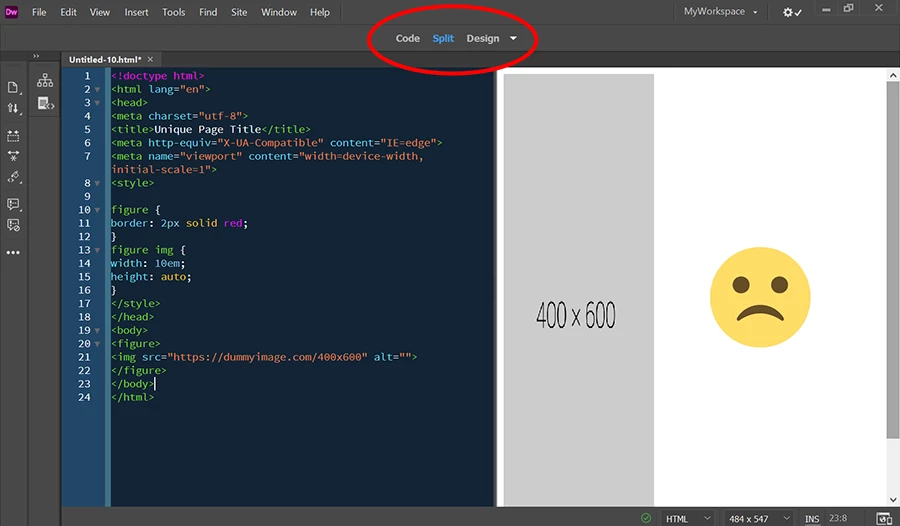
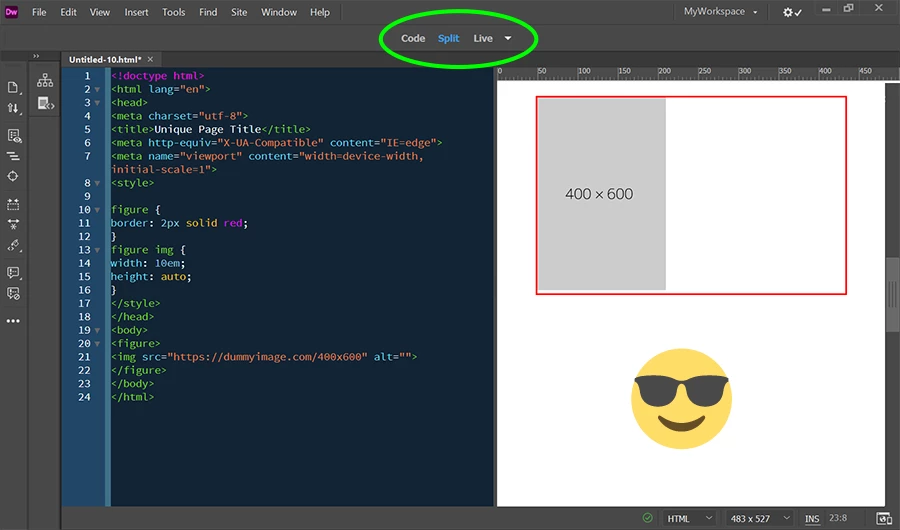
    Design view is a throwback to the old Macromedia days and is NOT capable of interpreting advanced  CSS level 2 and level 3 specs.  That's why Live view was created.  Use them both or not, your choice.  


    See screenshots below.


    Design view:
     

    Same code in Live view:
     

    I can give you lots of other examples where CSS rendering is hideous or ignored in Design view. 

     

    2 replies

    Nancy OShea
    Community Expert
    Community Expert
    February 24, 2021

    Resize images to required size & optimize them for the web beforehand with Photoshop or similar raster image editor.


    CSS

    .img-fluid {

        max-width:100%;

        height: auto;

        display:block;

        vertical-align: baseline;

    }


    HTML:

    <img class="img-fluid" src="https://dummyimage.com/600x400" alt="placeholder">


    Nancy O'Shea— Product User & Community Expert
    Known Participant
    February 24, 2021

    @436298

    Thanks for the suggestion.
    It is no option for me, because I need the width in the unit "em". And display: block does not fit my needs too.

    Can you reproduce, that the value "auto" for "height" is ignored in the design view?

    Nancy OShea
    Community Expert
    Community Expert
    February 24, 2021

    Forget about Design view.  The only thing that matters is how it looks in real browsers.

    What's the URL to your problem page please?


    As a working example, copy & paste this into a new, blank document.  Save and preview in browser.

    <!doctype html>
    <html lang="en">
    <head>
    <meta charset="utf-8">
    <title>Unique Page Title</title>
    <meta http-equiv="X-UA-Compatible" content="IE=edge">
    <meta name="viewport" content="width=device-width, initial-scale=1">
    <style>
    body {
    background: #555;
    width: 80%;
    color: #EAEAEA;
    margin: 0 auto;
    }
    .img-fluid {
    max-width: 100%;
    height: auto;
    vertical-align: baseline;
    }
    
    .img-full-size {
    width: 100%;
    height: auto;
    vertical-align: baseline;
    }
    </style>
    </head>
    <body>
    <nav>NAVIGATION GOES HERE</nav>
    <header>
    <h1>My Awesome Website</h1>
    <h2>Some Pithy Slogan...</h2>
    </header>
    <hr>
    <main>
    <h3>Image Fluid (no distortion)</h3>
    <img class="img-fluid" src="https://dummyimage.com/600x400" alt="placeholder">
    
    <h3>Image Full-size (distorted)</h3>
    <img class="img-full-size" src="https://dummyimage.com/600x400" alt="placeholder">
    <p>Lorem ipsum dolor sit amet, consectetur adipisicing elit. Nemo optio porro velit, accusamus, consequuntur architecto! Explicabo ipsa cupiditate provident. Illum, aut, commodi? Voluptates</p>
    </main>
    <hr>
    <footer> Footer goes here... </footer>
    </body>
    </html>


    Nancy O'Shea— Product User & Community Expert
    Legend
    February 24, 2021


    Just remove the width and height from the image tag, as below. The width/height are not needed as you are defining the width and height using css:


    <img href="example.jpg" alt="" />


    Known Participant
    February 24, 2021

    @osgood_ 

    Removing the width and height attributes has no effect for the described problem.

    Can someone reproduce my problem?