



Galeodan
Known Participant
May 5, 2021
Question

How do I control varying page content width?

  • May 5, 2021
  • 3 replies
  • 2434 views

I'm thinking that most of my pages contents do not need full width in the body of each page. But I would like to have full-width page headings, perhaps even some full-width elements in a page that is limited to say 1200px wide.  Something like this:
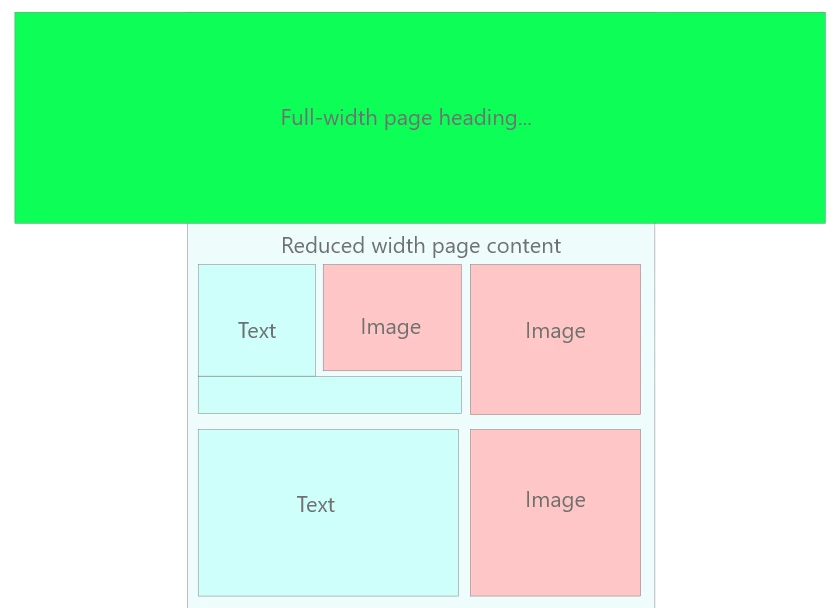
If I set a reduced body width, 

        body {
            max-width1200px;
            margin-left: auto;
            margin-right: auto;
            etc...................
        }

How do I then override this for a full-width element?

.fullwidthheader {

          something to override and set body width to 100% only for this class

          }

If this isn't on, what's the best alternative? Do I set body width to 100% and then put all the content in a reduced-width container?

        .pagecontent {
            max-width1200px;
            margin-left: auto;
            margin-right: auto;
            etc...................
        }


    This topic has been closed for replies.

    3 replies

    B i r n o u
    Adobe Expert
    May 5, 2021

    to get a full width you can use 100vw as value,

    .fullwidth {
        width: 100vw;
    }

     more infos on https://developer.mozilla.org/en-US/docs/Learn/CSS/Building_blocks/Values_and_units

    Galeodan
    GaleodanAuthor
    Known Participant
    May 5, 2021

    The reason I am using max-width in pixels, rather than %, is that I want the content to stay the same width (1200px) and only start shrinking when the screen width gets down to 1200px, I don't think I can get that behaviour using % or vw.

    Nancy OShea
    Adobe Expert
    May 5, 2021

    I think you're being short sighted to users with 3600px wide and higher displays.  On 4-5K monitors, 1200px looks like a postage stamp.


    If anyone's interested, Bootstrap's full-width class is "container-fluid."   For less than full width, use the "container" class.  


    EXAMPLE:


    CODE:

    <!doctype html>
    <html lang="en">
    <head>
    <meta charset="utf-8">
    <title>Bootstrap 4.5 Starter Page</title>
    <meta http-equiv="X-UA-Compatible" content="IE=edge">
    <meta name="viewport" content="width=device-width, initial-scale=1">
    
    <!--Bootstrap 4.5 on CDN-->
    <link href="https://stackpath.bootstrapcdn.com/bootstrap/4.5.0/css/bootstrap.min.css" rel="stylesheet" type="text/css">
    
    
    <style>
    /**some custom styles to keep a bottom footer on short pages**/
    body {
    min-height: 100vh;
    background: url( https://placeimg.com/1000/900/nature?t=1531616140833) no-repeat center center fixed;
    background-size: cover;
    }
    .flex-grow { flex: 1; }
    </style>
    </head>
    
    <body class="d-flex flex-column">
    
    <header class="container-fluid bg-info text-light p-4">
    <div class="row">
    <div class="col">
    <h1 class="text-center">Bootstrap 4.5. in Dreamweaver</h1>
    </div>
    </div>
    </header>
    
    
    <main class="container flex-grow bg-light">
    <div class="row">
    <div class="col m-5 p-4">
    <p>Main content goes here...</p>
    </div>
    </div>
    </main>
    
    
    <footer class="container-fluid text-center bg-info text-light p-4">
    <div class="row">
    <div class="col">
    <p>Some footer text here...</p>
    </div>
    </div>
    </footer>
    
    <!--First jQuery, popper, then Bootstrap JS--> 
    <script src="https://code.jquery.com/jquery-3.5.1.min.js" integrity="sha256-9/aliU8dGd2tb6OSsuzixeV4y/faTqgFtohetphbbj0=" crossorigin="anonymous"></script> 
    <script src="https://cdnjs.cloudflare.com/ajax/libs/popper.js/1.14.7/umd/popper.min.js"></script>
    <script src="js/popper.min.js"></script>
    <script src="https://stackpath.bootstrapcdn.com/bootstrap/4.5.0/js/bootstrap.min.js"></script>
    </body>
    </html>


    Nancy O'Shea— Product User, Community Expert &amp; Moderator
    Brainiac
    May 5, 2021

    In the example you show use the second approach if you want to set a specific 'section' of your page content to a max-width;


       .pagecontent {
                max-width1200px;
                margin-left: auto;
                margin-right: auto;
                etc...................
            }
     
    That then allows other content/containers to consume the maximum width of the 'body' if necessary.
     
    However consider that 1200px may look very small on a large screen so maybe consider setting the max width in % percent.
     
    Personally I hardly ever set width/padding/margin on the body tag.
    Nancy OShea
    Adobe Expert
    May 5, 2021

    Stop working with pixels.


    Use % throughout. 


    To fill the screen with your banner image, use width:100%.  But keep in mind that a low res JPG or PNG  banner that is upscaled beyond its native file size will look very pixelated on larger displays.  But if you use SVG images instead of rasters, you won't have that problem because SVGs are math-based instead of pixel-based. See screenshot.


    Vectors are ideal for non-photographic, flat images like icons, logos, drawings, comics, text, infographics and digital images made in Illustrator or Inkscape.


    Nancy O'Shea— Product User, Community Expert &amp; Moderator