Known Participant
February 1, 2025
Answered

How to stack images destined to be displayed as a slideshow?

  • February 1, 2025
  • 3 replies
  • 1206 views

Hi,
I wonder if anyone could offer a solution to this:

I added images that change automatically as a slide show on a page, using the descriptive found here:

https://stackoverflow.com/questions/46519126/how-to-randomize-the-slideshow-image-in-html

The action works well. But the problem is that the 4 images, 350px wide, appear side by side in the page layout in Dreamweaver, and blow up the page layout. Adding more images would just be impossible.

I suspect that the action described above is based on images linked to an external website and not hosted locally, and therefore they do not show up in the layout. Mine are on my computer.


I wonder if there is a way to stack images in the preview, as there is for instance a possibility to reduce the code to one line for a set of lines in code view? I'm not very knowledgeable I must say.


Just as a note, although a Creative Cloud user, I'm still using DW CS6 due to many Spry collapsible panels in my pages.


Thank you.
Paul


    Correct answer Nancy OShea

    Thank you Nancy, here is a link. But as I mentioned, you probably won't see what is problematic unless you copy the contents in a blank page in DW and perhaps link substitute images, IMHO.

    https://paulschilliger.com/Sanstitre-1.html


    OK. Start by fixing these 30 HTML Code Validation Errors

    https://validator.w3.org/nu/?doc=https%3A%2F%2Fpaulschilliger.com%2FSanstitre-1.html

    And 7 invalid CSS Properties

    https://jigsaw.w3.org/css-validator/validator?profile=css3&warning=0&uri=https%3A%2F%2Fpaulschilliger.com%2FSanstitre-1.html


    Or simply create a new, blank document. 

    Go to File > New > New Document > HTML > HTML5.

    Hit the CREATE button.
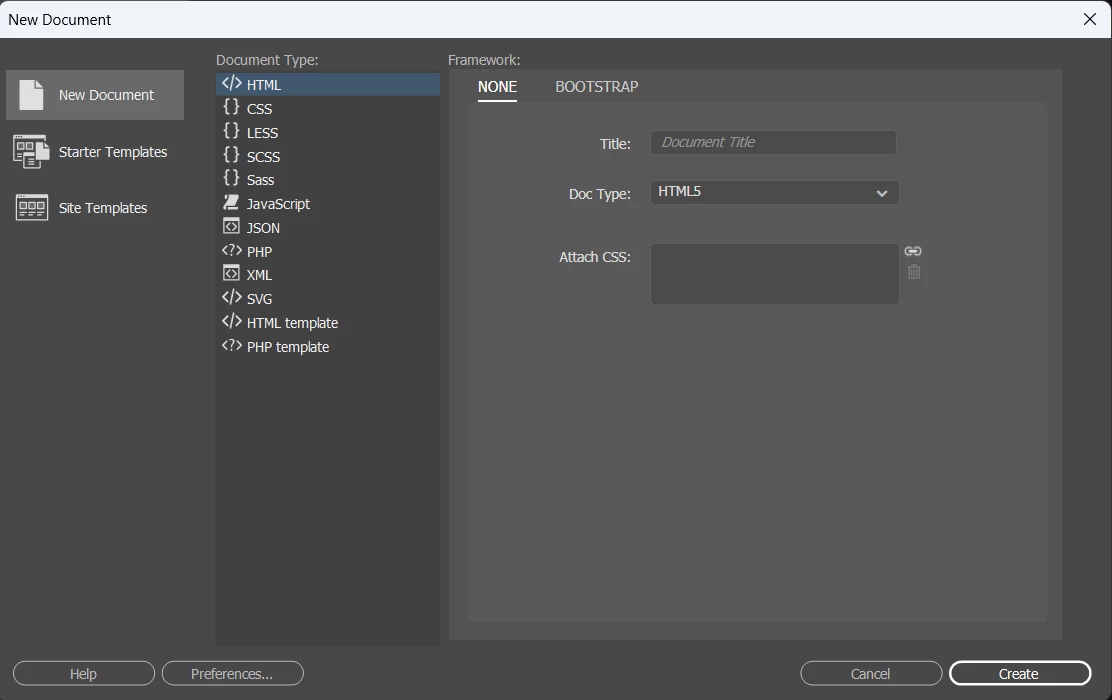


    In CODE view, Remove & Replace everything with this responsive layout code.

    <!doctype html>
    <html lang="en">
    <head>
    <meta charset="utf-8">
    <title>Responsive Layout, CSS Grid</title>
    <meta name="viewport" content="width=device-width, initial-scale=1">
    <style>
    body {
    width: 85%; 
    margin: 0 auto;
    background-color:antiquewhite;
    color:#372602; 
    font-family: Calibri, Candara, Segoe, Segoe UI, Optima, Arial, sans-serif;
    font-size: calc(16px + 1vw);
    line-height: calc(1.1em + 0.5vw);
    }
    
    /**linked text**/
    a:link {color:darkred; text-decoration:none}
    a:visited {color:darkgray;}
    a:hover, a:active, a:focus {color:crimson; text-decoration: underline}
    
    .grid-container { 
    display: grid;
    grid-column-start: col 1;
    grid-gap: 5px;
    grid-template-columns: repeat(auto-fit, minmax(300px, 1fr));
    grid-template-rows: repeat(auto-fit, 1fr);
    }
    
    .grid-container img {
    vertical-align: baseline;
    max-width: 100%;
    height: auto;
    }
    </style>
    </head>
    <body>
    <main>
    <div class="row">
    <p>Lorem ipsum dolor sit amet, consectetur adipisicing elit. Eum consequuntur numquam eaque deserunt repudiandae optio dolores soluta voluptate quaerat, incidunt assumenda aperiam vitae unde reprehenderit, voluptas minima ducimus tempore, etc.</p>
    </div>
    </main>
    
    <h2>CSS Grid Test</h2>
    <div class="grid-container">
    <!--unordered list-->
    <ul>
    <li><a href="#">Linked Text</a></li> 
    <li><a href="#">Linked Text</a></li> 
    <li><a href="#">Linked Text</a></li>
    </ul>
    <!--Slideshow Slides-->
    <div class="slideshow-container">
    <img class="mySlides fade" src="https://dummyimage.com/650x490/000/EAE" alt="placeholder">
    
    <img class="mySlides fade" src="https://dummyimage.com/650x490/FFF/555" alt="placeholder">
    
    <img class="mySlides fade" src="https://dummyimage.com/650x490/000/F0F" alt="placeholder">
    
    <img class="mySlides fade" src="https://dummyimage.com/650x490/FFF/F00"  alt="placeholder">
    
    <img class="mySlides fade" src="https://dummyimage.com/650x490/000/FF0" alt="placeholder">
    
    <img class="mySlides fade" src="https://dummyimage.com/650x490/000/EAE" alt="placeholder">
    
    <img class="mySlides fade" src="https://dummyimage.com/650x490/FFF/555" alt="placeholder">
    
    <img class="mySlides fade" src="https://dummyimage.com/650x490/000/F0F" alt="placeholder">
    
    <img class="mySlides fade" src="https://dummyimage.com/650x490/FFF/F00"  alt="placeholder">
    
    <img class="mySlides fade" src="https://dummyimage.com/650x490/000/FF0" alt="placeholder">
    <!--end slideshow--></div>
    <!--end container--></div>
    
    <!--slideshow script-->
    <script>
    var slideIndex = 0;
    showSlides();
    function showSlides() {
        var i;
        var slides = document.getElementsByClassName("mySlides");
        for (i = 0; i < slides.length; i++) {
            slides[i].style.display = "none"; 
        }
        slideIndex++;
        if (slideIndex> slides.length) {slideIndex = 1} 
        slides[slideIndex-1].style.display = "block"; 
        setTimeout(showSlides, 6000); // Change image every 6 seconds
    }
    </script>
    </body>
    </html>


    This works in LIVE or DESIGN View in Dreamweaver.
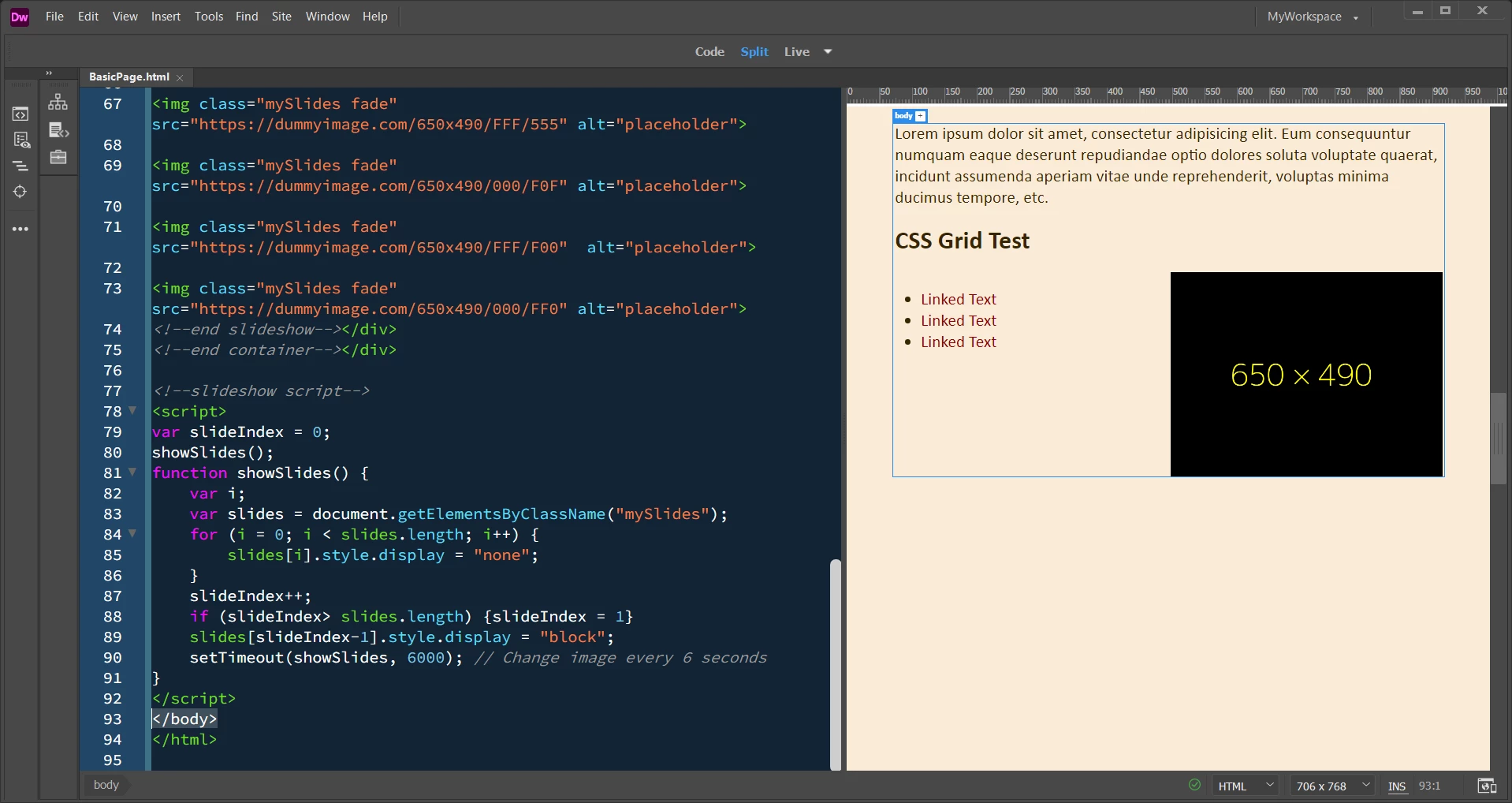
     

    No tables were used & no animals were harmed.

     

    3 replies

    alpshikerAuthor
    Known Participant
    February 9, 2025

    Thank you again for your suggestions in helping me sort this layout problem I had with an image slide show. Since I am now asked by the forum community if my problem is solved, here is the short answer.


    It was suggested that I start from new HTML5 page to see if this worked out better. Indeed, this solved the problem. In fact, after exploring the code, I realised that some of my pages lacked the introductory tag:


    After adding the missing line, all my pages work now as they should, even if many elements are still outdated or marked as errors and should be renewed.

    So yes, my problem is solved, and I thank you both wholeheartedly!


    Nancy OShea
    Community Expert
    Community Expert
    February 1, 2025

    What's the URL to your site where it's not working?


    By default, <div> tags are treated as block-level elements by browsers.

    If yours are displaying inline, then something else in your code is making that happen.  That's not the slideshow's problem. That's a problem with where you're inserting it.  Try testing the slideshow on a fresh, blank HTML page.


    Nancy O'Shea— Product User & Community Expert
    alpshikerAuthor
    Known Participant
    February 1, 2025

    Oh I'm sorry, I may have not explained things correctly since all who read my question understand that it's not working. The script is actually working perfectly. My question is with fitting this slide show container in the DW page locally, without stretching the layout. The page still works and displays at the fixed width in the browser, but in the composition or layout view it overflows from the 800 px set for the page to quickly double the page width.

    I wonder if there would be a way to add images to the slideshow without having that. Maybe just having them linked to the remote server as in the Stackoverflow example ?

    Nancy OShea
    Community Expert
    Community Expert
    February 1, 2025

    Post your URL so we can see what's going on. 


    Nancy O'Shea— Product User & Community Expert
    BenPleysier
    Community Expert
    Community Expert
    February 1, 2025

    There does not seem to be a problem using the code as per StackOverflow.


    https://www.youtube.com/watch?v=CkHNoNfzZak

    Wappler is the DMXzone-made Dreamweaver replacement and includes the best of their powerful extensions, as well as much more!
    alpshikerAuthor
    Known Participant
    February 1, 2025

    Thank you, I appreciate your effort in posting this!

    Maybe I will add some screenshots later to explain what happens in my layout.

    I suspect that I am building with blocks that are not supposed to work together, hence the stretch.

