

kineticcreative123
Inspiring
January 16, 2020
Answered

need help with image grid

  • January 16, 2020
  • 2 replies
  • 1444 views

Hello,

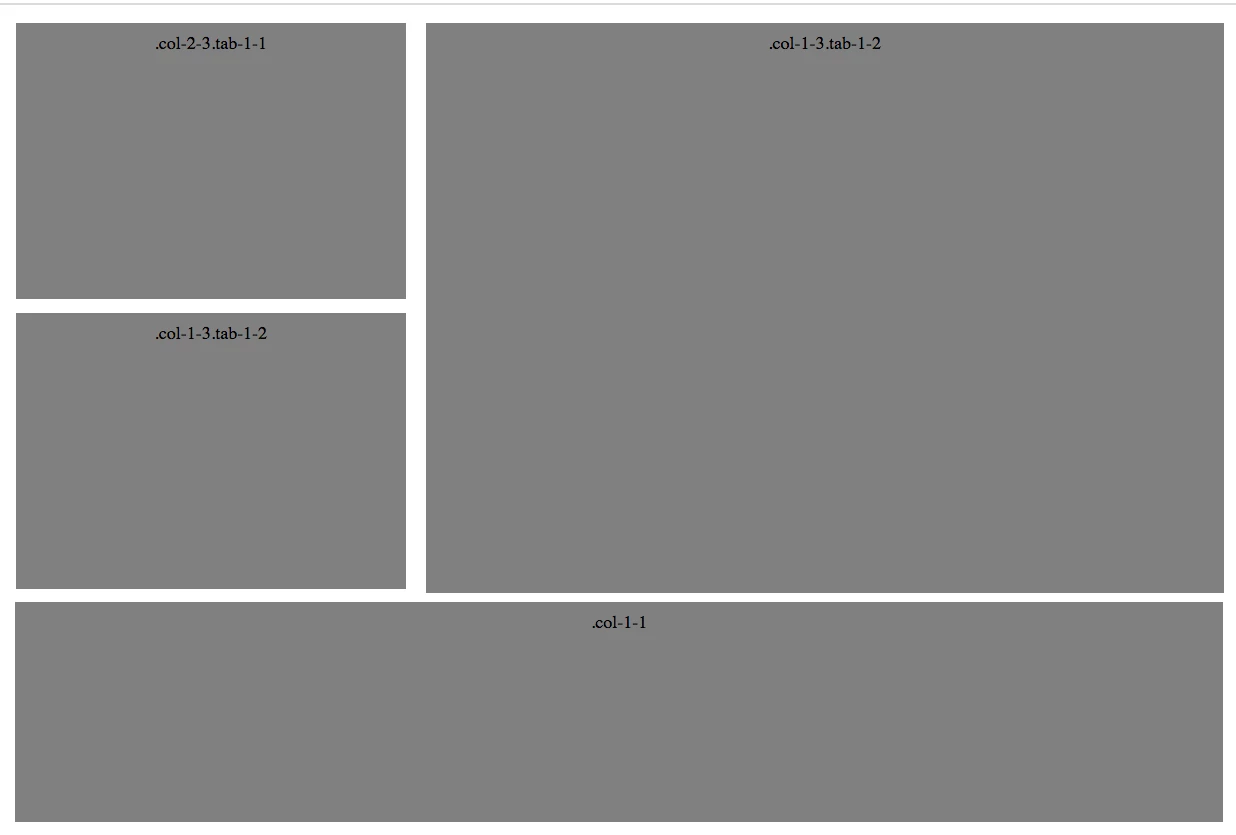
I am building a simple image grid and one of the the divs is getting pushed down due to the height of the div next to it. How can I get it to move up like the image attached? If you view my code you will see how it's pushed down. 


Thank you for any help.


<!DOCTYPE html>
<html lang="en" >
<head>
  <meta charset="UTF-8">
 
  <style>
	.grid {
  background: white;
}
.grid:after {
  content: "";
  display: table;
  clear: both;
}

[class*='col-'] {
  float: left;
}

.col-1-1 {
  width: 100%;
}

.col-3-4 {
  width: 75%;
}

.col-2-3 {
  width: 33.33%;
}

.col-1-3 {
  width: 66.66%;
}

.col-1-2 {
  width: 50%;
}

.col-1-4 {
  width: 25%;
}

.col-1-8 {
  width: 12.5%;
}
.module {
 
  margin: 10px;
  height: auto;
  text-align: center;
}


@media (max-width: 800px) {
  .tab-1-1 {
    width: 100%;
  }

  .tab-3-4 {
    width: 75%;
  }

  .tab-2-3 {
    width: 66.66%;
  }

  .tab-1-3 {
    width: 33.33%;
  }

  .tab-1-2 {
    width: 50%;
  }

  .tab-1-4 {
    width: 25%;
  }

  .tab-1-8 {
    width: 12.5%;
  }
}
@media (max-width: 400px) {
  [class*='col-'] {
    width: 100%;
  }
}</style>

</head>
<body>
<!-- partial:index.partial.html -->
<div class='grid'>
  <div class='col-2-3 tab-1-1'>
    <div class='module'><img style="width:100%" src="https://campaigns.premierinc.com/images/content/191125_TML_PioneersTest_272_COMP.jpg"></div>
  </div>
  <div class='col-1-3 tab-1-2'>
    <div class='module'><img style="width:100%" src="https://campaigns.premierinc.com/images/content/191125_TML_PioneersTest_123_COMP.jpg"></div>
  </div>
  <div class='col-2-3 tab-1-1'>
    <div class='module'><img style="width:100%" src="https://campaigns.premierinc.com/images/content/191125_TML_PioneersTest_272_COMP.jpg"></div>
	</div>
  <div class='col-1-1'>
    <div class='module'><img style="width:100%" src="https://campaigns.premierinc.com/images/content/city.jpg"></div>
  </div>
</div>


</body>
</html>


This topic has been closed for replies.
Correct answer Jon Fritz

You make it responsive by changeing the columns and rows of each element in the grid property of the .grid-container class inside a Media Query. For example, here's a quick one for 600 pixel width (I also added some artificial heights since I don't have images)...

<!doctype html>
<html lang="en-us">
<head>
<meta charset="utf-8">
<meta http-equiv="X-UA-Compatible" content="IE=edge">
<meta name="viewport" content="width=device-width, initial-scale=1.0" />
<title>Grid</title>
<style>
* {
-webkit-text-size-adjust:100%;
-webkit-box-sizing:border-box;
box-sizing:border-box;
padding:0;
margin:0;
}
a img {
border:none;
}
img {
display:block;
}
.grid-container {
max-width:980px;
margin:0 auto;
display:grid;

/* each quoted set of grid-area names represents a row*/
/* each grid-area name represents the content the column in a row*/

grid:
"upperleft main main main"
"upperleftbottom main main main"
"bottom bottom bottom bottom";

/*you can space them out so they're easier to understand*/

grid-gap:6px;
background-color:orange;
}
.grid-container>div {
background-color:lightgoldenrodyellow;
}
.grid-container>div img {
max-width:100%;
}

/* use classes to give each grid-area an easy name to add to the grid property above */

.item1 {
grid-area: upperleft;
height:40vh;
}
.item2 {
grid-area: upperleftbottom;
height:40vh;
}
.item3 {
grid-area: main;
height:calc(80vh + 6px);
}
.item4 {
grid-area: bottom;
height:20vh;
}
@media screen and (max-width:600px) {
.grid-container {
grid:
"upperleft"
"upperleftbottom"
"main"
"bottom";
}

}
</style>
</head>

<body>
<div class="grid-container">
<div class="item1">
Upper Left
</div>
<div class="item2">
Upper Left Bottom
</div>
<div class="item3">
Main Area
</div>
<div class="item4">
Bottom
</div>
</div>
</body>
</html>


2 replies

Nancy OShea
Community Expert
Community Expert
January 16, 2020

I don't know why you're still using floats.  These kinds of problems are exactly what we hated about them and why we switched to CSS Flexbox and CSS Grids.  Maybe it's also worth mentioning that Bootstrap 4 replaced floats with Flexbox. 


Nancy O'Shea— Product User & Community Expert
Jon Fritz
Community Expert
Community Expert
January 16, 2020

Have you tried using CSS Grid?

It makes this much easier...


<!doctype html>
<html>
<head>
<meta charset="utf-8">
<title>Quick Grid</title>
<style>
* {
-webkit-text-size-adjust:100%;
-webkit-box-sizing:border-box;
box-sizing:border-box;
padding:0;
margin:0;
}
a img {
border:none;
}
img {
display:block;
}
.grid-container {
max-width:980px;
margin:0 auto;
display:grid;

/* each quoted set of grid-area names represents a row*/
/* each grid-area name represents the content the column in a row*/

grid:
'upperleft               main        main       main'
'upperleftbottom    main        main       main'
'bottom                   bottom    bottom    bottom';

/*you can space the above out so they're easier to understand using tabs or spaces*/

grid-gap:6px;
background-color:orange;
}
.grid-container>div {
background-color:lightgoldenrodyellow;
}
.grid-container>div img {
max-width:100%;
}

/* use classes to give each grid-area an easy name to add to the grid property above */

.item1 { grid-area: upperleft; }
.item2 { grid-area: upperleftbottom; }
.item3 { grid-area: main; }
.item4 { grid-area: bottom; }

</style>
</head>

<body>
<div class="grid-container">
<div class="item1">
Upper Left
</div>
<div class="item2">
Upper Left Bottom
</div>
<div class="item3">
Main Area
</div>
<div class="item4">
Bottom
</div>
</div>
</body>
</html>

kineticcreative123
Inspiring
January 16, 2020

Hi John,

Thank you for the recommendation but this needs to be responsive to where the blocks drop like my example. Ideally I would just like to fix the code I have.

Jon Fritz
Community Expert
Jon FritzCommunity ExpertCorrect answer
Community Expert
January 16, 2020

You make it responsive by changeing the columns and rows of each element in the grid property of the .grid-container class inside a Media Query. For example, here's a quick one for 600 pixel width (I also added some artificial heights since I don't have images)...

<!doctype html>
<html lang="en-us">
<head>
<meta charset="utf-8">
<meta http-equiv="X-UA-Compatible" content="IE=edge">
<meta name="viewport" content="width=device-width, initial-scale=1.0" />
<title>Grid</title>
<style>
* {
-webkit-text-size-adjust:100%;
-webkit-box-sizing:border-box;
box-sizing:border-box;
padding:0;
margin:0;
}
a img {
border:none;
}
img {
display:block;
}
.grid-container {
max-width:980px;
margin:0 auto;
display:grid;

/* each quoted set of grid-area names represents a row*/
/* each grid-area name represents the content the column in a row*/

grid:
"upperleft main main main"
"upperleftbottom main main main"
"bottom bottom bottom bottom";

/*you can space them out so they're easier to understand*/

grid-gap:6px;
background-color:orange;
}
.grid-container>div {
background-color:lightgoldenrodyellow;
}
.grid-container>div img {
max-width:100%;
}

/* use classes to give each grid-area an easy name to add to the grid property above */

.item1 {
grid-area: upperleft;
height:40vh;
}
.item2 {
grid-area: upperleftbottom;
height:40vh;
}
.item3 {
grid-area: main;
height:calc(80vh + 6px);
}
.item4 {
grid-area: bottom;
height:20vh;
}
@media screen and (max-width:600px) {
.grid-container {
grid:
"upperleft"
"upperleftbottom"
"main"
"bottom";
}

}
</style>
</head>

<body>
<div class="grid-container">
<div class="item1">
Upper Left
</div>
<div class="item2">
Upper Left Bottom
</div>
<div class="item3">
Main Area
</div>
<div class="item4">
Bottom
</div>
</div>
</body>
</html>