Known Participant
October 28, 2022
Answered

problem in scrolling

  • October 28, 2022
  • 2 replies
  • 1868 views

Hello friends

I have a question.

I'm using this code for a website I'm building.

It works. But there is something that bothers me.

When I scroll down the window a little, there is a kind of "jump" downwards. What do I need to change in the code so that it doesn't exist?


<!DOCTYPE html>

<html>

<head>

<title>Sticky Navbar</title>

<style>

body {

margin: 0;

}

.fixit {

position: fixed;

top: 0;

}

.main_navigation {
background-color: #000;
width: 200px;
color: #fff;
}

.main_navigation h3 {

margin: 0;


}

header, .content {

width: 85%;

margin: 0 auto;

}

</style>

</head>

<body>

<script src="http://code.jquery.com/jquery-1.10.2.min.js"></script>

<script>

$(document).ready(function() {

var fixit = "fixit";

var height = $('header').height();

$(window).scroll(function() {

if ($(this).scrollTop() > height) {

$(".main_navigation").addClass(fixit);

} else {

$(".main_navigation").removeClass(fixit);

}

});

});

</script><!-- end header -->

<nav class="main_navigation">
<table width="200" border="0" cellpadding="0" cellspacing="0">
<tbody>
<tr>
<td>Navigation goes here <a href="#link1">בב</a></td>
</tr>
</tbody>
</table>
</nav>
<table width="200" border="0" cellpadding="0" cellspacing="0">
<tbody>
<tr>
<td height="244" bgcolor="#9D4446"><p>&nbsp;</p>
<p>ב</p>
<p>ב</p>
<p>ב</p>
<p>בב</p>
<p>ב</p>
<p>ב</p>
<p>ב</p>
<p>ב</p>
<p>ב</p>
<p>ב</p>
<p>ב</p>
<p>ב</p>
<p>ב</p>
<p>ב</p>
<p>ב</p>
<p>בב</p>
<p>ב</p>
<p>ב</p>
<p>ב</p>
<p>ב</p>
<p>ב</p>
<p>ב</p>
<p id="link1">&nbsp;</p>
<p>&nbsp;</p>
<p>This is a line of <strong>3333</strong></p>
<p>ב</p>
<p>ב</p>
<p>&nbsp;</p></td>
</tr>
</tbody>
</table>
<p>&nbsp;</p>
<p>&nbsp;</p>
<p>&nbsp;</p>
<p>&nbsp;</p>
<p>&nbsp;</p>
<p>&nbsp;</p>
<p>&nbsp;</p>
<p>&nbsp;</p>
<p>&nbsp;</p>
<p>&nbsp;</p>
<p>&nbsp;</p>
<p>&nbsp;</p>
<p>&nbsp;</p>
<p>&nbsp;</p>
<p>&nbsp;</p>
<p>&nbsp;</p>
<p>&nbsp;</p>
<p>&nbsp;</p>
<p>&nbsp;</p>
<p>&nbsp;</p>
<p>&nbsp;</p>
<p>&nbsp;</p>
<p>&nbsp;</p>
<p>&nbsp;</p>
<p>&nbsp;</p>
<p>&nbsp;</p>
<p>&nbsp;</p>
<p>&nbsp;</p>
</body>

</html>

    This topic has been closed for replies.
    Correct answer Nancy OShea
    Thanks, looks good
    Is it possible for the menu to open downwards?

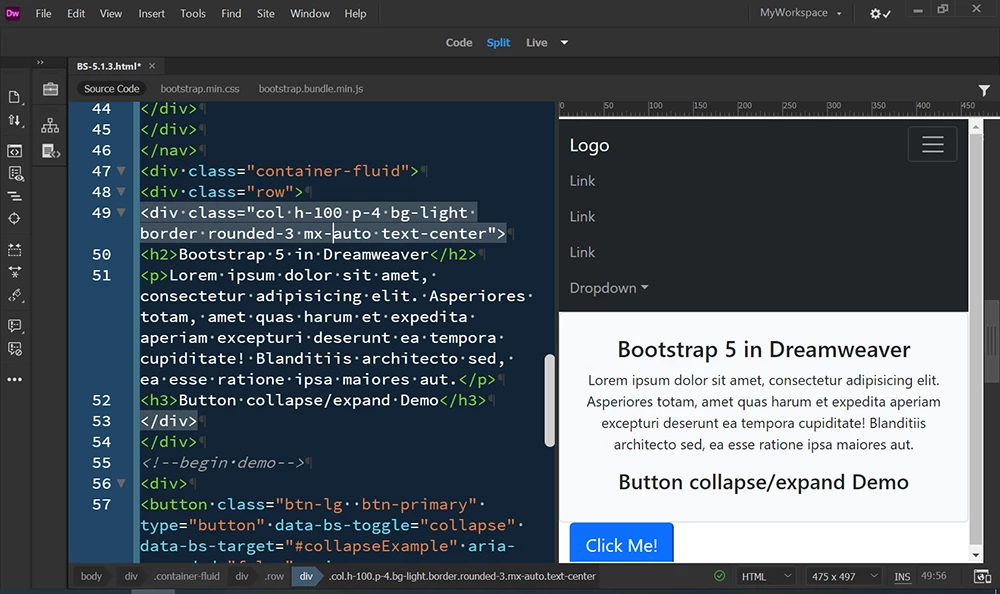
    By default, Bootstrap's navbar bar does exactly what you want -- sticky-top, black background, hamburger menu on mobile.


    Copy & paste this code into a new, blank document.  Save & preview in browsers.

    <!doctype html>
    <html lang="en">
    <head>
    <title>Bootstrap 5.1.3 Example</title>
    <meta charset="utf-8">
    <meta name="viewport" content="width=device-width, initial-scale=1">
    
    <!--latest minified Bootstrap CSS-->
    <link href="https://cdn.jsdelivr.net/npm/bootstrap@5.1.3/dist/css/bootstrap.min.css" rel="stylesheet">
    </head>
    
    <body class="d-flex flex-column min-vh-100">
    <nav class="navbar navbar-expand-md bg-dark navbar-dark sticky-top">
    <div class="container-fluid">
    <a class="navbar-brand" href="#">Logo</a>
    <button class="navbar-toggler" type="button" data-bs-toggle="collapse" data-bs-target="#collapsibleNavbar">
    <span class="navbar-toggler-icon"></span>
    </button>
    <div class="collapse navbar-collapse" id="collapsibleNavbar">
    <ul class="navbar-nav">
    <li class="nav-item">
    <a class="nav-link" href="#">Link</a>
    </li>
    <li class="nav-item">
    <a class="nav-link" href="#">Link</a>
    </li>
    <li class="nav-item">
    <a class="nav-link" href="#">Link</a>
    </li>
    <li class="nav-item dropdown">
    <a class="nav-link dropdown-toggle" href="#" role="button" data-bs-toggle="dropdown">Dropdown</a>
    <ul class="dropdown-menu">
    <li>
    <a class="dropdown-item" href="#">Link</a>
    </li>
    <li>
    <a class="dropdown-item" href="#">Another link</a>
    </li>
    <li>
    <a class="dropdown-item" href="#">A third link</a>
    </li>
    </ul>
    </li>
    </ul>
    </div>
    </div>
    </nav>
    <div class="container-fluid">
    <div class="row">
    <div class="col h-100 p-4 bg-light border rounded-3 mx-auto text-center">
    <h2>Bootstrap 5 in Dreamweaver</h2>
    <p>Lorem ipsum dolor sit amet, consectetur adipisicing elit. Asperiores totam, amet quas harum et expedita aperiam excepturi deserunt ea tempora cupiditate! Blanditiis architecto sed, ea esse ratione ipsa maiores aut.</p>
    <h3>Button collapse/expand Demo</h3>
    </div>
    </div>
    <!--begin demo-->
    <div>
    <button class="btn-lg  btn-primary" type="button" data-bs-toggle="collapse" data-bs-target="#collapseExample" aria-expanded="false" aria-controls="collapseExample">Click Me! </button>
    <div class="collapse" id="collapseExample">
    <div class="card card-body">
    <p>Some placeholder content for the collapse component. 
    This panel is hidden by default but revealed when the user activates the relevant trigger.</p>
    <p>&nbsp;</p>
    </div>
    </div>
    <!--/end collapse-->
    </div>
    <!--/demo-->
    </div>
    <!--/container-->
    
    <!--latest minified Bootstrap JS bundle-->
    <script src="https://cdn.jsdelivr.net/npm/bootstrap@5.1.3/dist/js/bootstrap.bundle.min.js"></script>
    </body>
    </html>


    Using Bootstrap to build your site will save you hours of time.

    https://www.w3schools.com/bootstrap5/index.php


    2 replies

    Nancy OShea
    Community Expert
    Community Expert
    October 28, 2022

    As @osgood_ said, don't use outdated layouts from last century.  Time to move to modern code and best practices.


    For working code examples, look at the W3Schools website.

    https://www.w3schools.com/


    If you use Bootstrap responsive layouts, there's a built-in class called .sticky-top which will do what you need in Bootstrap documents.  No additional coding required.

    https://www.w3schools.com/bootstrap5/tryit.asp?filename=trybs_navbar_fixed_sticky&stacked=h


    <nav class="navbar sticky-top navbar-light bg-light">
      <div class="container-fluid">
        <a class="navbar-brand" href="#">Sticky top</a>
      </div>
    </nav>


    Nancy O'Shea— Product User & Community Expert
    Legend
    October 28, 2022

    You don't really need to use javascript these days to make the navigation bar 'sticky' you can use css. The solution I provided in the other thread you have been reading is 5 years old - things have improved since those days. Just add the below css to your 'main_navigation' css selector:


    position: sticky;
    top: 0;


    position sticky has 96% browser support.


    I have no idea why you are using tables either, that's not a good approach, you should just use some simple html structure:


    <!DOCTYPE html>
    <html>
    <head>
    <meta charset="UTF-8">
    <meta name="viewport" content="width=device-width, initial-scale=1.0">
    <title>Sticky Navbar</title>
    <style>
    body {
    margin: 0;
    }
    .main_navigation {
    background-color: #000;
    width: 100%;
    color: #fff;
    position: sticky;
    top: 0;
    }
    </style>
    </head>
    
    <body>
    
    <nav class="main_navigation">
    Navigation goes here
    </nav>
    
    <div class="main_content">
    <p>Scroll</p>
    <p>Scroll</p>
    <p>Scroll</p>
    <p>Scroll</p>
    <p>Scroll</p>
    <p>Scroll</p>
    <p>Scroll</p>
    <p>Scroll</p>
    <p>Scroll</p>
    <p>Scroll</p>
    <p>Scroll</p>
    <p>Scroll</p>
    <p>Scroll</p>
    <p>Scroll</p>
    <p>Scroll</p>
    <p>Scroll</p>
    <p>Scroll</p>
    <p>Scroll</p>
    <p>Scroll</p>
    <p>Scroll</p>
    <p>Scroll</p>
    <p>Scroll</p>
    <p>Scroll</p>
    <p>Scroll</p>
    <p>Scroll</p>
    <p>Scroll</p>
    <p>Scroll</p>
    <p>Scroll</p>
    <p>Scroll</p>
    <p>Scroll</p>
    <p>Scroll</p>
    <p>Scroll</p>
    <p>Scroll</p>
    <p>Scroll</p>
    <p>Scroll</p>
    <p>Scroll</p>
    <p>Scroll</p>
    <p>Scroll</p>
    <p>Scroll</p>
    <p>Scroll</p>
    <p>Scroll</p>
    <p>Scroll</p>
    <p>Scroll</p>
    <p>Scroll</p>
    </div>
    <!-- end main_content -->
    </body>
    
    </html>


    aviel222Author
    Known Participant
    October 29, 2022

    Hey
    Thank you very much for helping me, I would appreciate it if you could help me with one more thing:
    I want the navigation menu above to have a link like this, when I click on it, a pop-up menu opens: (for mobile)

    Nancy OShea
    Community Expert
    Community Expert
    October 29, 2022
    Nancy O'Shea— Product User & Community Expert