

Nancy OShea
Community Expert
Community Expert
January 20, 2017
Question

Solution: White on Mint Green Code Color.

  • January 20, 2017
  • 7 replies
  • 7276 views

This question gets asked a lot lately so I thought I would put together a solution for anyone who is interested.  Incidentally, it works the same for light or dark based code color themes.

Go to Edit > Preferences > Interface

Create a new theme.  See screenshot below.

Name your new Theme.

Edit your new Theme.
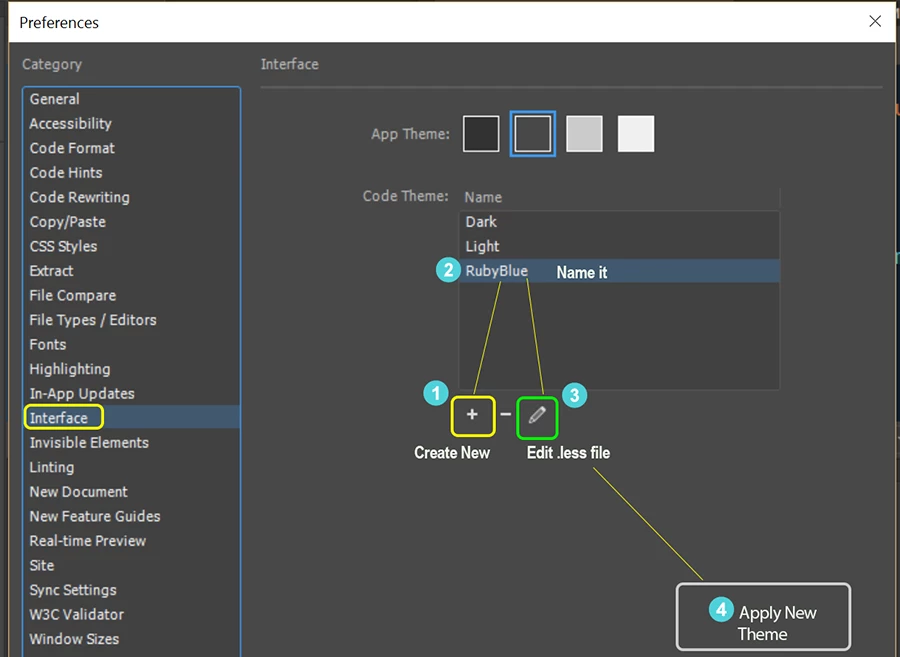
At the bottom of your main.LESS file, add the following.

/* Custom code colors or overrides should start after this line */

.CodeMirror-matchingtag {

    color: white !important;

    background-color: navy !important;

}

Adjust color values to suit.

Save main.LESS file.

Close main.LESS file.

Go back to Preferences and Apply your newly created code Theme.

This topic has been closed for replies.

7 replies

Participant
February 25, 2019

Thank you! I followed your easy instructions and got rid of that horrid orange highlighting. Yay!

stanl48910434
Participant
November 1, 2018

Thanks for that. It was driving me crazy. Couldn't read any text in a selected tag in the Dark theme.

Only problem is that when I created a new theme, nothing happened. I tried it a few times, nothing.

So, having learnt all my computer skills from The IT Crowd, I applied the universal, "Have you tried turning it off, then turn it on again".

That worked. New themes appeared. All good.

Adobe: why you do this?

Ussnorway7605025
Legend
June 18, 2018

thanks Nancy... I like this set of colours much better

mbk28
Known Participant
April 23, 2018

that's don't work on Mac.

Nancy OShea
Community Expert
Community Expert
April 23, 2018

Which version of DW and OS do you have?

Editing LESS files is no different than editing any other text file.  When done, save your LESS file and close it.  Then Apply your theme in Preferences.

Nancy O'Shea— Product User & Community Expert
TheSide
Participant
January 27, 2018

You genius.

Thank you SOOOO MUCH.

What is wrong with adobe ? Did they not think that this mint green highlighting was ridiculous? was it a joke?

I have spent a LONG time looking for a solution that worked without having to interfere with too many files for fear of causing myself more trouble.

Thank you VERY MUCH.

I hope Adobe people read this. Stop doing stupid things with software that previously worked very well. I was very close to giving up with Adobe products as there are similar nuisance "improvements" that they have added to Illustrator and Photoshop.

My sanity should return soon!

Participant
February 25, 2017

Hi Nancy,

I like this approach; could you please tell me how I can force the tag to remain at its original state when I click on it for editing?

Just leave it as it is for editing would be nice so I can simply make my change and move on to the next edit.

Thanks!

OhAdobeYouSoCrazy
Inspiring
March 3, 2017

Hi Web_Zest,

I ran into this problem after my recent update and was completely unwilling to accept that I had to edit in Pastel Green with white text. Of course, I've been writing CSS for about 20 years and have long been used to tweaking Dreamweaver in some way to provide functionality that Adobe themselves are very often circumspect to add themselves.

So, without further ado here is a fix that will add a very light blue background AND retain the normal color of text. Note: I have only tested this with HTML files. CSS, PHP, JS files may need their own fixes. I will try to update this post with those fixes if this ends up being the case. This is based on a copy of the light theme, but a similar hack could be used for a copy of the black theme as well. Use the custom code theme technique from above, but add this to the bottom of the main.less file and save.

/* Custom code colors or overrides should start after this line */

.CodeMirror-matchingtag {

    color: inherit !important; /* Don't know if this is necessary, but whatevs */

    background-color: #ebfefd !important; /* Set your BG color here same as the above post */

}

.CodeMirror-focused .cm-atom, .CodeMirror-focused .cm-string, .CodeMirror-focused .cm-string-2, .CodeMirror-focused .cm-hr {color: #1c1ca8 !important;}

.CodeMirror-focused .cm-number, .CodeMirror-focused .cm-attribute, .CodeMirror-focused .cm-plus, .CodeMirror-focused .cm-qualifier {color: #b16423 !important;}

.CodeMirror-focused .cm-def, .CodeMirror-focused .cm-property {color: #0b8dc6 !important;}

.CodeMirror-focused .cm-variable, .CodeMirror-focused .cm-variable-2, .CodeMirror-focused .cm-variable-3, .CodeMirror-focused .cm-operator, .CodeMirror-focused .cm-meta, .CodeMirror-focused .cm-bracket {color: @foreground;}

.CodeMirror-focused .cm-comment {color: #8C8C8C !important; font-style: italic; }

.CodeMirror-focused .cm-error, .CodeMirror-focused .cm-minus {color: #7b6546 !important;}

.CodeMirror-focused .cm-header {color: #87908e !important;}

.CodeMirror-focused .cm-link {color: #1fc6d4 !important; text-decoration: none;}

.CodeMirror-focused .cm-rangeinfo {color: #2c9abc !important;}

.CodeMirror-focused .cm-keyword, .CodeMirror-focused .cm-builtin, .CodeMirror-focused .cm-tag, .CodeMirror-focused .cm-quote {color: #8b1a83 !important;}

The basic idea here is to copy all the HTML tag CSS definitions and then override them by providing a CSS selector with a higher specificity than whatever it is that Adobe does to force all this text to a single color. Which, in my humblest opinion, whomever decided this was a good idea should be fired, tarred and feathered, in addition to having their mother called to be informed of what a total failure they have become.

HOW TO CUTSOMIZE YOURSELF:

Here is the code block I copied which defines the general code styles:

.cm-atom, .cm-string, .cm-string-2, .cm-hr {color: #1c1ca8;}

.cm-number, .cm-attribute, .cm-plus, .cm-qualifier {color: #b16423;}

.cm-def, .cm-property {color: #0b8dc6;}

.cm-variable, .cm-variable-2, .cm-variable-3, .cm-operator, .cm-meta, .cm-bracket {color: @foreground;}

.cm-comment {color: #8C8C8C; font-style: italic; }

.cm-error, .cm-minus {color: #7b6546;}

.cm-header {color: #87908e;}

.cm-link {color: #1fc6d4; text-decoration: none;}

.cm-rangeinfo {color: #2c9abc;}

.cm-keyword, .cm-builtin, .cm-tag, .cm-quote {color: #8b1a83;}

Note I prepended each CSS definition with .CodeMirror-focused and also added the !important to each definition. In this way one could do pretty much anything they wanted with the highlighted code. Either keeping the original code coloring, or creating their own custom highlight color scheme. For me, just returning the functionality back to "sane" was fine.

Have a good day all!

OhAdobeYouSoCrazy

Jon Fritz
Community Expert
Community Expert
March 3, 2017

EXCELLENT WORK!!!


Now to peel it apart and modify my dark theme.

pliles
Inspiring
January 24, 2017

Thank you Nancy...  It worked very well and I can now see the highlights!   You have probably reduced the wrinkles around my eyes by 50%!

Really appreciate you assistance. 

I am sorry I created a "hornets nest"  :-)

Nancy OShea
Community Expert
Community Expert
January 24, 2017

Glad it worked for you .

If you're referring to the subsequent discussion in your other thread (now locked), you didn't create a hornet's nest.  Some people have nothing better to do than complain for the sake of complaining.

Nancy

Nancy O'Shea— Product User & Community Expert