Participant
September 30, 2026
Question

ACC does not work if you don't have admin rights

  • September 30, 2026
  • 1 reply
  • 29 views

From our company, as IT administrators, we download a self-service package so that users can install the applications they need based on their assigned licenses.

The package is configured as follows:

Management Options:

  • Self-service install: Enabled
  • Allow non-admins to update and install apps: Enabled
  • Auto-update for end users: Enabled
  • Self-service plugin install: Disabled
  • Files syncing: Enabled
  • Install of Beta Apps: Disabled
  • Browser Based Login: Disabled
  • Remote Update Manager: Enabled
  • Include extensions folder & Extension Manager command line tool: Disabled
  • Include Adobe Asset Link: Disabled
  • AUSST override XML included: Disabled
  • Install at default directory: Enabled

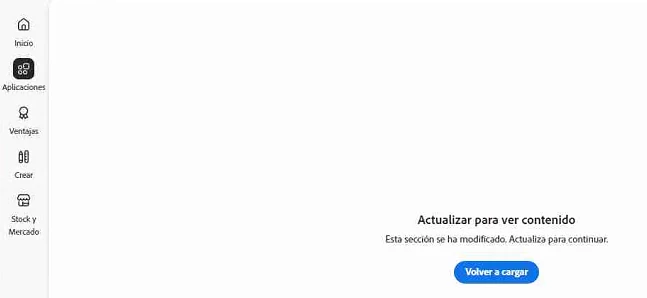
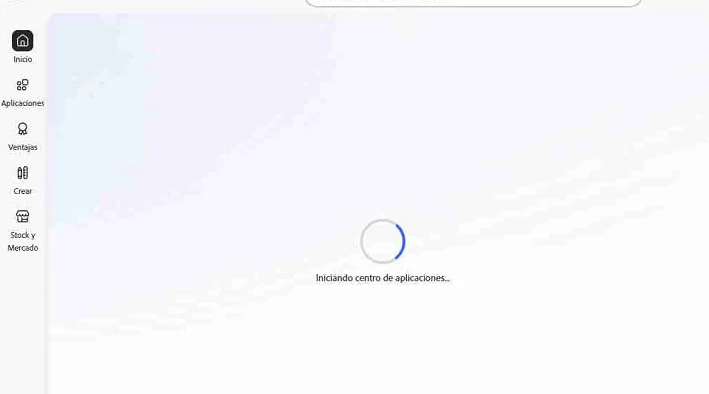
The issue is that although Adobe Creative Cloud is initially installed on the device through Intune with administrative privileges, whenever the user receives an Adobe Creative Cloud update, they are prompted to install it. Since they do not have administrative permissions, the update fails. As a result, the application becomes unusable and the Creative Cloud desktop app no longer loads the panel showing the applications available to the user.


Things that do not work:

  • Allow non-admins to update and install apps: Enabled → does not work.
  • Auto-update for end users: Enabled → does not work.

How can this be deployed so that users can update Adobe Creative Cloud without requiring local administrator rights and without the application becoming blocked when updates are available?

Thank you in advance for your assistance.

    1 reply

    Community Manager
    September 30, 2026

    Hi @Fancy_finder3813,

    Thank you for the screenshots; they help narrow this down.

    Based on the issue description, what is confirmed:

    • Self-service updates rely on the signed-in user's own privilege level. The download itself does not need admin rights, but installing certain machine-wide components, particularly the native and Notification Client tied to Creative Cloud desktop, does require elevation regardless of self-service settings. This is likely why the update prompt fails for non-admin users.

    • The Apps panel error in your screenshot ("Actualiza para continuar") is a different symptom from a permissions block. A Restricted Self-Service Policy would show an access denied message, not a reload prompt, so this points elsewhere, possibly a local cache issue, worth a full relaunch or check for Updates on an affected machine first: Fix Creative Cloud desktop app stuck on launch.

    What actually avoids the privilege issue entirely:

    Remote Update Manager (RUM) is the supported mechanism for this. It runs in an elevated context provided by your deployment tool rather than the logged-in user, so updates install silently, with no admin rights required on the user's side. It integrates directly with Microsoft Intune: Adobe Remote Update Manager overview. AUSST only changes where updates are fetched from; it does not remove the need for elevation, so pair it with RUM rather than relying on it alone: Adobe Update Server Setup Tool overview.


    Current Self-Service Policy can be checked here: Manage self-service policies.


    To confirm the right fix, could you tell us:

    • Is RUM currently part of your deployed package, and is it being triggered through Intune today, or are users relying only on the Creative Cloud desktop app's own update prompt?

    • Does the panel error in your screenshot occur for admin accounts as well, or only for non-admin users?

    • Current Self-Service Policy on the Product Profile: User Managed, Restricted, or Enforce Auto-update?

    If RUM is not yet part of your Intune deployment, that is likely the direct fix for the update privilege problem, separate from the panel error, which needs the above to isolate.


    Thanks,
    Tariq