


Inspiring
June 5, 2026
Question

Adobe Student File Transfer not working
  • June 5, 2026
  • 2 replies
  • 25 views

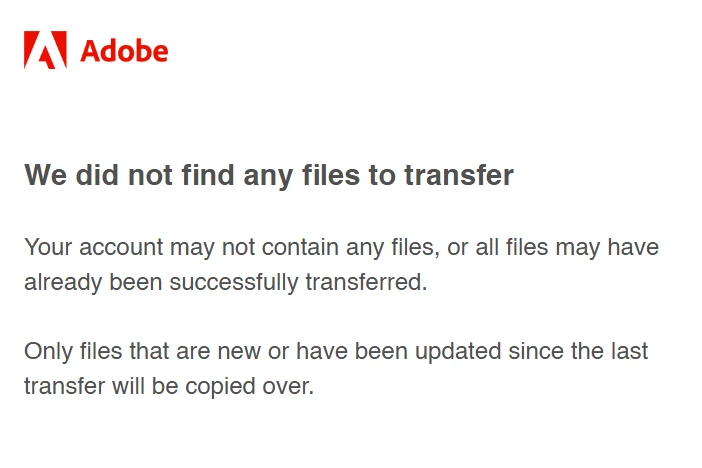
I am trying to transfer files from my school account to my personal before my college shuts my account but I keep on getting this email. I have tried transferring some files before and it worked but since then I haven’t been able to transfer any others. I have enough storage and these files have not been transferred before and I urgently need to transfer these files before my college shuts my account down.

2 replies

h_0621Author
Inspiring
June 5, 2026

Okay Thank you I will try this


Community Manager
June 5, 2026

Hi ​@h_0621,


Thanks for reaching out, and we completely understand how stressful this must feel, especially given your school account's closure soon. We want to help you get your files copied across before that happens.


The message you're seeing, "We did not find any files to transfer," is usually shown by Student File Transfer in one of two situations:

  1. There aren't any files in your school's Adobe Cloud account to copy, or

  2. All the files in the account have already been copied, and none have been updated since the last successful transfer.

Since you mentioned that earlier transfers worked for you, the second case might be worth looking into first. Student File Transfer tracks prior copy operations, and only new or updated files will be copied over. So if the files you're trying to move are the same ones from your earlier transfers and haven't been modified since then, the service may treat them as already copied.


A couple of things that might be helpful to check on your end:

  1. Where the files are actually saved. Student File Transfer only copies files stored in your school's Adobe Cloud account. Anything saved to a lab computer's local drive, a USB drive, or a school network drive won't show up in the transfer tool. If the files you need are saved locally on a school device, you can just sign in to your Adobe account on that machine, upload them to your Adobe cloud, and then run the transfer.

  2. Whether the files are visible in your school's Adobe account, sign in at https://adobe.ly/4xbiDVw, open the file picker, and see whether the files you're trying to transfer appear there. If they don't show up in the picker, it suggests they aren't in your school cloud storage, which is why the service isn't finding them.


If the files don't appear in the picker, please feel free to reply with a brief description of where you originally saved them (which app, and whether you used "Save" or "Save to Creative Cloud"), and we'll be happy to guide you on the next step before your account is deactivated.


Thanks,
^BS

h_0621Author
Inspiring
June 5, 2026

Hi the files are all saved to my creative cloud and it is a mixture of Illustrator and Photoshop files and they all appear in the picker. I have not tried to transfer these files before. However, I recently tried transfering again and it did not upload the rest of my file but 1 file I had already copied over transfered again but none of the others would and when trynig again without the file I got the same message

Community Manager
June 5, 2026

Hi ​@h_0621,


Thanks so much for following up with those details, that's really helpful for narrowing things down.


Based on what you've described, your files are in your school Adobe cloud (since they appear in the picker), they're standard Photoshop and Illustrator files (which are supported), and you haven't transferred them before, so the duplication tracker shouldn't be flagging them either. That means neither of the two situations the "no files to transfer" message usually describes seems to apply to your case, which is unusual.


Before we look into this further, there's one more thing that would be worth double-checking on your end:

  1. Region match between your school and personal accounts. Student File Transfer requires that both accounts be located in the same geographic region. For example, if your school account is set up in the US, your personal account also needs to be in the US. You can confirm the country/region on your personal Adobe account by signing in at account.adobe.com and checking under your profile details. If they don't match, that may be what's causing the transfer not to proceed.

If the regions do match and you're still seeing the same message, we'd recommend reaching out to your school's Adobe administrator (typically someone in your school's IT department) and letting them know what you're experiencing.

They can open a support case with Adobe directly from their Admin Console, which will let our support team investigate why the service isn't picking up your files before your school account is deactivated.


Please let us know how it goes, we're happy to help further.


Thanks,

^BS