
Participant
September 9, 2021
Question

Business ID - Common Questions

  • September 9, 2021
  • 11 replies
  • 14335 views

As your organizations are being upgraded to use Business IDs and Adobe storage for business, there are a few recurring questions that we’re being asked.

Watch this video to learn about Business IDs, enterprise storage, and Adobe profiles.


I’m compiling a list of those questions and answers help you get started and provide some basic troubleshooting assistance.

My users chose to migrate their apps to their Personal Profile. Can I retrigger the migration to allow them to choose their Business Profile?

My users inadvertantly chose to migrate their assets to their Personal Profile. Can I give them the option, to choose a Business Profile?

Yes.You can reinitiate asset migration to move users' assets to a business profile using the steps described in this article.

Why are my apps reverting to trial or asking me to buy?

As we upgrade your accounts and organizations to use Business IDs and Adobe storage for business plans provided by your business or school are accessible using your business profile. If you’re seeing Try or Buy prompts, try the following:


  • Sign out and then sign back in. When prompted to choose a profile, select a business profile.
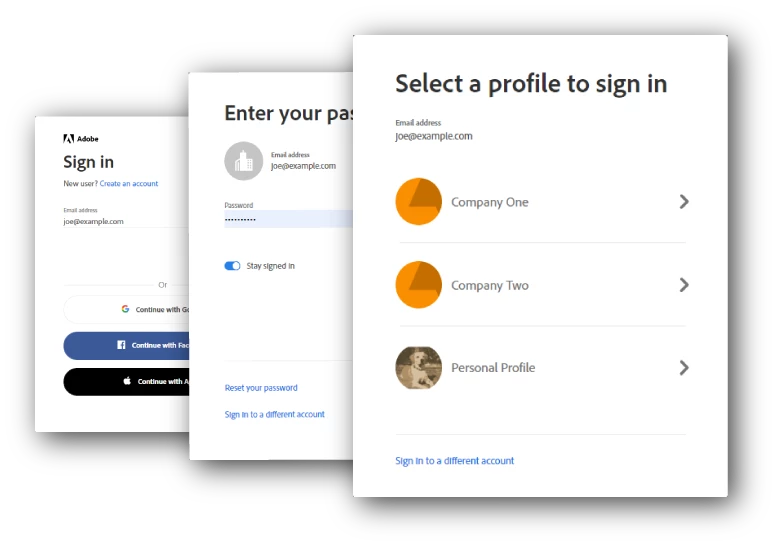
There could be other non-related reasons as well. Also see, Resolve trial errors.

Why don’t I see an option to choose a Profile?

  • Once your account is updated, you’ll receive an email to setup/join your team or organization. Ensure that you click the Get started button on the email to join the organization and complete the profile.
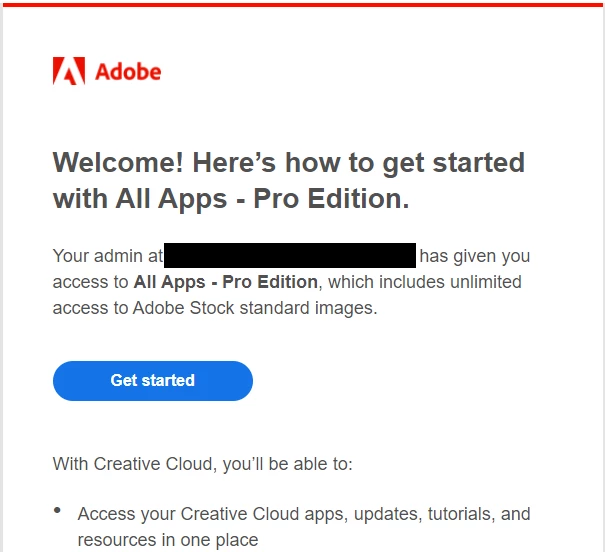
TIP: Sometimes these emails can land in your spam folder. Allow emails from message@adobe.com.


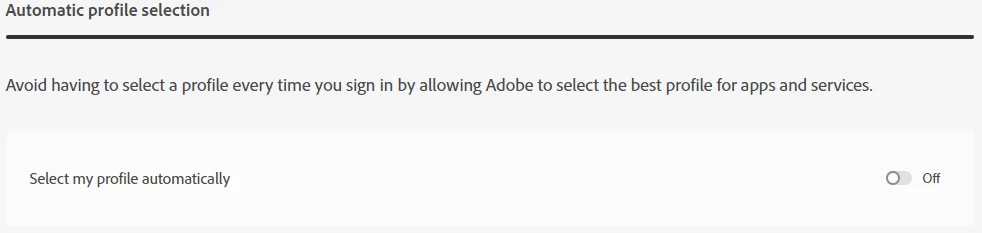
  • We try to automatically select the most suitable profile when you’re trying to sign-in. This setting is controlled by a setting, which is available if you have multiple profiles. Go to Account and security > Sign-in and security and switch off this preference.
Why can't I find my assets?

With the upgrade to your account and business storage, if you have multiple plans (personal + business) profiles are set up to segregate the different plans. As part of the setup, we also need to figure out what needs to be done with any assets stored on Creative Cloud.

  • If you have multiple plans provided by a different organizations, your assets are available in your Personal Profile. Since assets are moved in bulk, there is no way for us to decide which asset belong to which business. You can however Move assets across profiles manually.
  • If you have a personal plan in addition to a business plan, you’re asked if you’d like to move your assets. You can choose to move all your assets to the Business profile or retain them in your personal profile. To access these assets you’ll need to choose the appropriate business profile.

For more details, see Introduction to profiles.

Why is my account under maintenance? I can't sign in.

It takes a few minutes to upgrade your account and setup your profiles and move all your assets. Depending on the number of assets in your account it may take a bit longer.

For more information see: Account temporarily unavailable.

Why is the Admin Console unavailable?

As your organization is being updated, the Admin Console can become unavailable for some time. This usually depends on the number of users in your organization. You’re unable to access the Admin Console as it is locked down while the update is in progress. For more information on the update and the benefits being unlocked, see Update to business accounts.


How do I move my Libraries?

  1. Navigate to assets.adobe.com and sign in with the email address for the source account or profile.
  2. Navigate to Your Libraries and hover on and select the library to migrate.
  3. In the upper-right corner, click Share > Get Link and then click Copy Link.
  4. Sign in to the destination account or profile. (You can either sign in using another browser/computer, use Incognito or InPrivate modes, or you can sign out of the account or profile on the current browser.)
  5. Open a tab in the browser and paste the link copied in Step 3, above.
  6. Click Copy to Your work.
Verify that the library is copied to Your libraries in the destination account. Alternatively, you can export Creative Cloud Libraries and then re-import them to the profile of your choice.

Still facing issues or have additional questions?

If you’re encountering other issues or need help with something, do let us know by posting on this thread below. We’ll try and keep this post updated to help.

This topic has been closed for replies.

11 replies

Participant
April 27, 2022

Why can't an account without admin rights share a library to me? This is why we got a business account. At this point we should just cancel our business subscription as it does not work and is a waste of money.

Vikrant R
Community Manager
Community Manager
April 27, 2022

I don't think you need admins right are required to share Libraries. When you create a library, you can create it either a personal library or as Team Library. Or promote a personal library to a Teams library. And one the library has been created, you just need to invite users as before.

Are you seeing a specific error? Can you share some details and screenshots for us to troubleshoot?

ines_w
Participant
December 22, 2021

What is the best way to share content between both profiles: 

in my case I have my Photoshop subscription on my personal profile and my XD and illustrator in my business plan. How to use the cloud services in that case? Can I share files with myself? I am looking for best practices!

Participating Frequently
October 19, 2021

Hi,

What is the best way to add a new employee to our organization?


In the past, we would have the new employee create a new Adboe account using thier corporate email, then we would invite them to the corporate Adobe account to share licensing. Now, when we do it that way, there is all manner of confusion. There is and never was any reason for our users to have an Adobe account that is NOT associated with our organization created under a corporate email address, but this is how we had to do it in the past.


I am so very thankful that we never, ever stored company data in Adobe's cloud. I feel really bad for everyone on here that is dealing with this horrible experience moving data around or completely losing it. It is very unfotunate, not to mention costly.


Thanks

Participant
October 27, 2021

Bump... What is the correct way to add a new employee to the company's Adobe account and assign them an Acrobat license?

Vikrant R
Community Manager
Community Manager
October 27, 2021

Just go the Admin Console and add the user/assign a licence to them. Users will receive an email to join your team. Ask them to click "get started" on the email and setup their accounts. 


Ideally, don't have them sign up for an Adobe ID beforehand. If they do, there might be cases where these users will get two profiles setup (one personal and one business) and they'll need to select one while they sign in.

Participant
September 29, 2021

I can't change my users names any more, now that they're all business IDs?

Inspiring
September 28, 2021

The assets I own were transferred to the business profile, but the shared files were not transferred.

Newly invited files are also being checked only on personal profile.

I want not only the files I own but also the shared files to be transferred to the business profile.

what should I do?

Participant
September 27, 2021

As a reseller with many customers going through this process, we have seen issues for some customers using Adobe ID. The notification emails didn't explain that customers with Adobe ID will be updated to a Business ID, although it is mentioned in the online documentation, and it seems to be causing issues with re-authentication in some cases. Are others also seeing issues?


Also it is not clear if a customer has Federated ID whether they also will have their users removed and re-added back to the account, and will they now have a Business ID or remain on Federated ID?


Will users with Enterprise plans with Federated ID's, with a one-to-one email id and plan see any changes to their login experience?


It would be good to know this in advance, as enterprise users do not like surprises and this can generate a lot of calls to servicedesks.

Xablabla Perso
Participating Frequently
September 28, 2021

They don't care.

Participant
September 23, 2021

What a headache! Everything was working fine until Adobe decided to "upgrade things".

I don't understand if business profile and personal profile run on two different plans. Do we have to pay for 2 plans now?! Should we cancel the personal one? If not, why are they different: just PS for the personal one and all apps for the business one? I don't understand anything anymore!

Participating Frequently
September 16, 2021

I have to say Adobe, you seemed to have excelled yourself on this one

We have currently lost hours and hours on the phone to support trying to get this resolved, and still no resolution for a month


As per the issue here My staff are suddenly being told to sign up to CC ... - Adobe Support Community - 12328459


We 11 x acrobat Pro DC licences through our businesses a/c


since the creation of separate business and personal profiles ...... we cannot access the fonts on our desktop, when we're logged in as biz in creative cloud, and biz acrobat pro DC


We try and activate the font and when we click the button, it defaults to logging us in to the personal profile on the online fonts page and there is no way to login as our business profile and activate the font.


as we do not have a licence for acrobat pro DC in our personal name, taking us to the personal profile page of fonts is not helping.


We're going round and round the houses with adobe support who are telling us it is a known issue but offering no solution at all.


We've had screen share and support logging on.  No-one can resolve it


We have asked that they supply us on a temp basis with 11 x personal profile acrobat DC licences, but thus far they have refused and said we need to pay for them.


No current known workaround


this is crazy .....


So we have fonts that we use on most correspondence that we are unable to access and use


Getting very very frustrating .....
Jon

Participating Frequently
September 13, 2021

While it was mostly fine going around and signing everyone back in, what's really gotten me mad is the fact that the shared library we had across all of the accounts has disappeared along with the contents!  They're not even in my account's library! We have all business accounts; two full CC subs and 4 Premiere subs.  I had MOGRTs shared to all of our reporters to use and now unless they magically reappear I'm going to have to re-export and share a new library with them.  It's been a frustrating Monday.  Also a saved export preset seems to have forgotten the FTP password stored in it.  Not a huge deal but annoying to go around to everyone's computers and plug that info back in.


I'm sure there was a glorious purpose for doing this, but I don't see it.

Vikrant R
Community Manager
Community Manager
September 14, 2021

The "glorious purpose" is actually to enable better collaboration and provide the business better control to their assets.

Before this change, the "shared library" was actually owned by a particular user who shared it with other team members.

After this upgrade to storage, you can use the "Teams Libraries" to share assets consistently across your team. And even if an owner leaves or is unavailable other will have continued access to the team's assets.


To make a library available to everyone on your team, do the following:

1. Go to https://assets.adobe.com/libraries and select the Library.

2. Click Move to Team

For more information, see Teams Libraries.

----------

To find the "missing" libraries. 

At setup, some users are promted to choose if they'd like to move assets to the Business profiles or retain them in the Personal profile. If users did not choose the Business Profile, all assets are left behind in the Personal profile. To get those assets, you can do one of the following:

  • Sign in with your personal Profile and then recover the Library. You can export the library as a .cclib file; sign out and sign back in with your business profile, and import the library.
  • Sign in to https://assets.adobe.com/libraries with your personal profile and grab the sharable link. In another browser (or incognito window) paste the link and sign in with your Business Profile and copy the Library to Your Work. And then convert it to a Team Library as I explained above.

I'm sorry that this process is a little cumbersome and manual, but this should get you set up. I'll pass your observations and angst over to the product teams.


Let me know if this helps.


Participant
September 11, 2021

My data was moved to a Personal Account that doesn't have an active Creative Cloud subscription 😞


The instructions on the Move Content Across Profiles help a little, but aren't comprehensive. There doesn't seem to be a way to move Adobe Fonts or to move across my Lightroom plugins/album-structure.


I would love to just be able to migrate everything from my Personal Profile to my Business Profile.

Support has not been helpful, don't understand my questions/situation, and do not seem to be properly trained in the Adobe Profiles rollout.

Xablabla Perso
Participating Frequently
September 12, 2021

hi


same issue for me

and same response from support

everything was workibg fine and now it s à huge mess between tow profiles (business and personnal)

cherry on the cake i have no more acess to my 5000 photos in Lightroom !!


the support said : i can t do anything

great !

insane situation


absoluty appelling


customer satisfaction seems to be a concept for Adobe