
Business ID - Common Questions
As your organizations are being upgraded to use Business IDs and Adobe storage for business, there are a few recurring questions that we’re being asked.
Watch this video to learn about Business IDs, enterprise storage, and Adobe profiles.
I’m compiling a list of those questions and answers help you get started and provide some basic troubleshooting assistance.
My users chose to migrate their apps to their Personal Profile. Can I retrigger the migration to allow them to choose their Business Profile?
My users inadvertantly chose to migrate their assets to their Personal Profile. Can I give them the option, to choose a Business Profile?
Yes.You can reinitiate asset migration to move users' assets to a business profile using the steps described in this article.
Why are my apps reverting to trial or asking me to buy?
As we upgrade your accounts and organizations to use Business IDs and Adobe storage for business plans provided by your business or school are accessible using your business profile. If you’re seeing Try or Buy prompts, try the following:
- Sign out and then sign back in. When prompted to choose a profile, select a business profile.
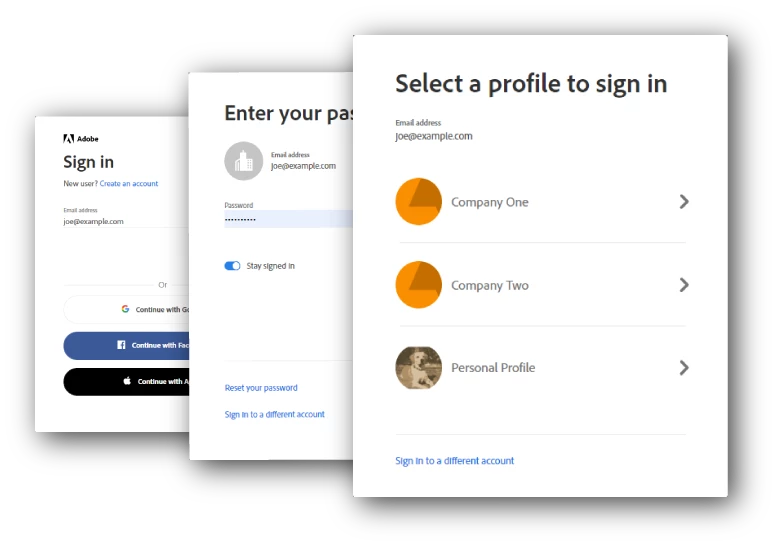
There could be other non-related reasons as well. Also see, Resolve trial errors.
Why don’t I see an option to choose a Profile?
- Once your account is updated, you’ll receive an email to setup/join your team or organization. Ensure that you click the Get started button on the email to join the organization and complete the profile.
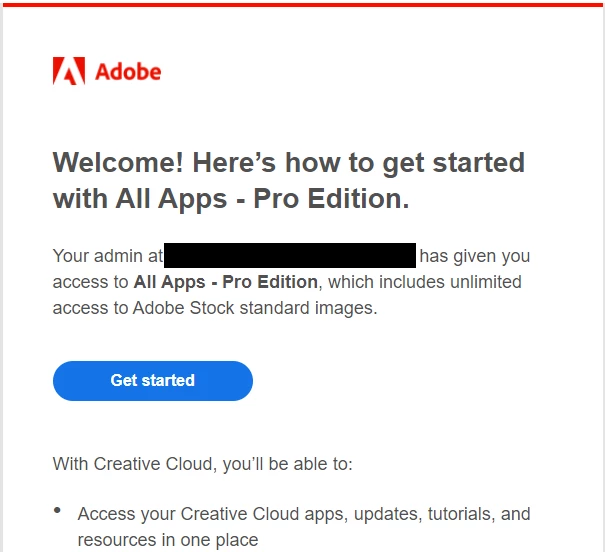
TIP: Sometimes these emails can land in your spam folder. Allow emails from message@adobe.com.
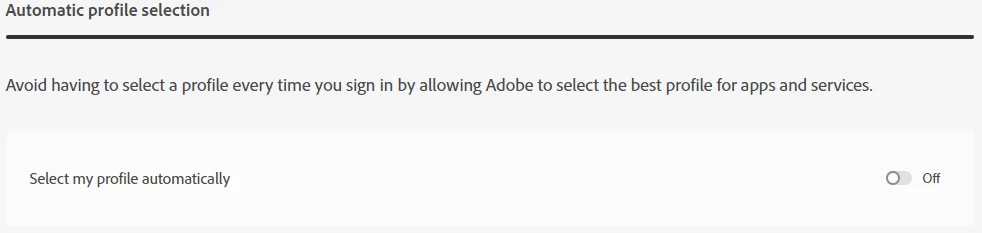
- We try to automatically select the most suitable profile when you’re trying to sign-in. This setting is controlled by a setting, which is available if you have multiple profiles. Go to Account and security > Sign-in and security and switch off this preference.
Why can't I find my assets?
With the upgrade to your account and business storage, if you have multiple plans (personal + business) profiles are set up to segregate the different plans. As part of the setup, we also need to figure out what needs to be done with any assets stored on Creative Cloud.
- If you have multiple plans provided by a different organizations, your assets are available in your Personal Profile. Since assets are moved in bulk, there is no way for us to decide which asset belong to which business. You can however Move assets across profiles manually.
- If you have a personal plan in addition to a business plan, you’re asked if you’d like to move your assets. You can choose to move all your assets to the Business profile or retain them in your personal profile. To access these assets you’ll need to choose the appropriate business profile.
For more details, see Introduction to profiles.
Why is my account under maintenance? I can't sign in.
It takes a few minutes to upgrade your account and setup your profiles and move all your assets. Depending on the number of assets in your account it may take a bit longer.
For more information see: Account temporarily unavailable.
Why is the Admin Console unavailable?
As your organization is being updated, the Admin Console can become unavailable for some time. This usually depends on the number of users in your organization. You’re unable to access the Admin Console as it is locked down while the update is in progress. For more information on the update and the benefits being unlocked, see Update to business accounts.
How do I move my Libraries?
- Navigate to assets.adobe.com and sign in with the email address for the source account or profile.
- Navigate to Your Libraries and hover on and select the library to migrate.
- In the upper-right corner, click Share > Get Link and then click Copy Link.
- Sign in to the destination account or profile. (You can either sign in using another browser/computer, use Incognito or InPrivate modes, or you can sign out of the account or profile on the current browser.)
- Open a tab in the browser and paste the link copied in Step 3, above.
- Click Copy to Your work.
Still facing issues or have additional questions?
If you’re encountering other issues or need help with something, do let us know by posting on this thread below. We’ll try and keep this post updated to help.


 AdChoices