Participant
Nov 23, 2022 12:00 AM UTC
Answered

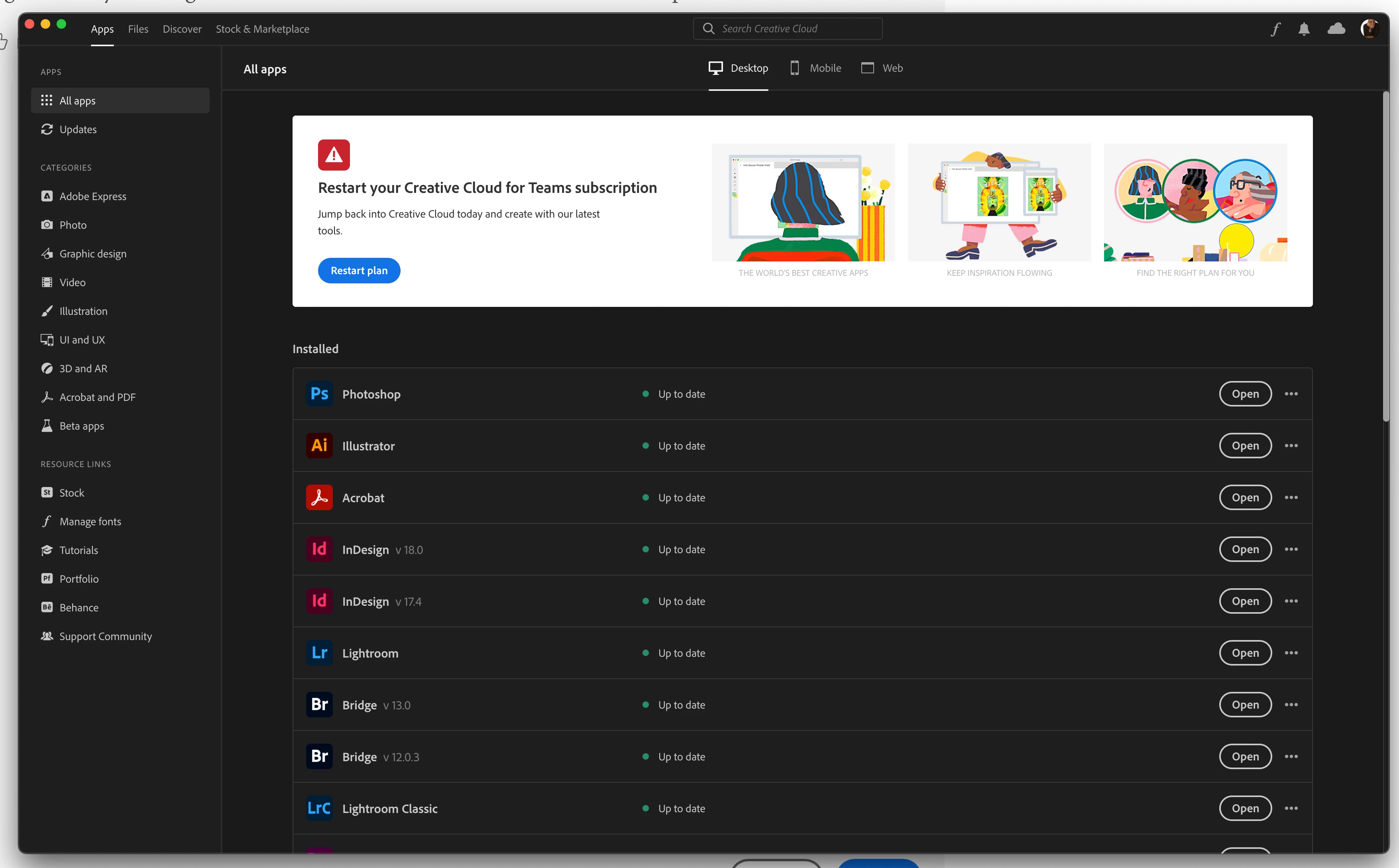
CC desktop app acting like I don't have a subscription.

My CC desktop app has a messasge at the top of the screen that says "Restart Creative Cloud for Teams subscription" even though I'm a member and administrator of a CC For Teams with an active subscription. 

All the apps work but CC thinks I'm not legit. 

This topic is closed to new replies. Start a new post to keep the conversation going.
kglad
kgladCorrect answer
Community Expert
Nov 23, 2022 2:37 AM UTC

Yes it's a small team (six licenses) and they are all the "pro" licenses. It was all working normally until a few days ago. I have no idea what changed. 


if you're the admin, open the support tab on your admin console > start chat or start case or request expert session.


https://helpx.adobe.com/enterprise/using/support-and-expert-services.html


if you're not the admin, contact the admin and have them contact adobe supply.

8 replies

kglad
Community Expert
Community Expert
Nov 23, 2022 12:44 AM UTC

if the above fails, start here - https://helpx.adobe.com/manage-account/kb/stop-creative-cloud-trial-mode-after-purchase.html


if that fails, proceed to these steps - https://helpx.adobe.com/enterprise/kb/resolve-trial-and-license-expired-errors.html


if that fails, https://helpx.adobe.com/download-install/kb/adobe-license-issues-keychain-credential-mgr.html


if those all fail, change your cc language.  eg, try international english


if that fails, change the install location


Translate
Participant
Nov 23, 2022 1:42 AM UTC

I tried all of the above suggestions (except changing the language or install location) and none of them worked.

I guess I'll try to change the install location next but not until tomorrow. I'll post here if that works.  

Translate
kglad
Community Expert
Community Expert
Nov 23, 2022 1:58 AM UTC

if thise all failed, do you really have a subscription managed by a team or enterprise?

Translate
Nancy OShea
Community Expert
Community Expert
Nov 23, 2022 12:19 AM UTC

[Moderator moved from Using the Community forums to Enterprise & Teams.]

1. Open CC Desktop App.
2. Click your Avatar (top right image) > Preferences > General tab > Settings. Select "Always keep Creative Cloud up to date."
3. Click on your Avatar again.
4. Sign-out of Creative Cloud.
5. Close all apps.
6. Restart your computer.
7. Open CC Desktop app.
8. Click your Avatar.
9. Sign-in with your paid Adobe Teams ID and password.


Hope that helps.


Translate
Nancy O'Shea— Product User & Community Expert
Participant
Nov 23, 2022 12:47 AM UTC

Thanks but preferences is grayed out. 


Translate
kglad
Community Expert
Community Expert
Nov 23, 2022 12:50 AM UTC

reset the cc desktop app: make sure it's in the foreground, then press:

Win: Ctrl + Alt + R
Mac: Cmd + Opt + R


Translate