


Participant
November 8, 2017
Answered

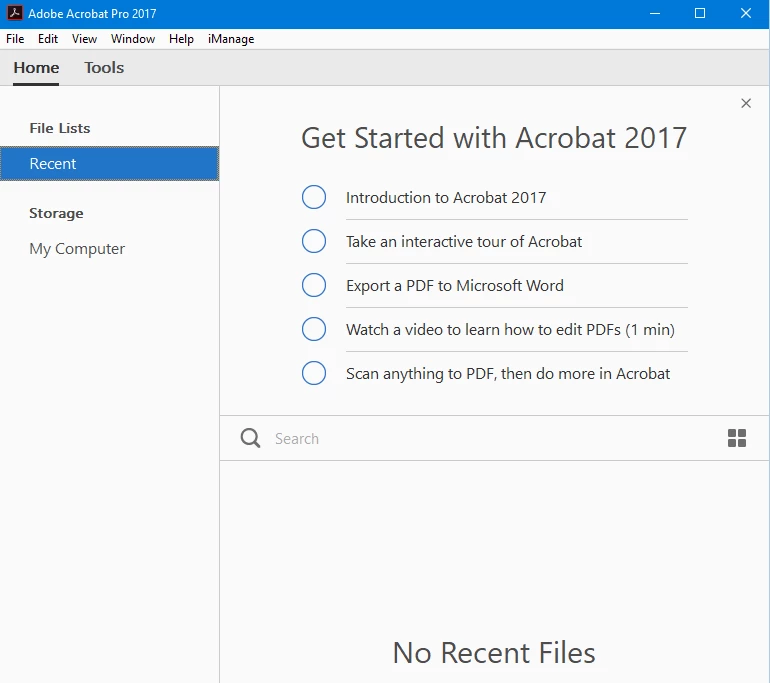
Disable "Get Started with Acrobat 2017" on first launch

  • November 8, 2017
  • 2 replies
  • 2500 views

I packaged and installed acrobat 2017 classic.  On first launch i am not able to disable the "Get Started with Acrobat 2017"  I have tried several registry keys including.

Acrobat DC Classic 2017

Aug updates applied

w10 x64 enterprise

HKEY_LOCAL_MACHINE\SOFTWARE\Policies\Adobe\Adobe Acrobat\2017\FeatureLockDown

btoggleFTE set to 0

HKEY_LOCAL_MACHINE\SOFTWARE\Policies\Adobe\Adobe Acrobat\2017\FeatureLockDown\cWelcomeScreen

bShowWelcomeScreen set to 0 or 1

The user has an option to close it however i cannot seem to find the setting where this is stored.
This topic has been closed for replies.
Correct answer edwards37791962

Found the solution

Opened acrobat with the get started showing.

Exported the hkcu reg key for acrobat.

Closed the get started guide in acrobat,

refreshed and exported the reg key and ran a comparison

The settings gets stored in

HKEY_USERS\Software\Adobe\Adobe Acrobat\2017\HomeWelcome

bLastShowStatus

Set it to 0 to disable the get started with acrobat 2017 screen

2 replies

edwards37791962AuthorCorrect answer
Participant
November 8, 2017

Found the solution

Opened acrobat with the get started showing.

Exported the hkcu reg key for acrobat.

Closed the get started guide in acrobat,

refreshed and exported the reg key and ran a comparison

The settings gets stored in

HKEY_USERS\Software\Adobe\Adobe Acrobat\2017\HomeWelcome

bLastShowStatus

Set it to 0 to disable the get started with acrobat 2017 screen

kglad
Community Expert
Community Expert
November 8, 2017