
Efficient Search in Shared Library
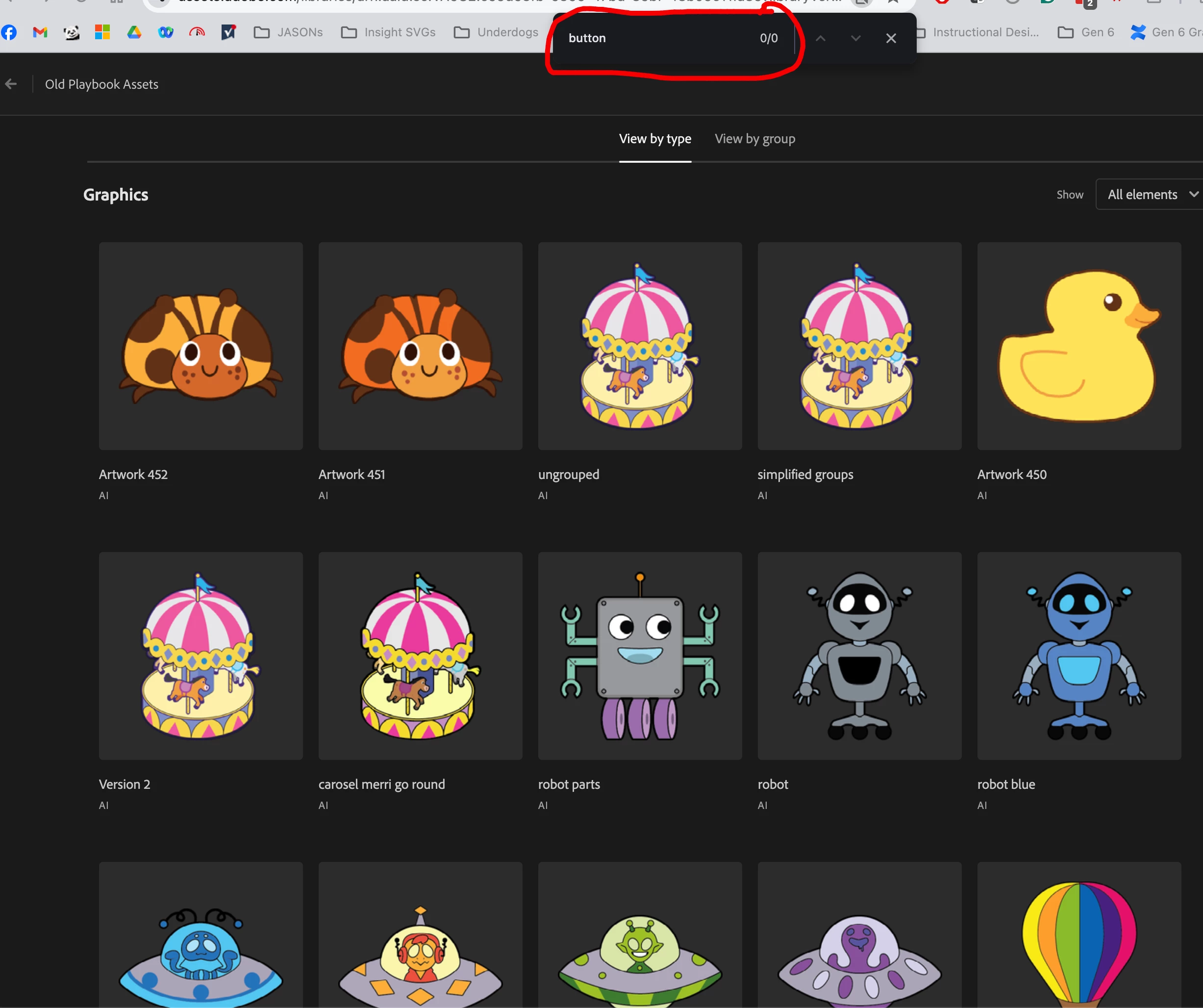
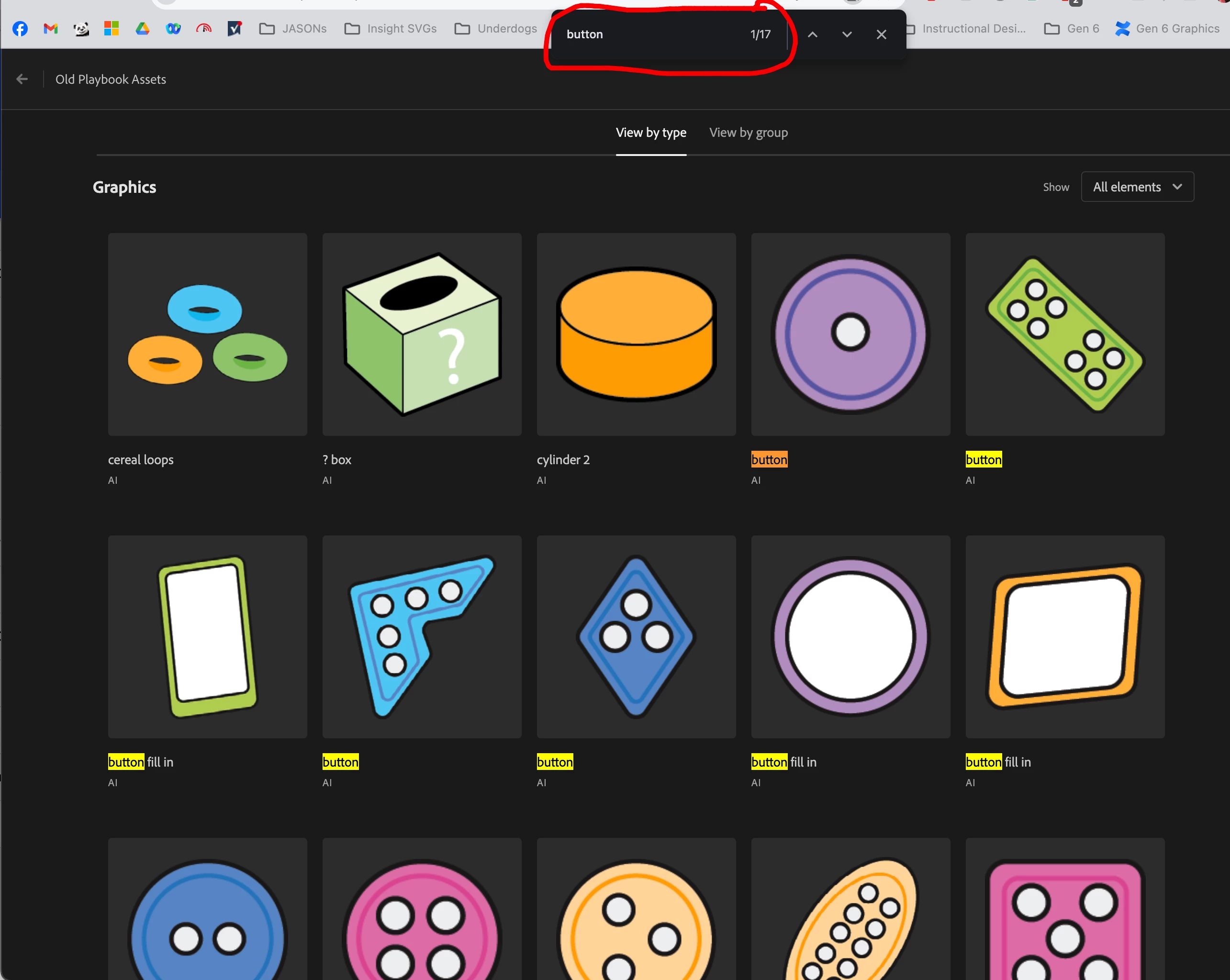
I work with a team that's creating content for a math curriculum. We've got curriculum writers on one team and about 20 artists working on art assets on another team. All the artists have Adobe for Teams accounts but the writers don't. I want to be able to share the art assets with the writers so they can incorporate the art into their lessons. I've generated a webpage following these directions that I've shared with the writers but with over a thousand assets and growing, I've not found an efficient way for them to search for an image. Using the typical FIND feature in the browser (Chrome) doesn't work unless the asset you're searching for is visible. So for instance if I do a search for "button," it'll come back with zero results even though there ARE assets in the library tagged as button, they're just not on the current screen I'm viewing. The examples shown are on the same generated webpage, it's just that the buttons are at the very bottom of the page so if they're not showing, they're not searchable. Has anybody found a more efficient way to do this? Thank you!


 AdChoices