Participant
Nov 12, 2026 9:51 AM UTC
Question

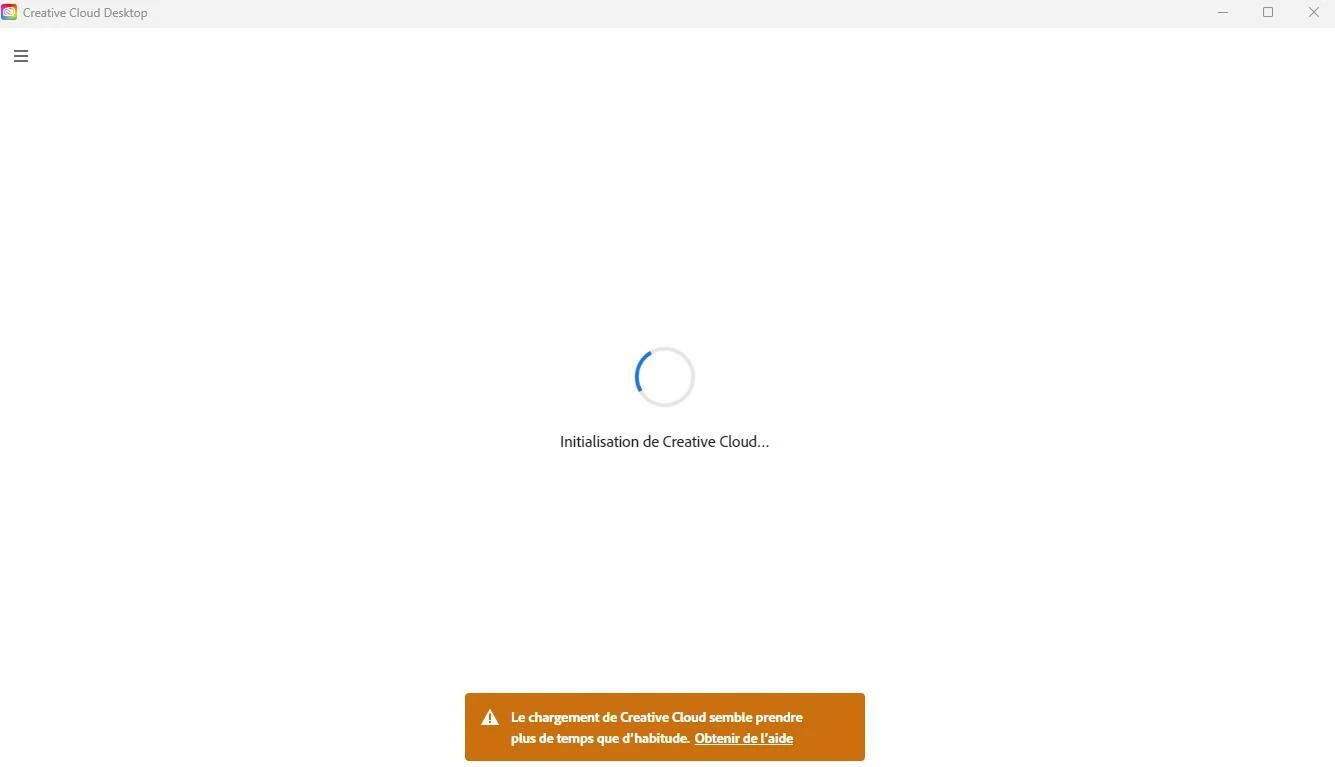
Hello, Creative Cloud Desktop, tourne sur l'initialisation puis m'indique "que cela semble prendre plus de temps..." donc je suis bloquée je n'arrive plus a y accéder.

 

    5 replies

    Community Manager
    Nov 12, 2026 9:54 AM UTC

    Hi ​@Vibrant_Smile25f6,

    Thank you for reaching out, and I understand how stressful it is to be locked out of the Creative Cloud desktop app when you need your apps.

    From your screenshot, the app is stuck on “Initializing Creative Cloud” and then shows the message that it’s taking longer than usual to load. Since you’re on Windows, could you please try the following, in order:

    1. Quit the Creative Cloud desktop app by selecting the menu (☰) in the upper-left, then File > Quit Creative Cloud, or press Ctrl + W. Close any other Creative Cloud apps that are open, restart your computer, and open the Creative Cloud desktop app again.
    2. If it’s still stuck, uninstall the Creative Cloud desktop app using the Creative Cloud desktop app uninstaller, then download it again from the Creative Cloud download page and run Creative_Cloud_Set-Up.exe to reinstall it.

    Both steps, with the uninstaller and download links, are here: https://helpx.adobe.com/creative-cloud/apps/troubleshoot/launch-issues/creative-cloud-desktop-app-stuck-on-launch-screen.html

    Please let me know how it goes, I’m happy to help further.

    Thanks,
    ^AV

    Translate
    Participant
    Nov 12, 2026 10:42 AM UTC

    Hello, thank you.
    I had already tried, and I’ve just tried again, but nothing works. :(


    Translate
    Community Manager
    Nov 12, 2026 11:59 AM UTC

    Hi ​@Vibrant_Smile25f6,

    Thank you for trying those steps again, and I understand how disruptive it is when the app still won’t open.

    As a next step, please try the Creative Cloud Cleaner tool. It removes leftover files, folders and registry entries that can get in the way of a clean installation.

    Before you start:

    1. Back up any important files and folders.
    2. Run the Log Collector tool to keep a backup of your log files.
    3. Close the Creative Cloud desktop app and any open Creative Cloud apps, then end the remaining Adobe background processes in Task Manager (Creative Cloud, Creative Cloud Content Manager, Creative Cloud Libraries Synchronizer and Adobe Content Synchronizer helper).

    The full preparation steps, including the Log Collector, are here: https://helpx.adobe.com/creative-cloud/kb/cc-cleaner-tool-installation-problems.html

    Then run the Cleaner tool:

    1. Download the Cleaner tool, right-click AdobeCreativeCloudCleanerTool.exe and select Run as administrator.
    2. Type E for English, then y to accept the license agreement.
    3. Type 3 (CC Apps, Creative Cloud & CS6 Products), then 6 (Creative Cloud only), and type y to confirm. This removes only the Creative Cloud desktop app.
    4. When you see the message that it completed successfully, restart your computer and install the Creative Cloud desktop app again.

    The Cleaner steps are here: https://helpx.adobe.com/creative-cloud/apps/troubleshoot/diagnostics-repair-tools/run-creative-cloud-cleaner-tool.html

    Please let me know how it goes, I’m happy to help further.

    Thanks,
    ^AV

    Translate