Participant
July 10, 2015
Answered

How to deploy Adobe DC and prevent the "Sign in Adobe ID" at startup

  • July 10, 2015
  • 1 reply
  • 3247 views

I used the customization wizard to make my transform file but after the installion of Adobe DC it asks the user to log into his Adobe ID.

So I figure I'm suppose to use the Adobe CC deployment tool to make my deploymen, but how do I use the MST file with it?

This topic has been closed for replies.
Correct answer Karan Malik

While using the customization wizard, if you have Acrobat DC Volume serial, you will have to input the serial number in Wizard and press button - Grant Offline Exception & Disable Registration
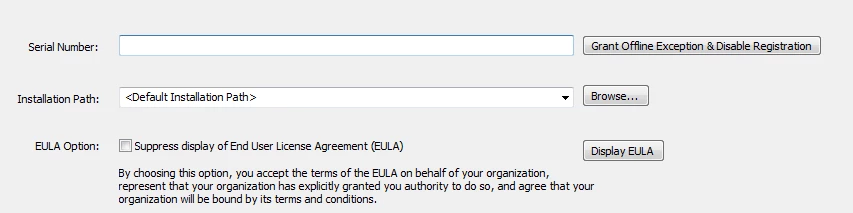
Note: This will only work if you have Acrobat DC Volume serial and not CCE (Creative Cloud Enterprise) Serial.

After creating the MST through wizard, install (or Deploy) the package using Setup.exe. This will ensure the MST Transform is applied through installation and on launch user will not see Sign In dialog.

If you are Creative Cloud Enterprise (CCE) customer, you will have to use CCP (Creative Cloud Packager) to deploy with registration suppressed enabled in CCP. Generic steps for this are:

1) Create the install package through CCP with registration suppress

2) Use DC Wizard to apply customization in DC installer

3) Install (or Deploy) Acrobat using Setup.exe. This will ensure your transform will be applied. (Do not deploy using exception deployer tool)

4) Run CCP Msi for registration suppression

5) If required for deploying other exception applications, run the Exception Deployer Application.

More information here - Creative Cloud Help | Deploying Adobe Acrobat

Thanks,

Karan

1 reply

Karan MalikCorrect answer
Adobe Employee
July 20, 2015

While using the customization wizard, if you have Acrobat DC Volume serial, you will have to input the serial number in Wizard and press button - Grant Offline Exception & Disable Registration

Note: This will only work if you have Acrobat DC Volume serial and not CCE (Creative Cloud Enterprise) Serial.

After creating the MST through wizard, install (or Deploy) the package using Setup.exe. This will ensure the MST Transform is applied through installation and on launch user will not see Sign In dialog.

If you are Creative Cloud Enterprise (CCE) customer, you will have to use CCP (Creative Cloud Packager) to deploy with registration suppressed enabled in CCP. Generic steps for this are:

1) Create the install package through CCP with registration suppress

2) Use DC Wizard to apply customization in DC installer

3) Install (or Deploy) Acrobat using Setup.exe. This will ensure your transform will be applied. (Do not deploy using exception deployer tool)

4) Run CCP Msi for registration suppression

5) If required for deploying other exception applications, run the Exception Deployer Application.

More information here - Creative Cloud Help | Deploying Adobe Acrobat

Thanks,

Karan

Participant
July 23, 2015

I started another thread about not being able to activate but this may solve my problem. Using the Volume s/n, when running setup do I need to use any switches, and where do I save the transform. The directions for the customization wizard does not answer these questions.

Participant
July 23, 2015

Finally solved. I saved the transform file in the same folder as setup.exe and acropro.msi. When creating the transform using the ACW, it writes the setup.ini file with all of the information automatically. It's as simple as running setup.exe. Adobe, please update your documentation!!!
