Participant
June 17, 2025
Answered

How to remove personal account associated with my business email?

  • June 17, 2025
  • 1 reply
  • 705 views

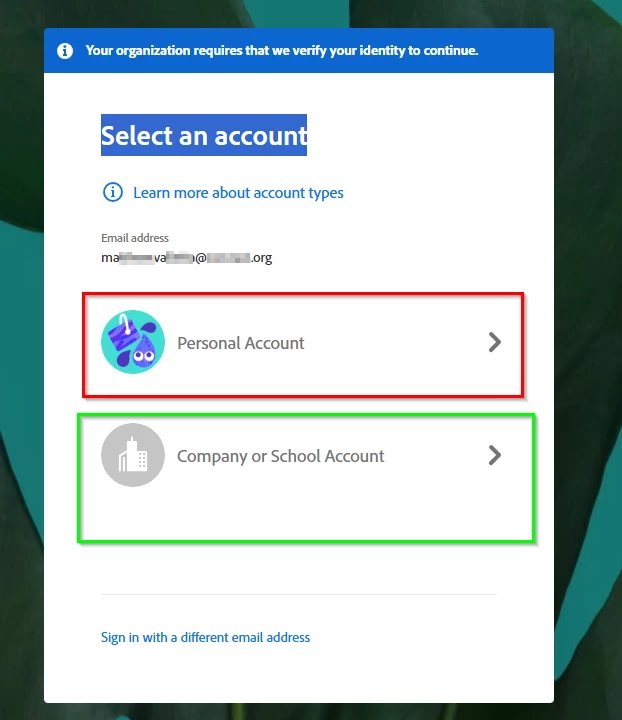
When I started at my new job I tried to access some entries in Workfront and inadvertently created a personal account associated with my work email. It didn't do anything, and eventually I was set up correctly and can access Workfront no problem, however EVERY time I access it (multiple times a day) I am forced to choose the company/school account from the select account field (see below) How can I get rid of the personal account option permanently so I no longer have to see this screen? I will never need to use "personal account" with this email address.
 

Correct answer Bani Verma

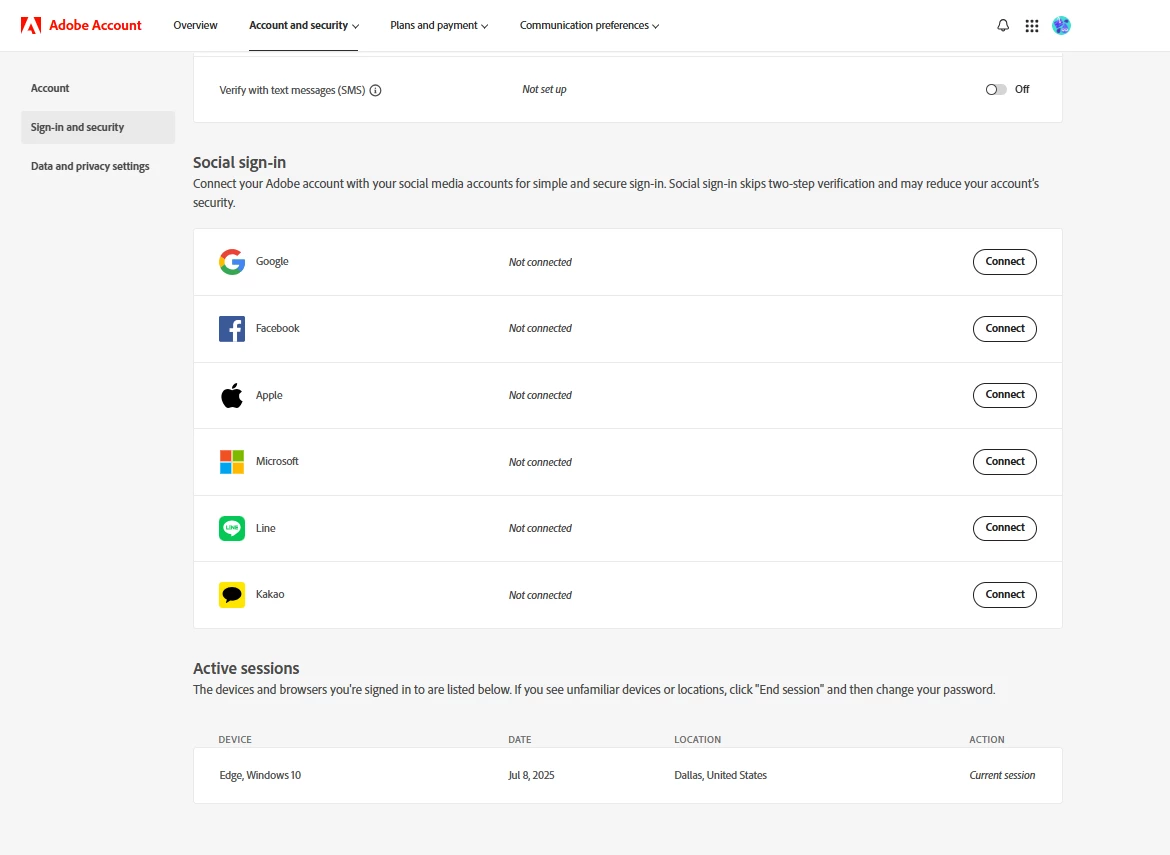
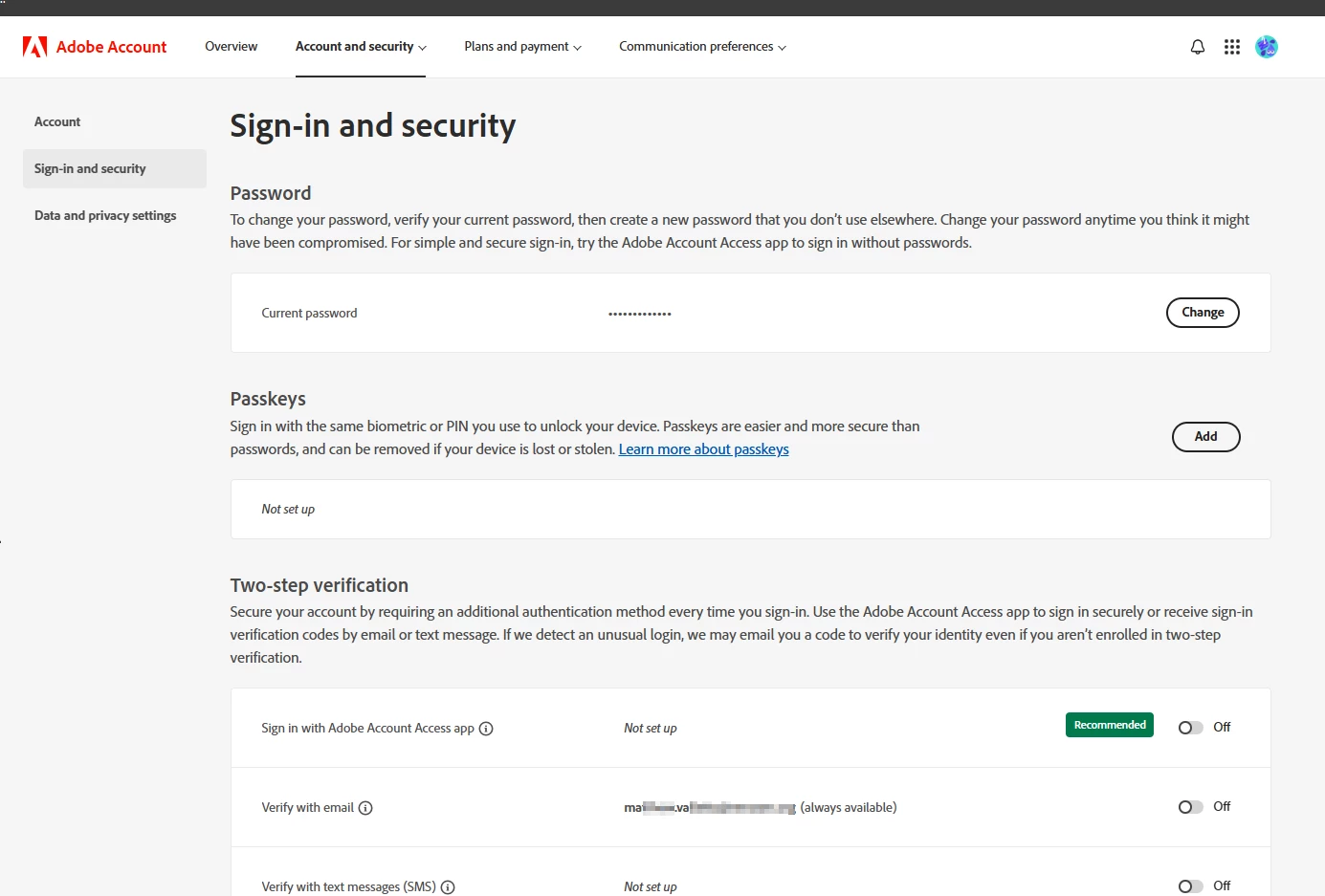
When I log in on the personal account I *DO* see the Sign-in and Security sections, which is not available on my work account, but I have no such option for  "Select my profile automatically", I am guessing because these are not profiles but sperate accounts linked to a single email address. I have included screenshots below. 


Hi @Ma_Va,


The best resolution for this case is to cancel the personal subscription registered to this email address and purchase it from a different email address. If you have business and personal subscriptions on one email address, you will always receive a profile chooser screen. 


To do this, please get in touch with our support team by clicking on the chat icon at the bottom right corner of this page: https://adobe.ly/3TrSxLt;


I hope this helps you.


Thanks,
^BS

1 reply

Community Manager
June 17, 2025

Hi @Ma_Va,

Thanks for reaching out. Upon checking, you have an active enterprise plan associated with the Adobe ID you used to post this query. The screen you're seeing when accessing Workfront is the profile chooser, which appears because your email is associated with both a personal and a business profile.

Since your Workfront access is provisioned to your business profile, you need to select the work/school account to access the correct profile.

If you’d prefer to skip the profile selection step and be signed in directly to the business profile, you can enable automatic profile selection by following these steps:

  1. Sign in at https://adobe.ly/43NkL9p using your Adobe ID.

  2. Navigate to Account and security > Sign-in and security.

  3. Enable the option: Select my profile automatically.

Once enabled, Adobe will automatically direct you to the appropriate profile for the product or service you're accessing—eliminating the need to choose between personal and business profiles each time.

Let us know if you need further assistance.

Regards,
^AN
Ma_VaAuthor
Participant
July 8, 2025
This did not work. I'm assuming because you are talking about profiles, and these are two sperate accounts. I don't have the Sign-in and security option. I tried to delete the personal version of the account but it's still there.

Confidentiality Notice: This e-mail message and any attachments are for the sole use of the intended recipient and may contain proprietary, confidential, trade secret or privileged information. Any unauthorized review, use, disclosure, or distribution is prohibited and may be a violation of law. If you are not the intended recipient or a person responsible for delivering this message to an intended recipient, please contact the sender by reply e-mail and destroy all copies of the original message immediately.
Community Manager
July 8, 2025

Hi @Ma_Va,


Thank you for reaching out.

Could you please try logging in to https://adobe.ly/3GA9wIo using an incognito browser window, and select the personal profile when prompted?

Once logged in, navigate to:

Account and security > Sign-in and security

From there, check if you can enable the option "Select my profile automatically."

Please let us know whether this option is visible to you or if you encounter any issues during the process. We're here to help.

Regards,
^AN