Participant
March 25, 2025
Answered

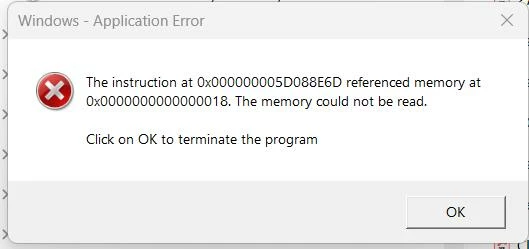
Memory could not be read - Windows Error

  • March 25, 2025
  • 1 reply
  • 169 views

Have two users now that are receiving the same error with Acrobat Pro. Clean installs of Adobe. Uninstalling and reinstalling does not fix anything. Support tried fixing it but things compatibility mode is the answer (that's a BS fix which still results in issues, and unrealistic to turn on compatibility mode for 40+ machines).


Correct answer Anshul_Nautiyal

Hi @demetri_0419,


Thank you for reaching out. Based on your message, it appears that two users are encountering a Windows error stating “The memory could not be read” when using Acrobat Pro, even after performing clean installations. Please confirm if this is the issue you need assistance with.

In the meantime, here are several recommended troubleshooting steps to help resolve the issue:

  1. Disable Protected Mode:
    Go to Acrobat > Preferences > Security (Enhanced), and uncheck the checkbox "Enable Protected Mode at startup". Restart Acrobat and check if the issue persists.

  2. Check for Conflicting Software or Drivers:
    Run msconfig and perform a clean boot by disabling all non-Microsoft services and startup programs. This can help identify conflicts with antivirus software, third-party PDF tools, or outdated drivers.

  3. Ensure Windows Updates and Drivers Are Current:
    Make sure all system updates have been applied, particularly graphics drivers, as these are commonly associated with memory access violations.

  4. Review the Event Viewer:
    Open Event Viewer > Windows Logs > Application and look for any faulting module names or crash reports related to Acrobat. These details can point to a specific DLL or external component causing the crash.

  5. Remove Third-Party Plug-ins:
    Navigate to C:\Program Files\Adobe\Acrobat\Acrobat\plug_ins and temporarily move all non-Adobe plug-ins to another folder. Then, restart Acrobat and observe whether the issue continues.

  6. Test on a Clean User Profile:
    Log in using a new Windows user profile to rule out any user-specific settings or corruption that may be affecting Acrobat.

  7. Disable AppContainer:
    Go to Acrobat > Preferences > Security (Enhanced), and uncheck "Run in AppContainer". Restart Acrobat and verify if the error is resolved.

  8. Clean Reinstallation Using Adobe Cleaner Tool:
    Uninstall Acrobat Pro using the Adobe CC Cleaner Tool, restart the machine and then reinstall the application. You can download the cleaner tool from the following link:
    https://adobe.ly/422hK2F

As noted, you have already opened a support case through the Admin Console. If the issue persists after trying the above steps, we recommend continuing the investigation directly with Adobe Support for further assistance.

Please let us know if you need any additional help.

Regards,
^AN

1 reply

Anshul_NautiyalCommunity ManagerCorrect answer
Community Manager
March 26, 2025

Hi @demetri_0419,


Thank you for reaching out. Based on your message, it appears that two users are encountering a Windows error stating “The memory could not be read” when using Acrobat Pro, even after performing clean installations. Please confirm if this is the issue you need assistance with.

In the meantime, here are several recommended troubleshooting steps to help resolve the issue:

  1. Disable Protected Mode:
    Go to Acrobat > Preferences > Security (Enhanced), and uncheck the checkbox "Enable Protected Mode at startup". Restart Acrobat and check if the issue persists.

  2. Check for Conflicting Software or Drivers:
    Run msconfig and perform a clean boot by disabling all non-Microsoft services and startup programs. This can help identify conflicts with antivirus software, third-party PDF tools, or outdated drivers.

  3. Ensure Windows Updates and Drivers Are Current:
    Make sure all system updates have been applied, particularly graphics drivers, as these are commonly associated with memory access violations.

  4. Review the Event Viewer:
    Open Event Viewer > Windows Logs > Application and look for any faulting module names or crash reports related to Acrobat. These details can point to a specific DLL or external component causing the crash.

  5. Remove Third-Party Plug-ins:
    Navigate to C:\Program Files\Adobe\Acrobat\Acrobat\plug_ins and temporarily move all non-Adobe plug-ins to another folder. Then, restart Acrobat and observe whether the issue continues.

  6. Test on a Clean User Profile:
    Log in using a new Windows user profile to rule out any user-specific settings or corruption that may be affecting Acrobat.

  7. Disable AppContainer:
    Go to Acrobat > Preferences > Security (Enhanced), and uncheck "Run in AppContainer". Restart Acrobat and verify if the error is resolved.

  8. Clean Reinstallation Using Adobe Cleaner Tool:
    Uninstall Acrobat Pro using the Adobe CC Cleaner Tool, restart the machine and then reinstall the application. You can download the cleaner tool from the following link:
    https://adobe.ly/422hK2F

As noted, you have already opened a support case through the Admin Console. If the issue persists after trying the above steps, we recommend continuing the investigation directly with Adobe Support for further assistance.

Please let us know if you need any additional help.
Regards,
^AN