Hi @amdaperson
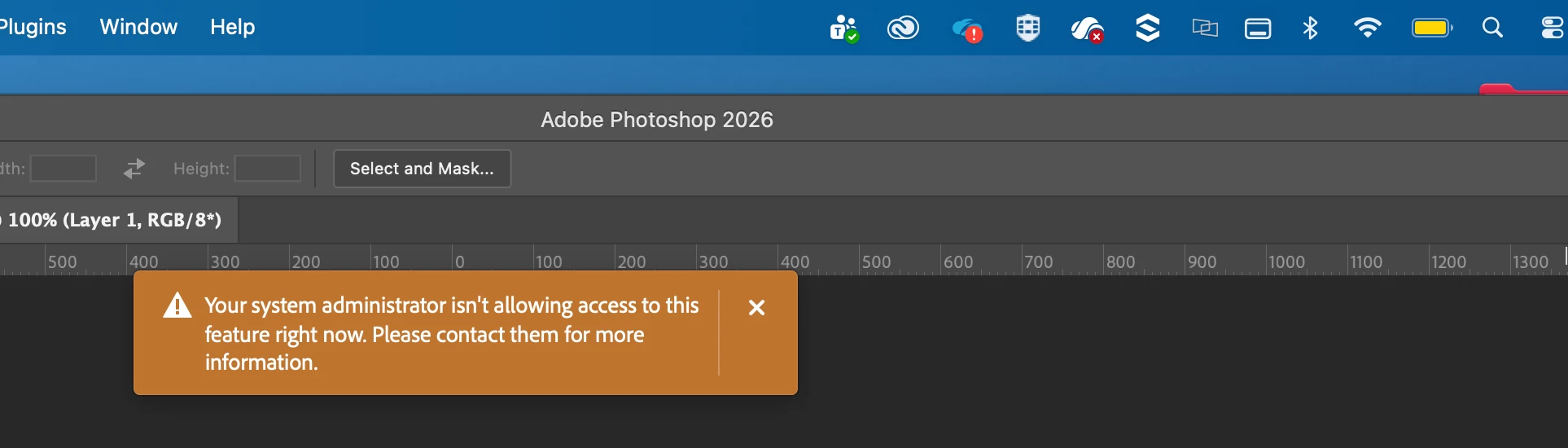
Thanks for the detail and the screenshot. We understand how frustrating this is, especially with your IT team already digging into the network side and still hitting the same wall.
The message you're seeing ("Your system administrator isn't allowing access to this feature right now") points to something different from the Zscaler and network protections your team has been working on. This block is controlled in the Adobe Admin Console at the product profile level, not by network or firewall settings, so removing security protections won't clear it. That's why the Firefly and generative AI features stay blocked even after those changes.
To resolve it, your admin will want to confirm the Adobe Firefly service is turned on for the product profile your account is assigned to. In the Admin Console:
- Go to the Products tab and select the relevant product or profile.
- Click the View Details icon next to the product profile name.
- In the details drawer that opens, turn the Adobe Firefly service on.
Enabling it there restores the generative AI features (including Photoshop's) for everyone assigned to that profile.
Once that's done, sign out and back in to Photoshop and the Creative Cloud desktop app for the change to take effect.
Please give that a try and let us know how it goes, we're happy to help further.
Thanks,
^AV


 AdChoices