Are You Seeing Error 206 When Installing Adobe Creative Cloud Apps? Here’s How to Fix It
If you are encountering Error 206 during the installation of Creative Cloud apps, please follow the troubleshooting steps below. If you're using an office-provided device or are on an office network, please involve your IT team, as some actions may be restricted or require elevated permissions.
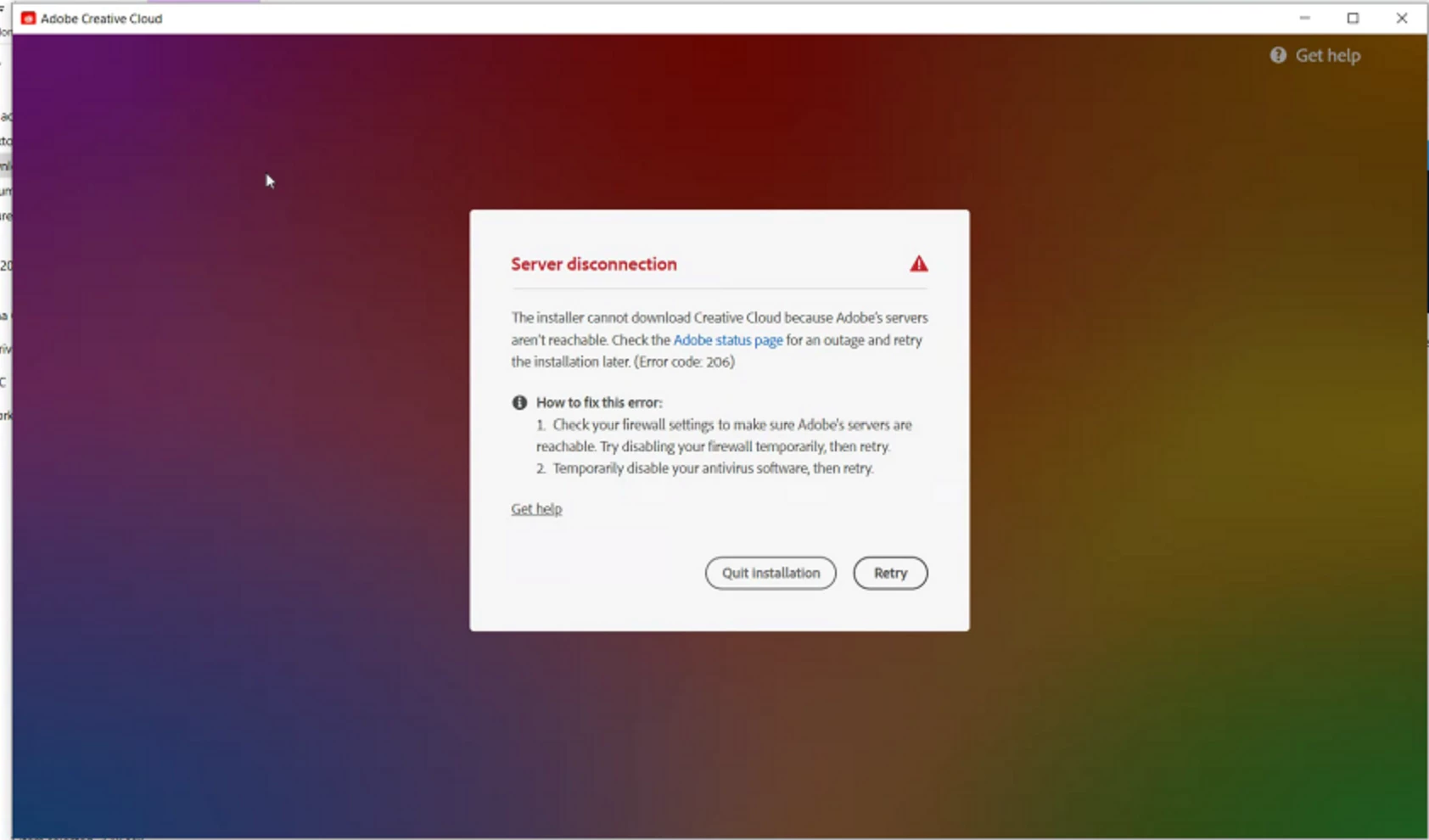
Step 1: Check Internet Connectivity
Ensure you have a stable internet connection. You need an active connection to download, install, and update Adobe apps. Try selecting "Retry" if prompted.
If the issue persists, proceed to the next step.
Step 2: Clear Browser Cache and Cookies
Clear your browser’s cache and cookies, and update it to the latest version.
If the issue persists, continue to the next step.
Step 3: Try a Different Network
Switch to another internet network if available to rule out network restrictions or firewall interference.
If the issue persists, continue troubleshooting.
Step 4: Configure Your Software Firewall
Temporarily disable your firewall to check if it is causing the issue. Refer to the following links:
Step 5: Update Your Operating System
Install any pending system updates, as outdated systems may block internet access for security reasons.
If the issue persists, continue.
Step 6: Temporarily Disable Antivirus Software
Your antivirus may be blocking the installation. Temporarily disable it and retry.
If the issue persists, continue troubleshooting.
Step 7: Allow Adobe Apps Access Through Firewall
If prompted, allow Creative Cloud apps through the firewall. If not prompted, temporarily disable the firewall to test.
If the issue persists, proceed to the next step.
Step 8: Troubleshoot Common Network Issues
Follow this Adobe guide for fixing download and connectivity problems:
https://helpx.adobe.com/download-install/apps/troubleshoot/download-failure/common-network-connectivity-issues.html
If the issue persists, continue.
Step 9: Verify TLS 1.2 Browser Support
Make sure your default browser supports TLS 1.2:
https://helpx.adobe.com/x-productkb/multi/eol-tls-support.html
If the issue persists, move to the next check.
Step 10: Test Secure Server Connectivity
Ensure you can connect to Adobe’s secure servers:
http://helpx.adobe.com/x-productkb/policy-pricing/activation-network-issues.html
If the issue persists, reset the hosts file.
Step 11: Reset Hosts File
Use this Adobe guide to reset the hosts file:
https://helpx.adobe.com/download-install/apps/troubleshoot/licensing-activation-issues/reset-hosts-file.html
If the issue persists, update your Adobe certificates.
Step 12: Update Adobe Intermediate and Content Certificates
Outdated certificates may block activation. Follow this guide:
https://helpx.adobe.com/download-install/apps/troubleshoot/licensing-activation-issues/user-license-information-creative-cloud-2022.html
If the issue persists, reset internet settings.
Step 13: Reset Internet Options (Windows Only)
-
Go to "Internet Options" from the Start menu
-
Select the "Advanced" tab
-
Click "Restore advanced settings" and then click "Apply"
If the issue persists, ensure required domains are allowed.
Step 14: Allow Required Adobe Domains
Verify that all required Adobe network domains are allowed:
https://helpx.adobe.com/enterprise/kb/network-endpoints.html
Please note: If you are using an office-owned device, kindly reach out to your IT team.
If the issue persists, test using a new user profile.
Step 15: Create a New Administrator Account
Create a new local admin account and try installation there:
Step 16: Use Creative Cloud Cleaner Tool
This tool can remove corrupted installations and fix registry/permission issues:
https://helpx.adobe.com/creative-cloud/kb/cc-cleaner-tool-installation-problems.html
If the issue persists, check for system file corruption.
Step 17: Repair System Files
Use system tools to fix missing or damaged files:
Please note: Download a Fresh Installer
Get a fresh copy of the Creative Cloud desktop installer:
https://helpx.adobe.com/download-install/apps/download-install-apps/creative-cloud-apps/download-creative-cloud-desktop-app-from-web.html
Hope this helps with your issue.
If the issue persists after completing all these steps, please reach out with details. We will be glad to assist you further.



 AdChoices