Participant
February 13, 2020
Answered

Unable to manage active sessions

  • February 13, 2020
  • 3 replies
  • 13122 views

Hi,


We currently have 500 named (user) licences for Creative Cloud and we are using Google SSO (Federated Login via SAML) as our account creation / management method.

Students can use creative cloud in all of the ICT Suites and various laptops around the school.

Since the new Creative Cloud 2020 has been released, we have rolled it out to only one of our ICT Suites, the other ICT areas have the older Creative Cloud 2018/19.

With the old 2019/18 CC if a student logs in to Creative Cloud on any of the various laptops/other ICT Suites, and have more than 3 active sessions, when they try to login to a different device (the fourth device) creative cloud asks them to sign out of one of the older sessions in order to sign in where they are currently logging in, which works fine.

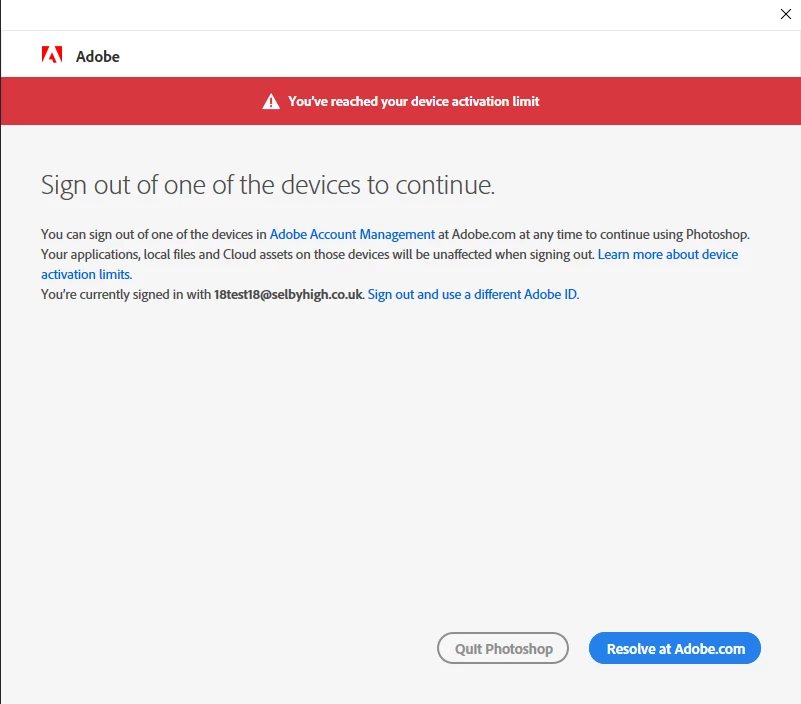
The new 2020 CC seems to have changed, when the fourth device is logged into, CC tells the user to login to Adobe Account Management and clear one of the older sessions themselves. The issue with this is that the "Active Sessions" tab does not appear in the users Adobe Profile at all, and thus the student cannot use any Adobe CC apps.

2020 CC seems to use SAML now as opposed to before where this was not available, and this is what we are now using.


Has anyone experienced this before? How can I solve it?


Thanks


This topic has been closed for replies.
Correct answer charlies79520369

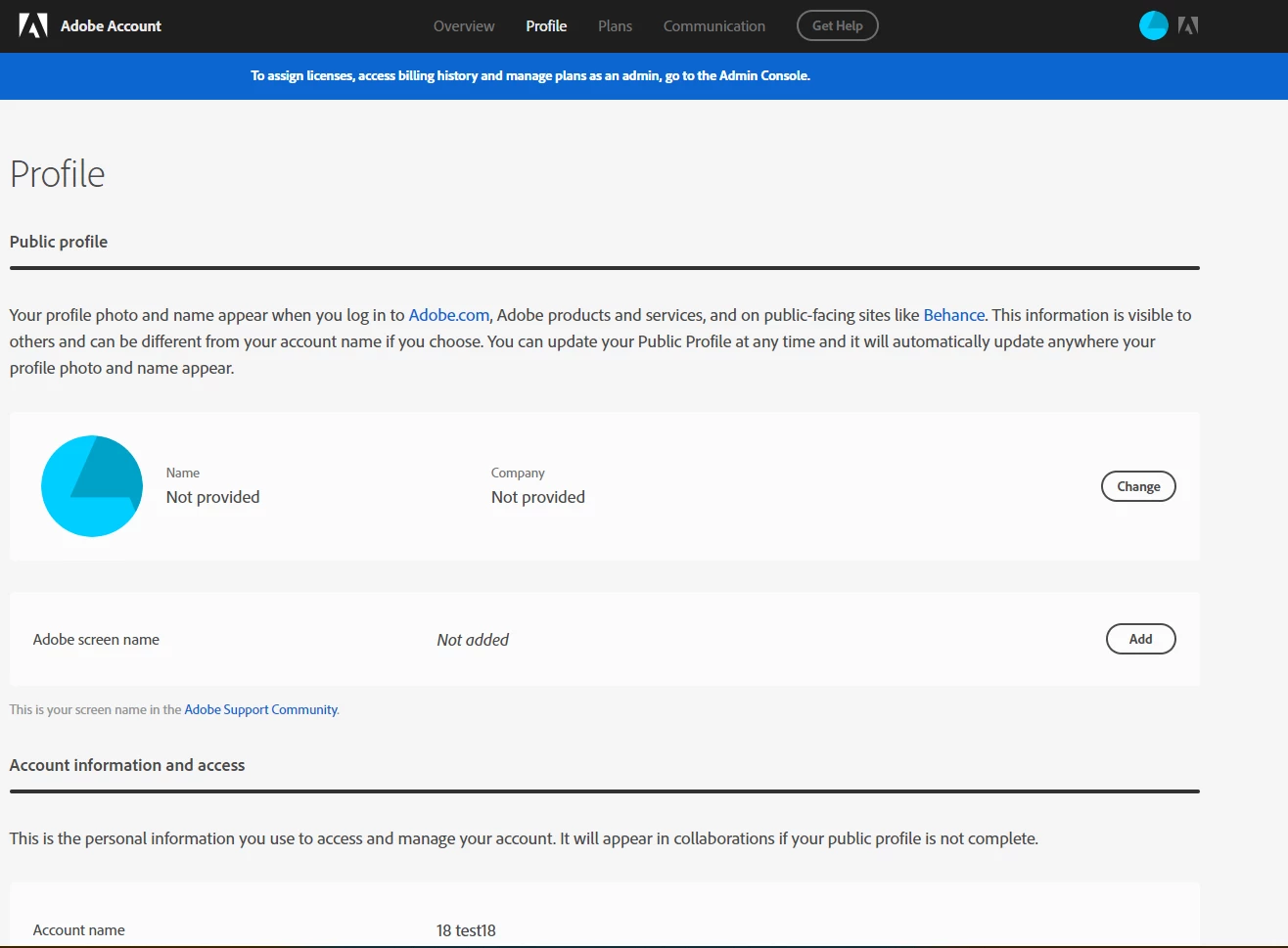
Shown above is two screenshots, the first is the sign out screen the user sees when trying to open photoshop, the next is after clicking "adobe account management" to sign out of a session in order to sign in here, but once accessing the web page there is no where on the profile to manage the active sessions, I do see this panel on the website with my own login (but I am an admin that doesn't use federated logon) but the panel is not visible for any student.


Thanks


Hi,


I have managed to resolve the issue.


Thank you very much for your help during this matter.

3 replies

Wretched Computers
Participating Frequently
July 18, 2020

This is exactly what is happening to me.


I log in, and Adobe says I'm logged into too many accounts. So I go in and log out of all of them. Then start the program I have already paid for, and the program allows me to make my own preferences, then it shuts off, asks for my login information and then covers the screen with, "log out of a few of your logged in accounts before using another one," or something like that. So, I log in, AGAIN, and start to log out of a few accounts, only for Adobe to ask for my login information again, and when I get half finished with that, the login screen disappears and we're back to the program. So I start doing my preferences again, becuase somehow they weren't saved, and again I am asked to log out of a few of my accounts before I access another one. So I go in and Lo and Behold - there they are again, just as if I never deleted them the first time.  Maybe it is time to get off computers completely, in July of 2020.

Community Manager
July 20, 2020

Kindly remove the credentials/certificates of Adobe from the credential manager (Windows)/ Keychain >> Login >> secure notes(Mac).

It seems that you are getting sign in loop so kindly follow the troubleshooting steps mentioned in the below help document:

https://helpx.adobe.com/in/download-install/kb/cc-sign-in-prompt.html

https://helpx.adobe.com/in/manage-account/kb/troubleshoot-creative-cloud-sign-out-sign-in.html

https://helpx.adobe.com/in/download-install/kb/adobe-sign-in-loop.html

Vikrant R
Community Manager
Community Manager
February 24, 2020

The CC 2019 or later should give you an option to sign out from an earlier device. See https://helpx.adobe.com/download-install/using/device-activation-limit.html. (I'm not sure if this behavior has changed in CC 2020; I'll need to check that)


Sign out from your Account page

  1. Sign in to your Adobe account
  2. Under My plans, click Manage plan.
  3. In the Activated devices section (toward the bottom of the page), deactivate the device.

The instructions to sign out from the Account page are here: https://helpx.adobe.com/creative-cloud/kb/activation-limit-reached-creative-cloud.html#sign-out-account-page


However, there is a note there that indicates that this functionality may not be available in certain cases.

>>

Screen looks different? If you have a Creative Cloud for teams plan or live in a country served by Digital River, your Manage plan page looks different. After you click Manage plan, if you don't see an Activated devices section, use one of the other methods described above to sign out of your Creative Cloud apps.

Participant
February 24, 2020

Hi Vikrant,


Thanks for your reply.


This does seem to have changed in CC 2020, as the entire interface is different, and has the addition of Google SSO/SAML, which we have decided to use now. The signing out of inactive devices is now web based on the users profile on the adobe website, but the tab to manage sessions (and sign out) does not appear for our users at all, so they are stuck in a stalemate and can't use the CC package at all.


Thanks

Vikrant R
Community Manager
Community Manager
February 24, 2020

Would it be possible for you to add a screenshot of the message that users now see in 2020 versions of the apps? I'm trying to track down the details at my end, but am unable to reproduce this behavior on my test setup.


Can you think of anything else that might be different in this lab/ICT suite where you have the CC 2020 versions deployed. In terms of software, hardware, network etc

Community Manager
February 17, 2020


You can install Creative Cloud applications on multiple computers, regardless of the operating system and can activate Creative Cloud on up to two computers. The users will get a prompt to sign out from the old devices if they will log in to the third machine.

If you are using named user license on lab machines so kindly guide the users to sign out from the application before leaving the machine.


You can check some help document below:

https://helpx.adobe.com/download-install/using/activate-deactivate-creative-cloud-apps.html

https://helpx.adobe.com/creative-cloud/kb/activation-limit-reached-creative-cloud.html#Issue

Participant
February 24, 2020

Hi Techburner,


Thank you for this. The issue we are having is that the users are no longer receiving the prompt to sign out from old devices on the third machine since the creative cloud 2020 update. Unfortunately, kindly guiding them to sign out before leaving the machine isn't really an option for us, as they age between 12-16 and following instructions is not their strong suit!