bobk21020394
Participating Frequently
April 15, 2019
Answered

How to draw a box around characters

  • April 15, 2019
  • 4 replies
  • 2363 views

Hello,

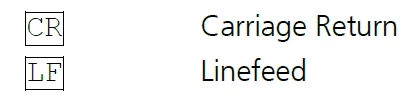
I'm trying to figure out a way to draw a box around characters to indicate certain keyboard actions. For example, I'd like to draw a box around CR to indicate Carriage return and LF for line feed. I need to include these this kind of thing a number of times throughout the document. I was trying to use a table (which might work) or text frame but thus far, I couldn't get it the way I wanted. Plus, I was hoping that there might be an easier way to do it.

Here is an example of what I am trying to do. Any help is greatly appreciated.
    This topic has been closed for replies.
    Correct answer Matt-Tech Comm Tools

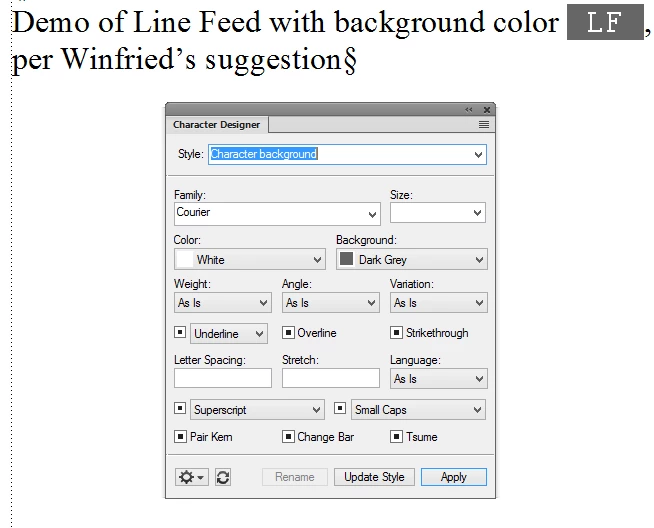
    *I noticed my first screen capture didn't show the character designer settings. I've updated to include the settings I used in the example.

    Here's an example, using Winfried Reng​'s suggestion of using a character tag to control the "box" and the color of the text. Note that because LF has both a leading and trailing space, Smart Spaces needs to be turned off in Format > Document > Text Options, or you need to place the LF and character tag in a variable.

    While this doesn't have a box around the characters like your example, the text and background color can be whatever you want.

    Placing the text and character tag in a variable would also give you an easy way to quickly and consistently insert the codes you need.

    4 replies

    Matt-Tech Comm Tools
    Community Expert
    Matt-Tech Comm ToolsCommunity ExpertCorrect answer
    Community Expert
    April 16, 2019

    *I noticed my first screen capture didn't show the character designer settings. I've updated to include the settings I used in the example.

    Here's an example, using Winfried Reng​'s suggestion of using a character tag to control the "box" and the color of the text. Note that because LF has both a leading and trailing space, Smart Spaces needs to be turned off in Format > Document > Text Options, or you need to place the LF and character tag in a variable.

    While this doesn't have a box around the characters like your example, the text and background color can be whatever you want.

    Placing the text and character tag in a variable would also give you an easy way to quickly and consistently insert the codes you need.

    -Matt Sullivan, FrameMaker Course Creator, Author, Trainer, Consultant
    bobk21020394
    Participating Frequently
    April 16, 2019

    Thank you Matt. I've never used this feature before. I'll give it a try.

    Matt-Tech Comm Tools
    Community Expert
    Community Expert
    April 17, 2019

    did you get something usable?

    -Matt Sullivan, FrameMaker Course Creator, Author, Trainer, Consultant
    Bob_Niland
    Community Expert
    Community Expert
    April 15, 2019

    What's the semantic context here?

    I haven't seen a keyboard with a LineFeed cap since the ASR 33 teletype, and don't ever recall seeing one that had a Return/Enter key actually labeled "CR" or "CarriageReturn". The only key usually seen nowadays is "Enter↵" (and even that will vary by localization).

    When I've had this requirement, I usually rely on a keycap-style font, or use a custom embedded vector graphic enclosing actual text (Frame graphics or SVG).

    In a Unicode future that may not be near us, and a suitably populated font, the literal enclosed CR and LFs might be implemented with:
    U+240D SYMBOL FOR CARRIAGE RETURN
    U+240A SYMBOL FOR LINE FEED
    U+20E3 COMBINING ENCLOSING KEYCAP

    Community Expert
    April 16, 2019

    Hi,

    You might also create a character style and set a background.

    This would also highlight your characters.

    Best regards

    Winfried

    bobk21020394
    Participating Frequently
    April 16, 2019

    Thanks Winfried.

    LinSims
    Community Expert
    Community Expert
    April 15, 2019

    Hmmm. Looking at the preview for keycaps, it doesn't appear to have anything like CR or LF as a character. So it looks as if your option is to create a graphic that can be inserted using the image insert. Sorry about that.

    LinSims
    Community Expert
    Community Expert
    April 15, 2019

    There are two options.

    1. Create individual graphics and insert them inline using the File > Import > Image function. You can probably find free graphics images of the different keyboard keycaps.
    2. Find a keycap font and use a character tag to alter regular letters to a keycap image. There's one at the ShareFonts site. I've never used the site or the font, though, so I can't really comment on how well either would suit your needs.

    Both of these will probably require some fiddling with the spacing between lines to prevent overlap, but Frame does a fair job of handling that if you make sure that the paragraph tag does NOT have Fixed line spacing selected.

    bobk21020394
    Participating Frequently
    April 15, 2019

    Thank you for the help. I'm going to try your first suggestion and see how works.