

Find out what’s new in Fresco 1.6
We’re thrilled to announce the release of Fresco 1.6 for iOS and Windows devices. Check out what devices support Fresco here: System requirements
If you have the Fresco app already installed on your device, update to the latest version using the link below:
Update now
Many features that you were looking forward to have been introduced in the latest update.
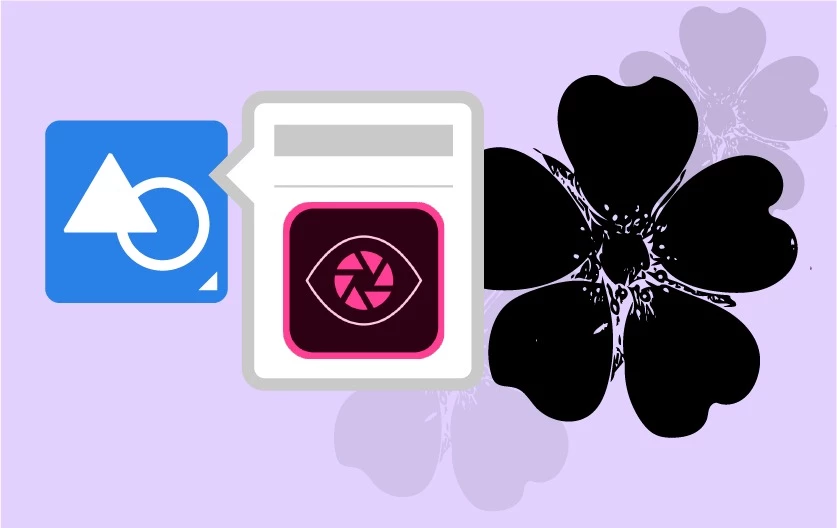
1. Shapes: Speed up your drawing by using shapes to stamp, full, mask, erase or make selections. Bring in your custom shapes from Adobe Capture and use any library shapes that you saved previously.
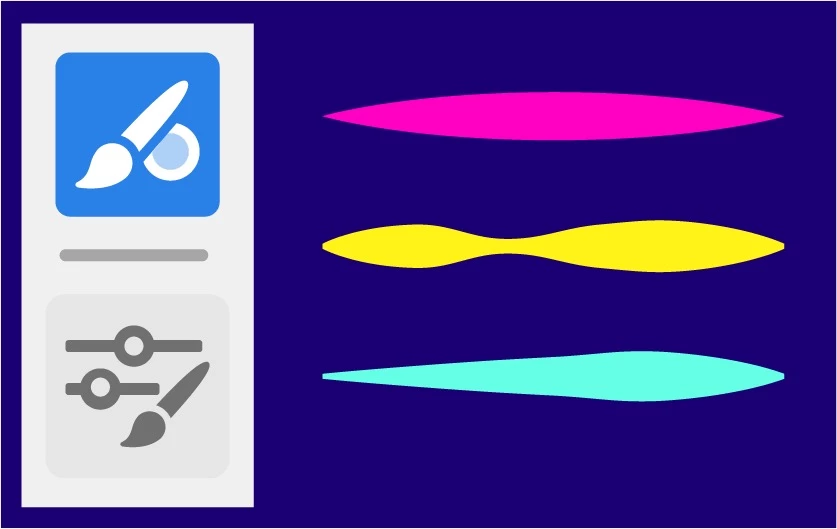
2. Mixer brushes: Paint with multiple colours simultaneously using Mixer Brushes. The new set of blending brushes are similar to mixer brushes in Photoshop. You can access mixer brushes from a new section under Pixel brushes or through the Creative Cloud.
Note: Tutorial is out now.
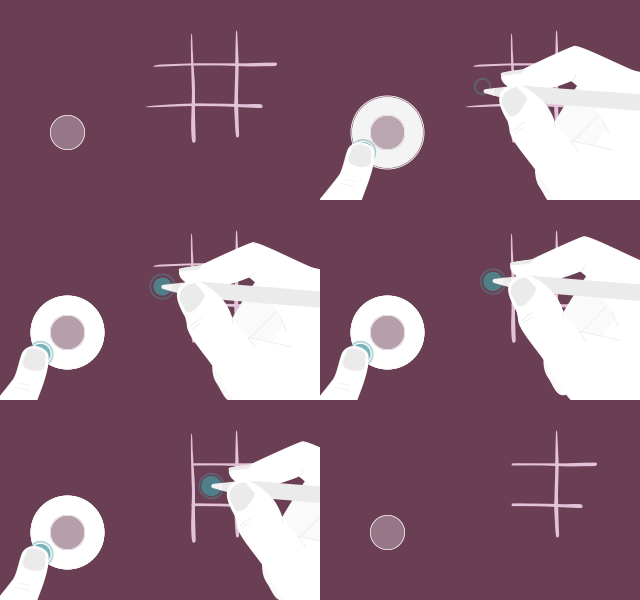
3. Touch shortcut: The little circle on your canvas is called the Touch Shortcut and has many uses. To activate the new secondary state just tap-hold-and-drag the centre of the Touch Shortcut to its outer edge. To lock it in this secondary state, first double-tap it, then tap-hold-and-drag from the centre of the Touch Shortcut to its outer edge (to release the lock just double-tap). You can also tap three times to activate and hold this state.

4. Multicolour eyedrop: Swatches with singular colour have been around for a long time now. This new feature allows for the eyedropper tool (combined with the touch modifier in a secondary mode) to select a swatch to be many colours at once. This will help you to paint with several colours at a time using Pixel brushes and Live brushes.
Limitation: All pixel brushes other than sketching and marker brushes are supported.
Note: Tutorial is out now.
5. Vector trimming: Vector lines can be quickly and efficiently erased using this new eraser feature. While on a vector layer, use the touch shortcut in secondary mode, select the eraser and use a tap or scribble to quickly erase vector strokes.
• If you tap on two paths that are crossed it trims the overlapping section
• If you scribble three times over a path it will erase the entire path.
6. Velocity taper: Allowing you better control over your strokes, this feature provides advanced controls for tapering based on how quickly you draw your vector stroke. Customize Begin Taper and End Taper for any vector brush stroke including how it works with velocity.
For more info on this feature, see this discussion on Advanced Taper.
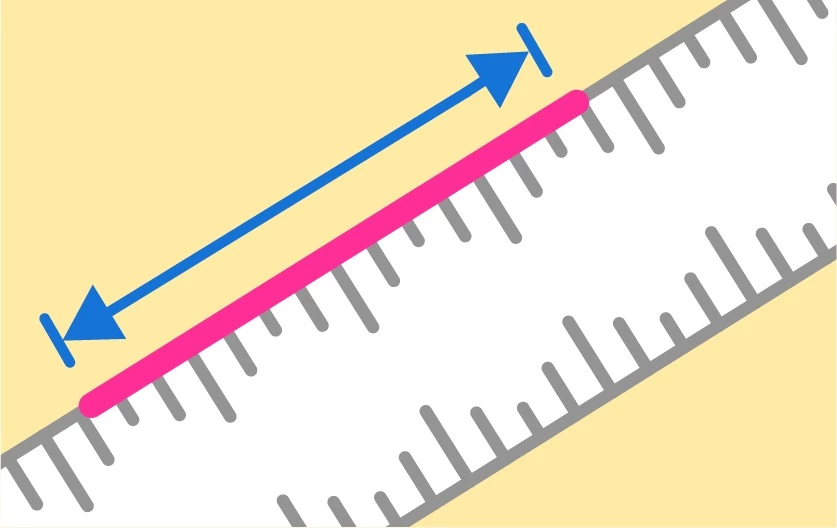
7. Ruler measurements: We’ve updated the straight edge tool so that it can be pinned to the canvas and used to measure your strokes while you draw. You can see tick marks in the ruler based on current document units.
For more info on the straight edge tool, see: Straight edge tool
Check out the what’s new article to know more about the release and stay tuned for the tutorials mentioned above.


 AdChoices