RichardTuson1
Participant
September 12, 2018
Answered

Bottom layer is still masking the layers above with opacity

  • September 12, 2018
  • 5 replies
  • 6443 views

HI, This is my 1st post, so hope I have included everything I need.

Using Illustrator cc - latest updates applied.

Windows version

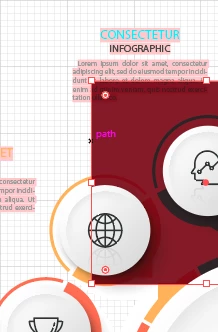
I have about 20 layers in an illustrator diagram. There is a background layer which is white at present. But I need it to be black. Please see attached, when I place a red square which is the bottom layer over the images. It fades the colours which were once bright. This has stumped me and for clarity, I did not create the full image, so I am not sure if someone has tried to be cleaver with linking stuff. Also, I have tried changing the original layer and also introducing a new layer.

Please see image
This topic has been closed for replies.
Correct answer Mike_Gondek10189183

Yes, I am aware of the font  - but that's an easy one to fix...

I have shown 2 more images which might show the change.

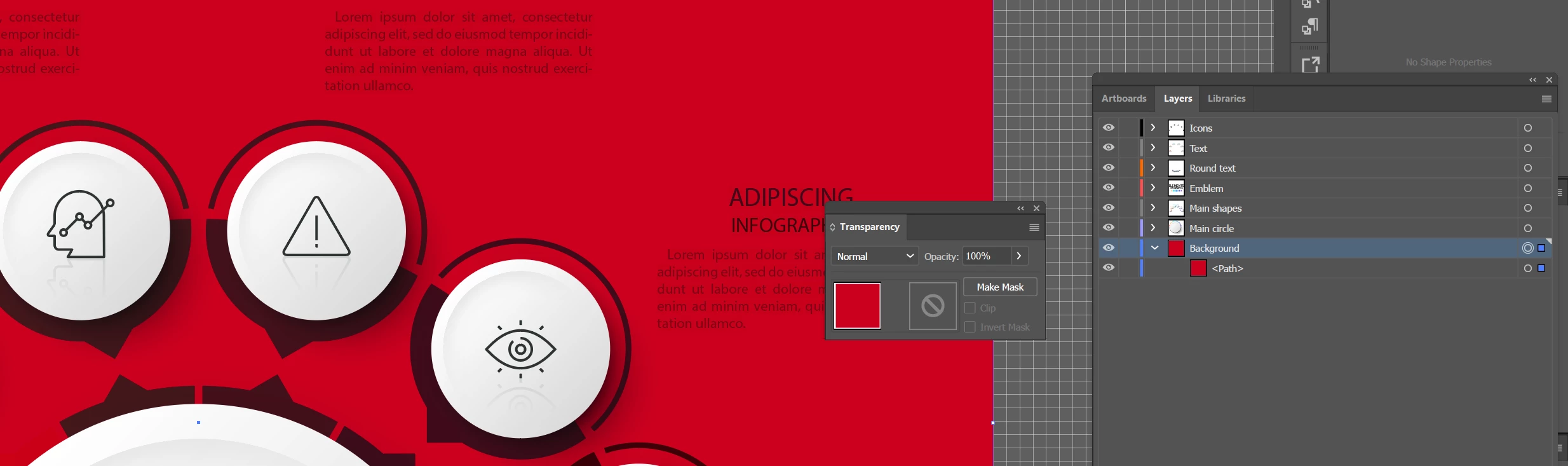
The image had a white background to start with and all was fine. However, I want to change it to another colour. But as you can see the red, darkens all colours. It is a weird one. I might try deleting all layers and build up. but this is the lowest layer. So its like the layer adds a middle filter to the colours.

I really appreciate your help and thoughts on this


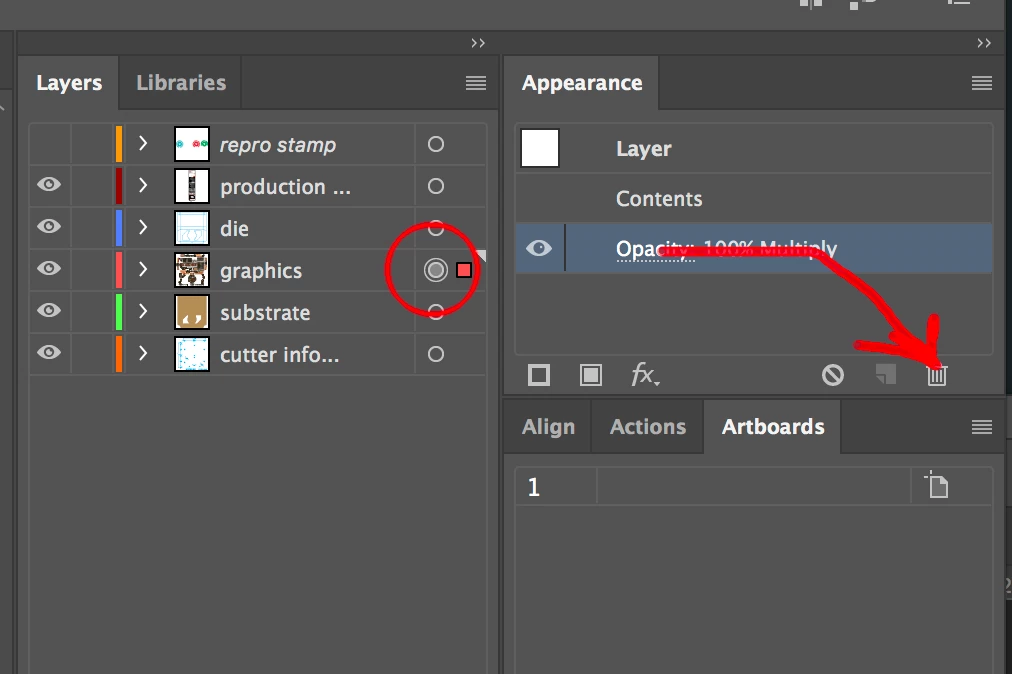
Click on the radio button to select show layer level attributes in appearance panel. In appearance delete multiply or other blend mode.

If you still have trouble,  save a small portion showing the problem, and post that .ai file using dropbox, google drive or similar ftp share. I'm sure you will get an answer then, as will be so much easier for us to review.

5 replies

RichardTuson1
Participant
September 14, 2018

It was the multiple setting, but it was 1 item in a group which was hidden below about 10 items. So thanks all for your help.. MikeGondek

sharp_hands16B8
Community Expert
Community Expert
September 12, 2018

So it looks like there is definitely some kind of transparency or blend mode happening somewhere. The question is whether or not it is on the object, or if it is on the layer. A transparency can be an appearance property on either an object, a layer, or an element inside of a group.

You need to make sure that you have the object selected. Best way to know this, is the little circle on the right of the layer or sublayer will light up when you select the object. Or, you can actually click on the circle and that will select the object on that layer. With your transparency panel up, click on that circle to see if a transparency value appears for any of the objects that you can see through.


Also, if you can upload the file to share with us we can probably figure it out quickly.

Legend
September 12, 2018

Check the elements that are looking "faded" to see if they have a transparency effect applied (Multiply, Overlay, etc.)

RichardTuson1
Participant
September 12, 2018

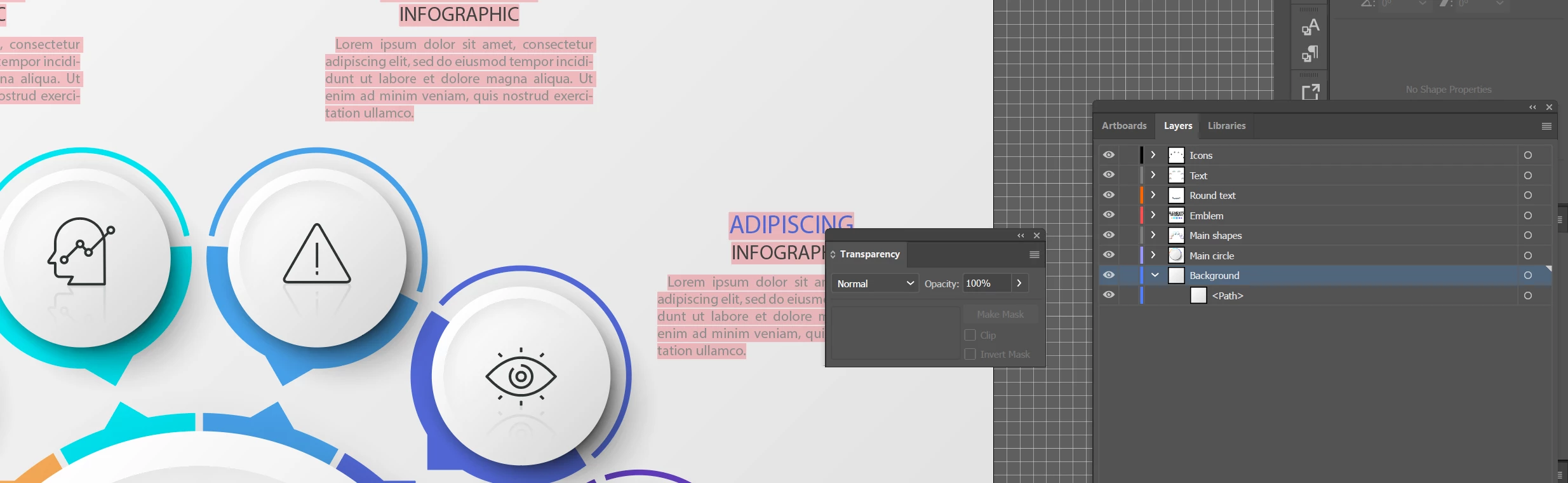
Hi I have checked the layer for multiple and they are all set to normal. This is shown below in the 2 images. I have tried isololating a layer and making sure and then changed the all to Normal but still not working. So as you can see when issolated it comes to the top but after that it goes behind the square. so the circle is masked. Any further thoughts are welcomed.

Legend
September 12, 2018

It doesn't look like you have the problem object selected when you are looking at the transparency pallet.

Click on the dot to the far right of the layers pallet, and then look at the Transparency effects again.

Inspiring
September 12, 2018

Is the material or layer that appears to lose brightness with a darker color beneath perhaps set to multiply (see the transparency window)?

c.pfaffenbichler
Community Expert
Community Expert
September 12, 2018

Using Illustrator cc - latest updates applied.

Please don’t refer to »latest update« or similar but state the exact version number.

Please provide screenshots including all pertinent Panels (Attributes, expanded Layers, Transparency, Control, …).

It fades the colours which were once bright.

Without before/after screenshots it seems difficult to judge what you mean by that.

RichardTuson1
Participant
September 12, 2018

Hi

Version is cc

Adobe Illustrator 1.0

Before and after was shown in the same picture. As you can see the red square has cut through. And so some icons are masked with the red box and where the edge of the box is it is fine in colour. I am responding below with other images for you to see.

Larry G. Schneider
Community Expert
Community Expert
September 12, 2018

Another thing indicated in the first screenshot is the indication of not havping the correct font installed on your computer. This is shown by the pink background at the top and left side. Can you show a screenshot with the Appearance panel and Layer panel open and the red box selected?