
Participant
Feb 20, 2019 10:08 AM UTC
Answered

Colours look very washed out

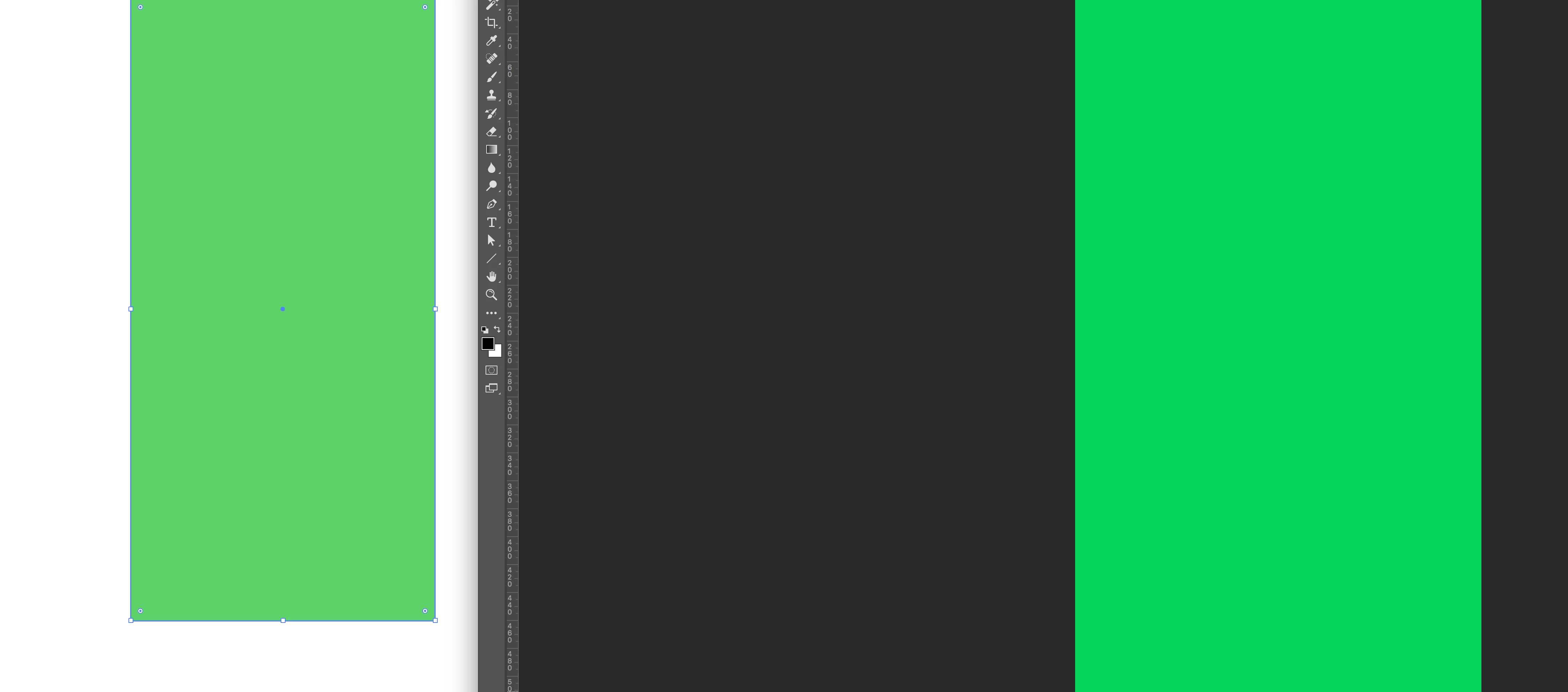
Since some weeks, my RGB colours in Illustrator look very washed out. When I copy and paste them in -for example- photoshop or keynote, the colours are much more vibrant. It's not the proof colours option.

See the screenshot below: left is a green rectangle in illustrator, right is the same rectangle pasted in photoshop. Anyone has an idea how  to fix this? Thanks!
This topic is closed to new replies. Start a new post to keep the conversation going.
Julio César MercadoCorrect answer
Participant
Aug 9, 2022 3:18 PM UTC

Hello. Had the same issue and no recomendation worked for me. Finally I solved it opening Adobe Bridge -> Edit > Color Settings > Monitor Color > Apply. Hope it works for you too.

21 replies

Julio César MercadoCorrect answer
Participant
Aug 9, 2022 3:18 PM UTC

Hello. Had the same issue and no recomendation worked for me. Finally I solved it opening Adobe Bridge -> Edit > Color Settings > Monitor Color > Apply. Hope it works for you too.

Translate
Anubhav M
Community Manager
Community Manager
Aug 12, 2022 2:00 PM UTC

Hello @Julio César Mercado,


Glad to hear that the problem was solved, and thank you for sharing the suggestions. Feel free to reach out if you need further assistance in the future. We'd be happy to help.


Thanks,

Anubhav

Translate
Participant
Nov 19, 2021 10:08 PM UTC

The solve for me was:

View > View using CPU
View > Proof Setup > Monitor RGB

Translate
Participant
Apr 28, 2021 1:40 PM UTC

View > CPU also fixed this problem for me!

Translate
Participant
Apr 9, 2021 4:13 AM UTC

Go to View > Select Pixel Preview

Translate
Participant
Mar 19, 2020 12:35 AM UTC

Hey - I was having the same problem. I think I found an answer. Under "View" > Proof Setup, select "Monitor RGB". Mine was set to CMYK. Switched to monitor RGB view and all the colors brightened up to vibrant RBG. Hope that helps.


Translate
Known Participant
Apr 24, 2021 7:15 PM UTC

I had the same problem too and this solved it for me! Thanks for your comment 🙂


Translate
Ton Frederiks
Community Expert
Community Expert
Feb 20, 2019 9:31 PM UTC

Are the RGB color values the same in Illustrator and Photoshop?

And is Illustrators Document Color Profile the same as in Photoshop?

Translate
Community Expert
Feb 20, 2019 7:43 PM UTC

Do you callibrate your monitor?

Translate
lambiloon
Community Expert
Community Expert
Feb 20, 2019 1:32 PM UTC

Hi all change is due change in color mode all depends on need of your final product....Thanks

Translate
Ali Sajjad / Graphic Design Trainer / Freelancer / Adobe Certified Professional
Simmer1
Community Expert
Community Expert
Feb 20, 2019 11:59 AM UTC

Hi,

Like kennethkawamoto2 said having the same colour setting as in Photoshop should help.

In Photoshop go Edit > Colour setting to fid out the RGB colour setting.

Then back in Adobe Illustrator open up you file and go Edit > Assign Profile.

Kind regards,

Sim

Translate
Participant
Feb 20, 2019 12:37 PM UTC

Unfortunately that didn't help... colour settings are the same

Translate
Simmer1
Community Expert
Community Expert
Feb 20, 2019 12:48 PM UTC

Here are a few more things you can try:

Is you Colour palette in illustrator set to CMYK or RGB. if it is currently set to CMYK then set it to RGB.

Also you could take a screenshot or the vibrant Green in Photoshop on a Mac the shortcut is shift+Cmd+4, open the screenshot in Illustrator and then use the Eyedropper Tool to get an accurate colour sample.

I hope this helps,

Sim

Translate
Kenneth Kawamoto
Community Expert
Community Expert
Feb 20, 2019 11:02 AM UTC

Is Illustrator's Colour Settings the same as Photoshop's Colour Settings?

Translate