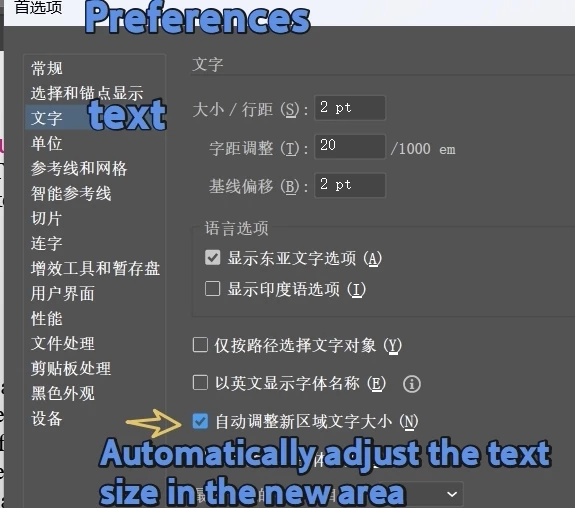
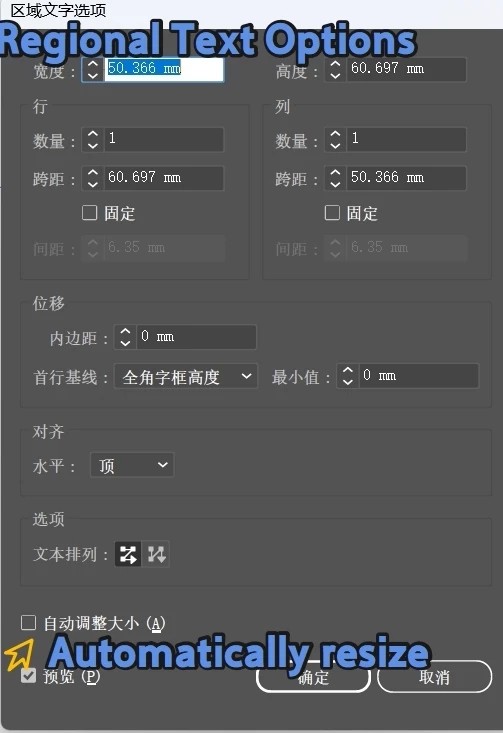
@dublove The best I could do is to use Action code. Unfortunately, it is a bit of a hack, but I cannot think of any other way.
— Mark
/**
 * @file Auto Size Selected TextFrame.js
*
 * Invoke the "Auto Size" area text option on the selected text frame(s).
 *
 * @author m1b
 * @version 2026-05-19
 * @discussion https://community.adobe.com/questions-652/how-to-enable-the-auto-resize-function-under-the-preferences-and-regional-text-options-1623882
 */
(function () {

    if (
        0 === app.documents.length
        || 0 === app.activeDocument.selection.length
    )
        return alert('Please select one or more text frames and try again.');

    const KEEP_AUTOSIZE_ON = false;
    autoSizeSelectedTextFrames(KEEP_AUTOSIZE_ON);

})();

/**
 * Auto-sizes the given `textFrames`.
 * @param {Boolean} [keepOn] - whether to leave Auto Size turned ON (default: true).
 */
function autoSizeSelectedTextFrames(keepOn) {

    // this is the .aia markup to invoke "Auto Size" in Area Text Options
    const AUTOSIZE_AREATEXT_OPTIONS_AIA_AND_KEEP_ON = '/version 3 /name [ 4 54656d70 ] /isOpen 1 /actionCount 1 /action-1 { /name [ 8 416374696f6e2031 ] /keyIndex 0 /colorIndex 0 /isOpen 0 /eventCount 1 /event-1 { /useRulersIn1stQuadrant 0 /internalName (adobe_SLOAreaTextDialog) /localizedName [ 17 417265612054797065204f7074696f6e73 ] /isOpen 0 /isOn 1 /hasDialog 0 /parameterCount 1 /parameter-1 { /key 1952539754 /showInPalette 4294967295 /type (integer) /value 1 } } }';
    const AUTOSIZE_AREATEXT_OPTIONS_AIA_AND_KEEP_OFF = '/version 3 /name [ 4 54656d70 ] /isOpen 1 /actionCount 1 /action-1 { /name [ 8 416374696f6e2031 ] /keyIndex 0 /colorIndex 0 /isOpen 0 /eventCount 2 /event-1 { /useRulersIn1stQuadrant 0 /internalName (adobe_SLOAreaTextDialog) /localizedName [ 17 417265612054797065204f7074696f6e73 ] /isOpen 0 /isOn 1 /hasDialog 0 /parameterCount 1 /parameter-1 { /key 1952539754 /showInPalette 4294967295 /type (integer) /value 1 } } /event-2 { /useRulersIn1stQuadrant 0 /internalName (adobe_SLOAreaTextDialog) /localizedName [ 17 417265612054797065204f7074696f6e73 ] /isOpen 0 /isOn 1 /hasDialog 0 /parameterCount 1 /parameter-1 { /key 1952539754 /showInPalette 4294967295 /type (integer) /value 2 } } }';

    var aia = keepOn
        ? AUTOSIZE_AREATEXT_OPTIONS_AIA_AND_KEEP_ON
        : AUTOSIZE_AREATEXT_OPTIONS_AIA_AND_KEEP_OFF;

    // invoke the auto-size
    doActionFromString(aia);

};

/**
 * Create and execute an action using the markup supplied.
 *
 * Loads the .aia into a "DeleteMeNNNNN" action set,
 * which will be unloaded after running.
 *
 * Example of .aia markup:
 *   const AUTOSIZE_AREATEXT = '/version 3 /name [ 4 54656d70 ] /isOpen 1 /actionCount 1 /action-1 { /name [ 8 416374696f6e2031 ] /keyIndex 0 /colorIndex 0 /isOpen 0 /eventCount 1 /event-1 { /useRulersIn1stQuadrant 0 /internalName (adobe_SLOAreaTextDialog) /localizedName [ 17 417265612054797065204f7074696f6e73 ] /isOpen 0 /isOn 1 /hasDialog 0 /parameterCount 1 /parameter-1 { /key 1952539754 /showInPalette 4294967295 /type (integer) /value 1 } } }';
 *
 * @author m1b (and thanks to Charu Rajput for initial idea of loading a temporary aia).
 * @version 2026-05-19
 * @param {String} aia - the action markup.
 */
function doActionFromString(aia) {

    // replace the set name with a unique throwaway name to avoid collisions
    var setNameHex = encodeHex('DeleteMe' + Math.floor(Math.random() * 99999 + 1));
    aia = aia.replace(/\/name \[ [0-9]+ [0-9a-f]+ \]/, '/name [ ' + (setNameHex.length / 2) + ' ' + setNameHex + ' ]');

    var findName = /\/name\s\[ [0-9]+ ([0-9a-f]+) \]/g;
    var setName = decodeHex(findName.exec(aia)[1]);
    var actionName = decodeHex(findName.exec(aia)[1]);

    try {

        // save temp action, load it, do it, unload it, delete it
        var tmp = File(Folder.temp + '/' + setName + '.aia');
        tmp.open('w');
        tmp.write(aia);
        tmp.close();
        app.loadAction(tmp);
        app.doScript(actionName, setName, false);

    }
    catch (error) {
        alert('Script failed: ' + error.message);
    }
    finally {
        app.unloadAction(setName, '');
        tmp.remove();
    }

};

/**
 * Returns an ASCII string, given hexadecimal number.
 * @param {String} hex - the hexadecimal to decode.
 * @returns {String} - the decoded string.
 */
function decodeHex(hex) {

    var result = '';

    for (var i = 0; i < hex.length; i += 2)
        result += String.fromCharCode(parseInt(hex.substr(i, 2), 16));

    return result;

};

/**
 * Returns a hexadecimal string encoding of an ASCII string.
 * @param {String} str - the string to encode.
 * @returns {String} - the hex-encoded string.
 */
function encodeHex(str) {

    var result = '';

    for (var i = 0; i < str.length; i++) {
        var code = str.charCodeAt(i).toString(16);
        result += (code.length < 2 ? '0' : '') + code;
    }

    return result;

};
Edit 2026-05-19: added better error handling and documentation.





 AdChoices