dublove
Legend
May 18, 2026
Answered

How to enable the "Auto Resize" function under the preferences and "Regional Text Options"?

  • May 18, 2026
  • 38 replies
  • 2864 views

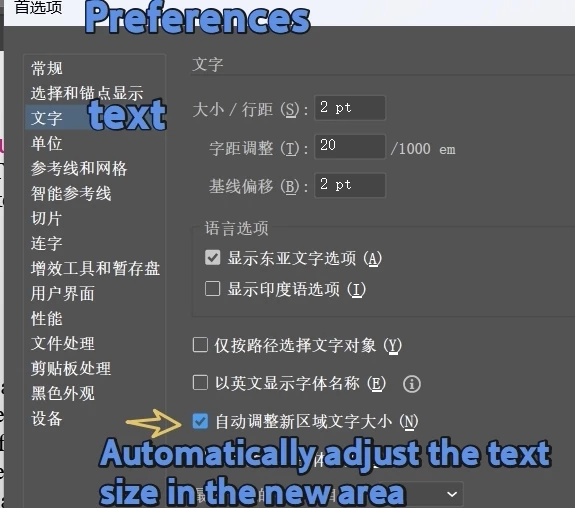
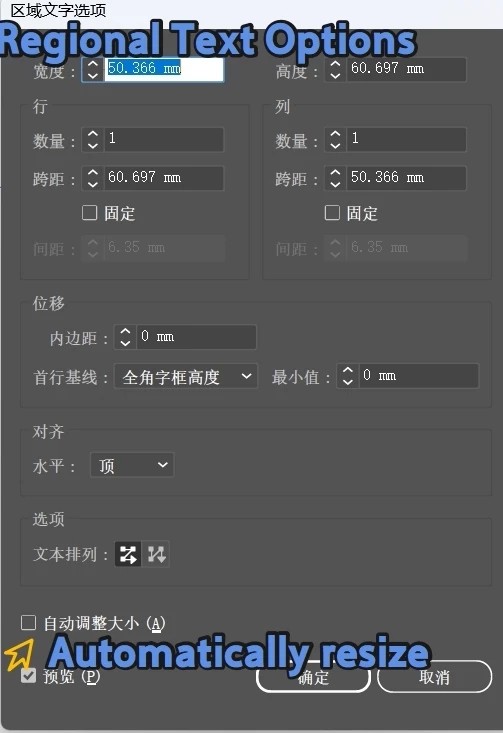
I want to activate two functions of text:
One is:
Preferences>Text>Automatically adjust the text size in the new area“


The second one is the menu:

"Text>>Regional Text Options>Auto Resize“


I have searched a lot of information but have not been successful, and it seems that I can only open the preferences option.
A single text object cannot be set, which is a bit unscientific.

function setAutoTextFrames() {
//var autoSize = app.preferences.getBooleanPreference("text/autoSizing");
//app.preferences.setBooleanPreference("text/autoSizing", true);

var autoSize = app.preferences.getStringPreference('text/autoSizing');
alert(autoSize);

}
setAutoTextFrames();

https://judicious-night-bca.notion.site/app-getIntegerPreference-e4088e6caef64b3ba5b801d86fba7877


    Correct answer m1b

    @dublove The best I could do is to use Action code. Unfortunately, it is a bit of a hack, but I cannot think of any other way.

    — Mark

    /**
    * @file Auto Size Selected TextFrame.js
    *
    * Invoke the "Auto Size" area text option on the selected text frame(s).
    *
    * @author m1b
    * @version 2026-05-19
    * @discussion https://community.adobe.com/questions-652/how-to-enable-the-auto-resize-function-under-the-preferences-and-regional-text-options-1623882
    */
    (function () {

    if (
    0 === app.documents.length
    || 0 === app.activeDocument.selection.length
    )
    return alert('Please select one or more text frames and try again.');

    const KEEP_AUTOSIZE_ON = false;
    autoSizeSelectedTextFrames(KEEP_AUTOSIZE_ON);

    })();

    /**
    * Auto-sizes the given `textFrames`.
    * @param {Boolean} [keepOn] - whether to leave Auto Size turned ON (default: true).
    */
    function autoSizeSelectedTextFrames(keepOn) {

    // this is the .aia markup to invoke "Auto Size" in Area Text Options
    const AUTOSIZE_AREATEXT_OPTIONS_AIA_AND_KEEP_ON = '/version 3 /name [ 4 54656d70 ] /isOpen 1 /actionCount 1 /action-1 { /name [ 8 416374696f6e2031 ] /keyIndex 0 /colorIndex 0 /isOpen 0 /eventCount 1 /event-1 { /useRulersIn1stQuadrant 0 /internalName (adobe_SLOAreaTextDialog) /localizedName [ 17 417265612054797065204f7074696f6e73 ] /isOpen 0 /isOn 1 /hasDialog 0 /parameterCount 1 /parameter-1 { /key 1952539754 /showInPalette 4294967295 /type (integer) /value 1 } } }';
    const AUTOSIZE_AREATEXT_OPTIONS_AIA_AND_KEEP_OFF = '/version 3 /name [ 4 54656d70 ] /isOpen 1 /actionCount 1 /action-1 { /name [ 8 416374696f6e2031 ] /keyIndex 0 /colorIndex 0 /isOpen 0 /eventCount 2 /event-1 { /useRulersIn1stQuadrant 0 /internalName (adobe_SLOAreaTextDialog) /localizedName [ 17 417265612054797065204f7074696f6e73 ] /isOpen 0 /isOn 1 /hasDialog 0 /parameterCount 1 /parameter-1 { /key 1952539754 /showInPalette 4294967295 /type (integer) /value 1 } } /event-2 { /useRulersIn1stQuadrant 0 /internalName (adobe_SLOAreaTextDialog) /localizedName [ 17 417265612054797065204f7074696f6e73 ] /isOpen 0 /isOn 1 /hasDialog 0 /parameterCount 1 /parameter-1 { /key 1952539754 /showInPalette 4294967295 /type (integer) /value 2 } } }';

    var aia = keepOn
    ? AUTOSIZE_AREATEXT_OPTIONS_AIA_AND_KEEP_ON
    : AUTOSIZE_AREATEXT_OPTIONS_AIA_AND_KEEP_OFF;

    // invoke the auto-size
    doActionFromString(aia);

    };

    /**
    * Create and execute an action using the markup supplied.
    *
    * Loads the .aia into a "DeleteMeNNNNN" action set,
    * which will be unloaded after running.
    *
    * Example of .aia markup:
    * const AUTOSIZE_AREATEXT = '/version 3 /name [ 4 54656d70 ] /isOpen 1 /actionCount 1 /action-1 { /name [ 8 416374696f6e2031 ] /keyIndex 0 /colorIndex 0 /isOpen 0 /eventCount 1 /event-1 { /useRulersIn1stQuadrant 0 /internalName (adobe_SLOAreaTextDialog) /localizedName [ 17 417265612054797065204f7074696f6e73 ] /isOpen 0 /isOn 1 /hasDialog 0 /parameterCount 1 /parameter-1 { /key 1952539754 /showInPalette 4294967295 /type (integer) /value 1 } } }';
    *
    * @author m1b (and thanks to Charu Rajput for initial idea of loading a temporary aia).
    * @version 2026-05-19
    * @param {String} aia - the action markup.
    */
    function doActionFromString(aia) {

    // replace the set name with a unique throwaway name to avoid collisions
    var setNameHex = encodeHex('DeleteMe' + Math.floor(Math.random() * 99999 + 1));
    aia = aia.replace(/\/name \[ [0-9]+ [0-9a-f]+ \]/, '/name [ ' + (setNameHex.length / 2) + ' ' + setNameHex + ' ]');

    var findName = /\/name\s\[ [0-9]+ ([0-9a-f]+) \]/g;
    var setName = decodeHex(findName.exec(aia)[1]);
    var actionName = decodeHex(findName.exec(aia)[1]);

    try {

    // save temp action, load it, do it, unload it, delete it
    var tmp = File(Folder.temp + '/' + setName + '.aia');
    tmp.open('w');
    tmp.write(aia);
    tmp.close();
    app.loadAction(tmp);
    app.doScript(actionName, setName, false);

    }
    catch (error) {
    alert('Script failed: ' + error.message);
    }
    finally {
    app.unloadAction(setName, '');
    tmp.remove();
    }

    };

    /**
    * Returns an ASCII string, given hexadecimal number.
    * @param {String} hex - the hexadecimal to decode.
    * @returns {String} - the decoded string.
    */
    function decodeHex(hex) {

    var result = '';

    for (var i = 0; i < hex.length; i += 2)
    result += String.fromCharCode(parseInt(hex.substr(i, 2), 16));

    return result;

    };

    /**
    * Returns a hexadecimal string encoding of an ASCII string.
    * @param {String} str - the string to encode.
    * @returns {String} - the hex-encoded string.
    */
    function encodeHex(str) {

    var result = '';

    for (var i = 0; i < str.length; i++) {
    var code = str.charCodeAt(i).toString(16);
    result += (code.length < 2 ? '0' : '') + code;
    }

    return result;

    };

    Edit 2026-05-19: added better error handling and documentation. 

    38 replies

    Participant
    August 22, 2026

    Existing text box ke liye: select karo → Type > Area Type Options → "Auto Size" checkbox on karo. Ye seedha us object pe kaam karega.

    Participant
    August 20, 2026

    This is a really interesting limitation. The distinction between the global “Auto Size New Area Type” preference and the per-object “Auto Resize” option seems to be the main source of confusion.

    The Action workaround is clever, but I can see why users would prefer a direct scripting property rather than temporarily loading an action. For production workflows, relying on internal action markup also feels more fragile if Adobe changes the underlying implementation in a future Illustrator release.

    It would be great if Adobe exposed the per-text-frame Auto Resize setting directly through the scripting API, similar to other text-frame properties. That would make automation much safer and easier to maintain.

    oliviaparker09
    Participating Frequently
    August 18, 2026

    Very Infromative.

    Yasir23236450vnct
    Participant
    August 17, 2026

    I think the important distinction here is that these are actually two different mechanisms in Illustrator.

    The Preferences > Type > Automatically adjust the size of the text box in the new area text option is a global preference. It affects area-text frames created after the preference is enabled, but it doesn't retroactively change existing text frames.

    The Auto Resize/Auto Size option under Area Type Options is an object-level setting. That's why changing app.preferences doesn't appear to enable it for an existing text frame.

    For JSX automation, this also explains why something like:

    app.preferences.setBooleanPreference("text/autoSizing", true);

    can work for the global preference but doesn't give you a normal TextFrame.autoSize-type property for an existing object.

    The Action-based .aia approach Mark posted is therefore a clever workaround because it invokes Illustrator's own internal Area Type command rather than trying to access a property that isn't exposed through the normal scripting DOM.

    One caveat: because it relies on the internal action name (adobe_SLOAreaTextDialog) and action parameters, I'd treat it as a workaround rather than a stable API. A future Illustrator update could potentially change that internal command.

    If Adobe exposed the per-text-frame Auto Resize setting directly in the scripting API, this entire workaround could be replaced with a much simpler and more maintainable JSX solution.

    unique_warmth5F8D
    Participant
    August 13, 2026

    I think Mark’s Action-based approach is probably the most practical solution here. It’s interesting that the preference can be accessed through scripting, but the per-text-frame “Auto Resize” setting doesn’t appear to have a straightforward DOM property.

    The temporary .aia action workaround is clever, especially since it can be applied to the selected text frames without requiring manual interaction with the Area Type Options dialog. It would be great if Adobe exposed this setting directly in the scripting API, though, because relying on an internal action string feels somewhat fragile and could potentially break in a future Illustrator update.

    Thanks for sharing this solution — it’s very useful until there’s an official scripting method.

    We Design Marbella
    perfect_artistry99f1
    Participant
    August 13, 2026

    I think the distinction between new and existing text frames is the part that can easily be missed. The Action-based workaround is interesting though, especially for anyone trying to automate this in Illustrator.

    Sharing useful resources and practical information online.
    Participant
    August 11, 2026

    In Illustrator, these are actually two different settings.

    1. Enable Auto Resize for new area text

    Go to:

    Edit → Preferences → Type

    and enable:

    Automatically adjust the size of the text box in the new area text

    This is a global preference and affects new area-text frames you create after enabling it. It does not automatically change existing text frames.

    2. Enable Auto Resize for an existing text frame

    Select the Area Type text object, then go to:

    Type Area Type Options → Auto Size/Auto Resize

    and enable the appropriate Auto Size option.

    If the option is unavailable, first make sure the selected object is Area Type, not Point Type. The setting is object-specific rather than simply being controlled by the global Preferences checkbox.

    If you are trying to do this with JavaScript

    This is where Illustrator is currently awkward.

    The preference can be accessed with something such as:

    app.preferences.setBooleanPreference("text/autoSizing", true);

    but that does not directly switch the Auto Resize option for an existing individual text frame.

    The Illustrator scripting API does not expose this particular per-text-frame Auto Resize control as a normal TextFrame property. Community experts have therefore used an Illustrator Action (.aia) as a workaround to invoke the same UI command programmatically.

    So, if your goal is:

    • New text boxes: use the Preferences setting.

    • Existing selected text boxes: use Type → Area Type Options → Auto Size.

    • Automate existing text boxes with JSX: the normal scripting API does not provide a straightforward property; an Action-based workaround is currently the practical approach.

    If you tell us your exact Illustrator version and whether you want to enable Auto Resize manually or through JSX, we can provide the exact steps/script for that version.

    dublove
    dubloveAuthor
    Legend
    August 10, 2026

    I didn't expect this post to become popular.


    graphics_4075
    Inspiring
    August 10, 2026

    You were chosen by the bots for some reason. I commented on it below and one of them replied to me! It is very annoying and my email has been completely spammed. 

    Cheers
    Participant
    August 7, 2026

    If you’re referring to the “Auto Resize” option under Preferences → Regional Text Options, you should normally be able to enable it by opening the application’s Preferences/Settings, navigating to Regional Text Options, and checking the Auto Resize option.

    If the option is missing or greyed out, it may depend on the document type, application version, or the selected regional/text settings. I’d also recommend checking that you’re using the latest version and restarting the application after changing the setting.

    Participating Frequently
    August 17, 2026

    "Thank you so much for the clarification! I double-checked my application version and it turns out I just needed to run a quick update. Once I did that and restarted, the Auto Resize option under Regional Text Options was finally available. This is going to save me a massive amount of time when formatting the nutritional layouts and adjusting the text for the family platter sections over at I really appreciate you taking the time to help streamline my design workflow!"


    graphics_4075
    Inspiring
    August 6, 2026

    What is going on with all the AI bots self promoting under this post? Can someone remove the links/comments? One is talking about ukeleles and another asked what program OP is using. LMAO

    Cheers