Inspiring
January 2, 2022
Answered

How to export 'Lighten Blending Mode' to Transparent PNG

  • January 2, 2022
  • 1 reply
  • 805 views

Actually, i have got a solution for this problem in Photoshop. See here

How to export 'Lighten Blending Mode' to Transparent PNG (Photoshop)

But i force similar problem ini Illustrator. Here my problem :

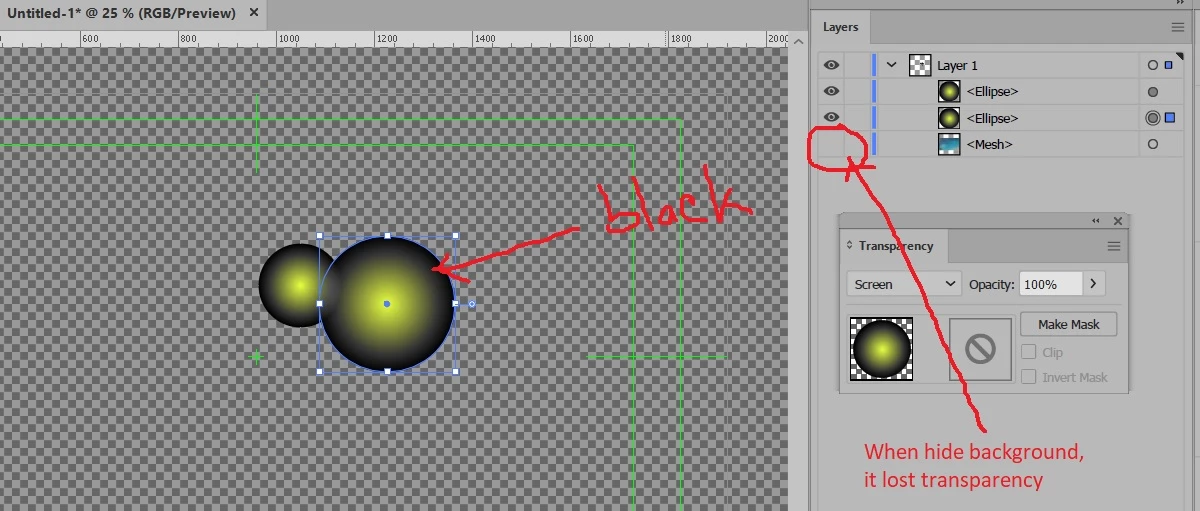
I have created a circle shape with gradient and then blend it to screen/lighten.

Same as my problem in Photoshop, when i hide background layer, my circle shape become black. How to keep its transparency when i export it to PNG?

Picture below :
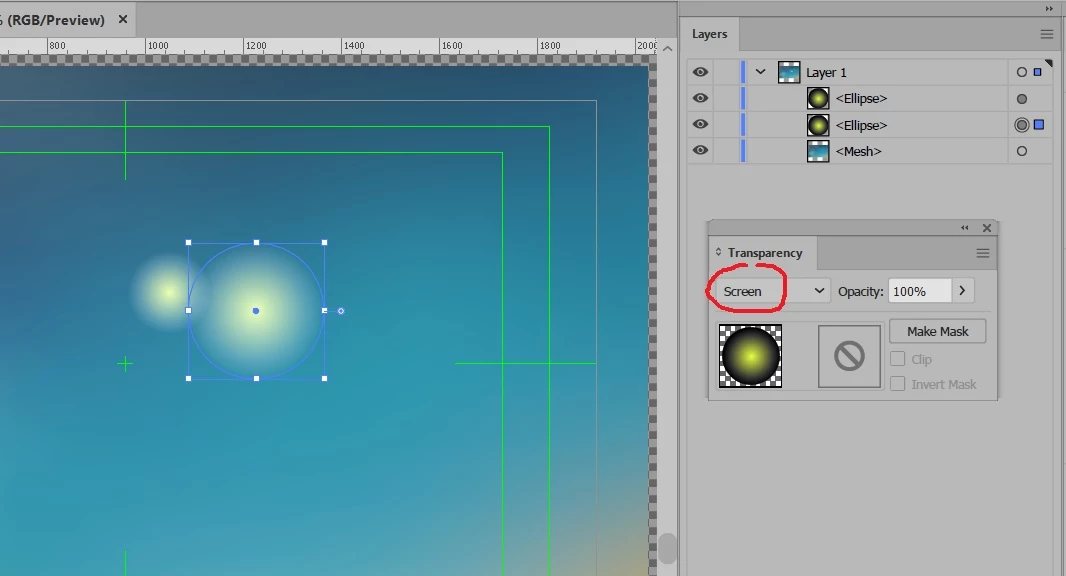
In photoshop, we can using 'Blend if' or my favorite trick 'Luminosity Mask'.

Thanks.
This topic has been closed for replies.
Correct answer Brad @ Roaring Mouse

It didn't lose it transparency.

You will have to rethink your approach.

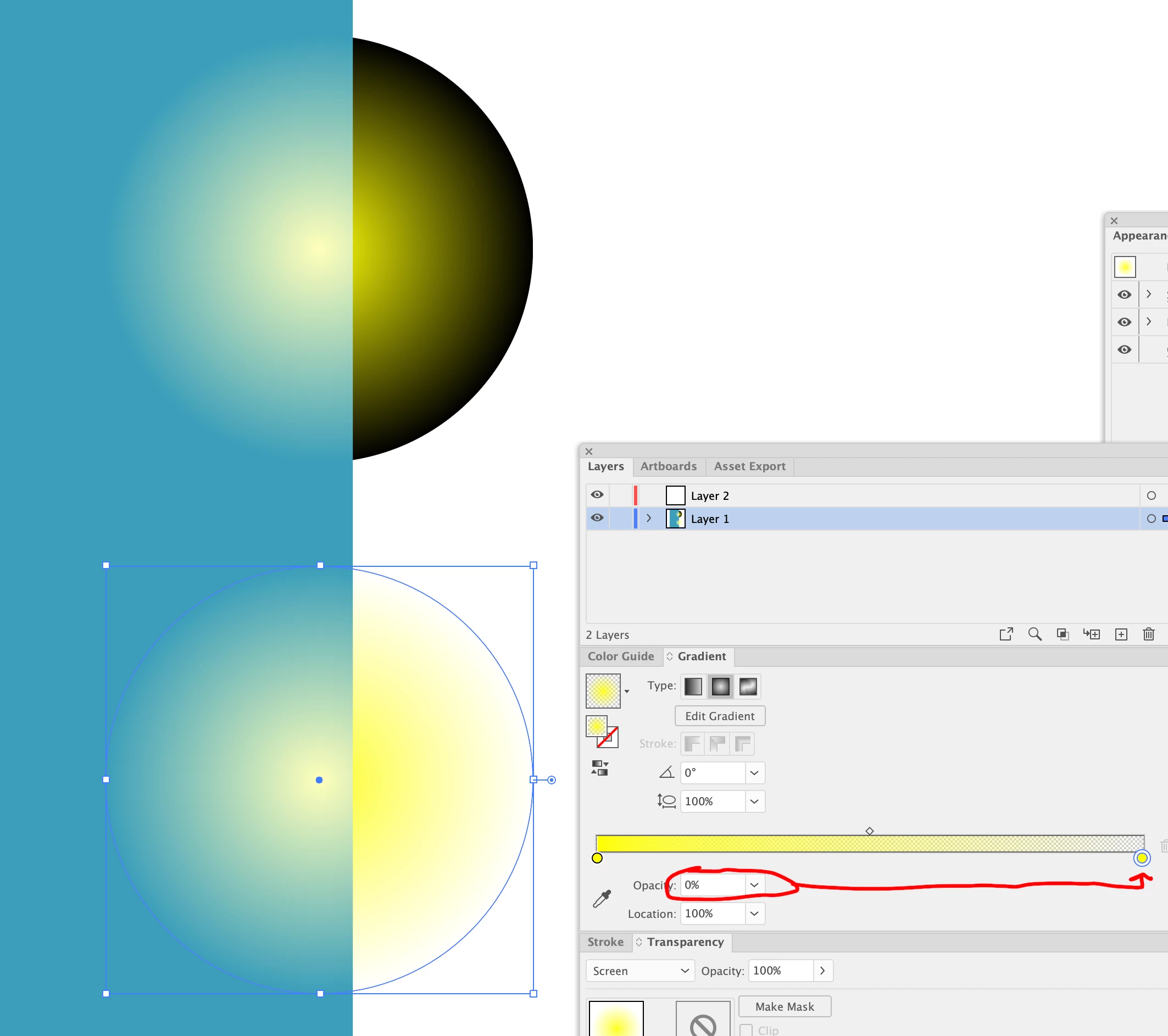
In order for a "Screen" Transparency effect to work using a gradation like that (from a Color to Black), is it has to have something behind it to work on. Without a color to blend against it stays Black. This is normal.

Instead, create a gradient that goes from 100% of your yellow color at 100% Opacity, to 100% of your yellow at 0% Opacity at the other end.

1 reply

Brad @ Roaring Mouse
Community Expert
Brad @ Roaring MouseCommunity ExpertCorrect answer
Community Expert
January 2, 2022

It didn't lose it transparency.

You will have to rethink your approach.

In order for a "Screen" Transparency effect to work using a gradation like that (from a Color to Black), is it has to have something behind it to work on. Without a color to blend against it stays Black. This is normal.

Instead, create a gradient that goes from 100% of your yellow color at 100% Opacity, to 100% of your yellow at 0% Opacity at the other end.

Inspiring
January 2, 2022
######Raizen 7, 40Gb Ram, RTX 3060, Win 11 -- All of Software in the world are just tools. Buy it if it works for you :)
Brad @ Roaring Mouse
Community Expert
Community Expert
January 3, 2022

In fact, with the revised approach, you need not select "Screen" if you don't want to. Use "Normal" and you will have a rich colour in the middle.