Participant
March 21, 2020
Answered

How to get rid of "cat ears" in Illustrator?

  • March 21, 2020
  • 3 replies
  • 858 views

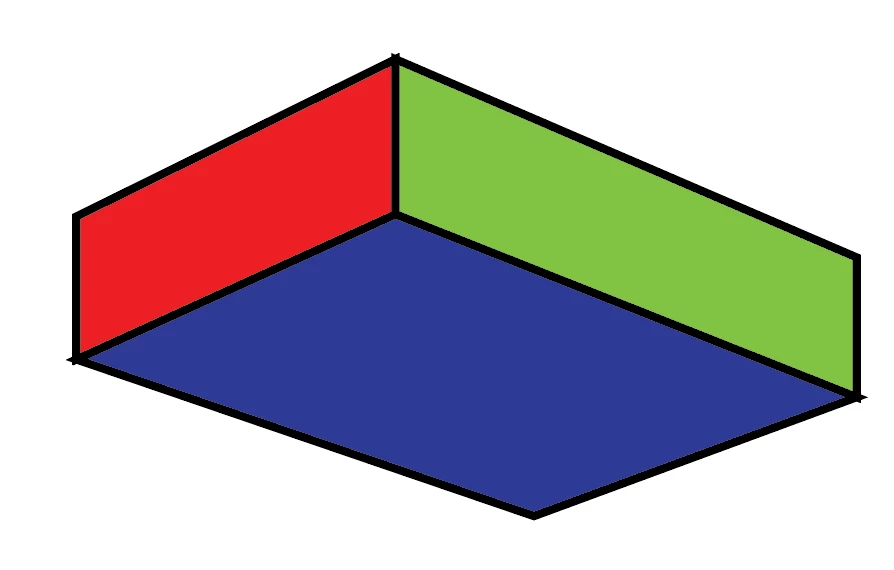
I designed this using three different shapes. Is there a way to combine the lines, so there are not "cat ears" anymore without losing other lines?

That's what I mean with "cat ears":


Thanks for your help!

This topic has been closed for replies.
Correct answer Jacob Bugge

twoS,


You may:


1) With the (normal) Selection Tool select each of the closed paths that form the sides and and then with the Scissors Tool Click each of the outer Anchor Points coinciding with those of the other paths;
2) Select the new open outer paths and Ctrl/Cmd+J to join them;
3) For each of the double inner lines deselect and then with the Direct Selection Tool Click and press Delete.


This should give you the outer shape as a closed path with the right sharp corners, and the inner lines as two or three separate paths.


You may select everything and Ctrl/Cmd+G, which will group everything so you can just work on the outer shape and the inner one(s) will follow.


You can also see this thread,

https://community.adobe.com/t5/illustrator/join-paths-while-preserving-all-lines/td-p/9366769?page=1



3 replies

Jacob Bugge
Community Expert
Jacob BuggeCommunity ExpertCorrect answer
Community Expert
March 21, 2020

twoS,


You may:


1) With the (normal) Selection Tool select each of the closed paths that form the sides and and then with the Scissors Tool Click each of the outer Anchor Points coinciding with those of the other paths;
2) Select the new open outer paths and Ctrl/Cmd+J to join them;
3) For each of the double inner lines deselect and then with the Direct Selection Tool Click and press Delete.


This should give you the outer shape as a closed path with the right sharp corners, and the inner lines as two or three separate paths.


You may select everything and Ctrl/Cmd+G, which will group everything so you can just work on the outer shape and the inner one(s) will follow.


You can also see this thread,

https://community.adobe.com/t5/illustrator/join-paths-while-preserving-all-lines/td-p/9366769?page=1



Myra Ferguson
Community Expert
Community Expert
March 21, 2020

If you don't want the corner slightly rounded by setting Round join, you could set the strokes to Align Stroke to Inside so that it's pointy where the angles align.

Larry G. Schneider
Community Expert
Community Expert
March 21, 2020

You can try using rounded ends in the Stroke panel.