Known Participant
April 13, 2019
Answered

I need help figuring out how to align a few dots, the align menu didn't help

  • April 13, 2019
  • 4 replies
  • 1159 views

Hello!

I was wondering about one problem that I recently stumbled upon and I tried to figure out a solution, but unfortunately, I couldn't.

So here is my problem:

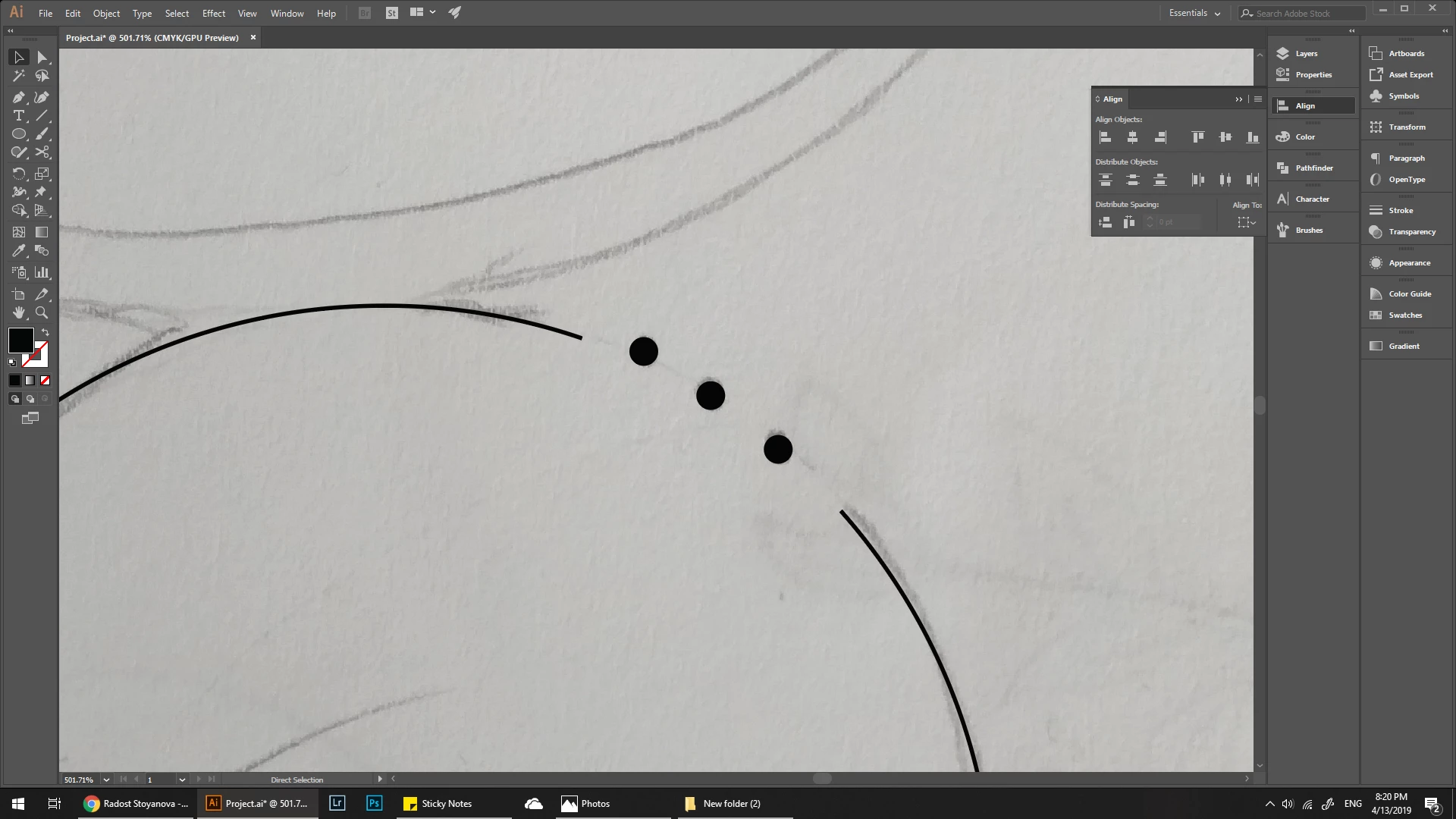
I want to align equally these 3 dots and the main circle without losing the positions they are currently in. I tried to experiment with the different options in the Align menu but nothing fixed my problem.

I will be really grateful if someone can help me with this because it's becoming a serious problem that I can't take care of.

Thank you in advance!

Here's the picture:
This topic has been closed for replies.
Correct answer pixxxelschubser

radoslava645  schrieb

What is helper objects? I can't find it anywhere.

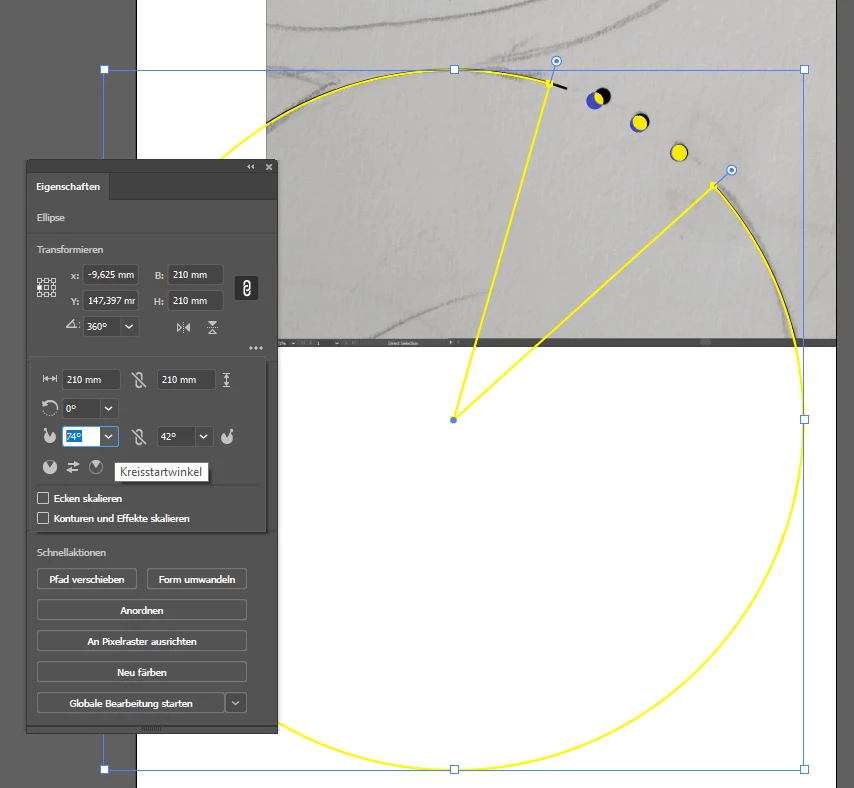
Draw a simple circular segment:

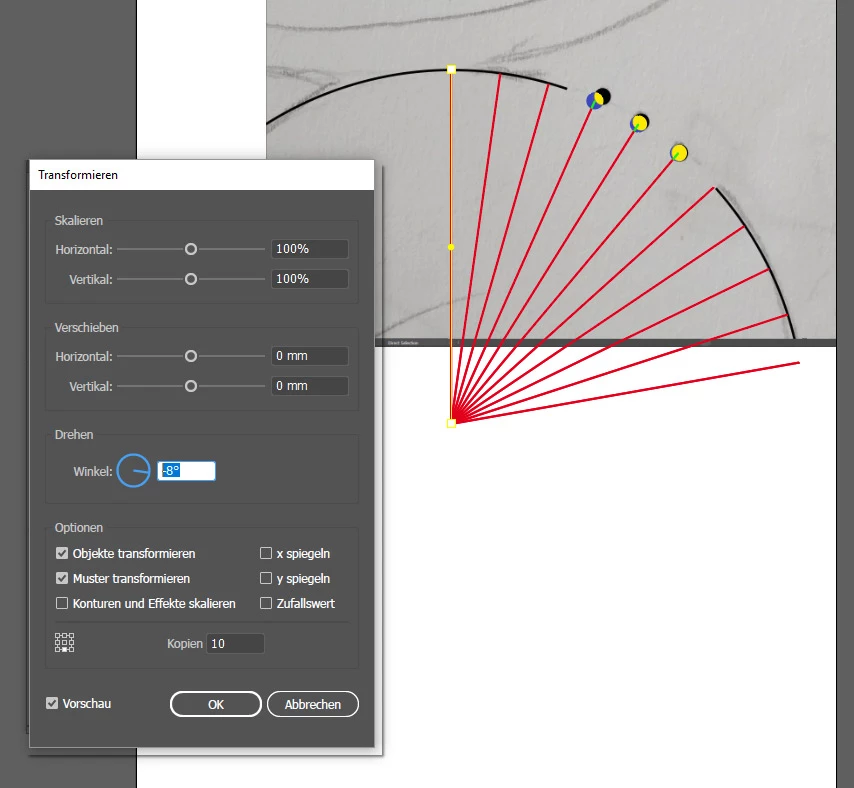
And a simple line (length = radius of circular segment) with transform effect:

Expand Appearance (a copy of the line with effect) and you will get real objects with real anchor points. This points helps you to align the middle of your three black dots (smple dragging the dots).

4 replies

Stephen Marsh
Community Expert
Community Expert
April 13, 2019

Yet another possibility, draw a circle and use the text on path tool, either using Bullet characters or a Pi font, making use of tracking, baseline shift etc.

Myra Ferguson
Community Expert
Community Expert
April 13, 2019

This idea may not work to retrofit what you have, but it's one way to build what you're wanting.

  1. Make the small black circle.
  2. Use the small black circle to create a pattern brush. Determine appropriate spacing (I used 200%).
  3. Make the larger circle.
  4. Duplicate the larger circle.
  5. Apply the pattern brush to the new circle.
  6. Use Object > Expand Appearance to turn the circles as a stroke into individual circles and group them.
  7. Align the 2 circles to determine where to use the Scissors Tool to cut the original circle.
  8. Cut the original circle and delete the arc.
  9. Ungroup the multiple black circles, select the ones you don't want, and delete them.
Ray Yorkshire
Participating Frequently
April 13, 2019

Another way using a script,

The Script Distribute on the Path for Adobe Illustrator - Freebies - Vectorboom

Maybe lock the circle

Draw in  the  missing path - ( eg use the Curvature Tool - click at  one the end of the gap , once in the middle and  lastly at the other  end)

Create 5 dots

Make sure the path is above of the dots in the layer panel

Select path and dots.

Run the above script, File> Script > Distribute on the path

Then delete the path and extra end dots

And unlock the circle

pixxxelschubser
Community Expert
Community Expert
April 13, 2019

IMO the quickest way: use helper objects eg

Known Participant
April 13, 2019

What is helper objects? I can't find it anywhere.

pixxxelschubser
Community Expert
pixxxelschubserCommunity ExpertCorrect answer
Community Expert
April 13, 2019

radoslava645  schrieb

What is helper objects? I can't find it anywhere.

Draw a simple circular segment:

And a simple line (length = radius of circular segment) with transform effect:

Expand Appearance (a copy of the line with effect) and you will get real objects with real anchor points. This points helps you to align the middle of your three black dots (smple dragging the dots).