SusanSherman
Inspiring
September 17, 2019
해결됨

I need to fade a series of lines from solid to transparent as they get further from the starting pt.

  • September 17, 2019
  • 2 답변들
  • 13329 조회

I am creating an ad as an Illustrator file with a map at the center. I want to have lines showing flight routes beginning at one point (our city) and then fading to transparent as they arc out to the rest of the ad. There will be many of these lines scattered in numerous directions. How can I achieve this effect? Will I need to create the effect on each line individually? Is there a way to create the group of lines and then apply the effect to all of them? I have included a screenshot of the ad image (without the lines) below.


Thanks in advance for any assistance!!


Ubiquitous information:

Adobe Illustrator CC

23.0.6 (64-bit)

MS Windows 7 Pro

6.1.7601 SP1



    최고의 답변: meganchi

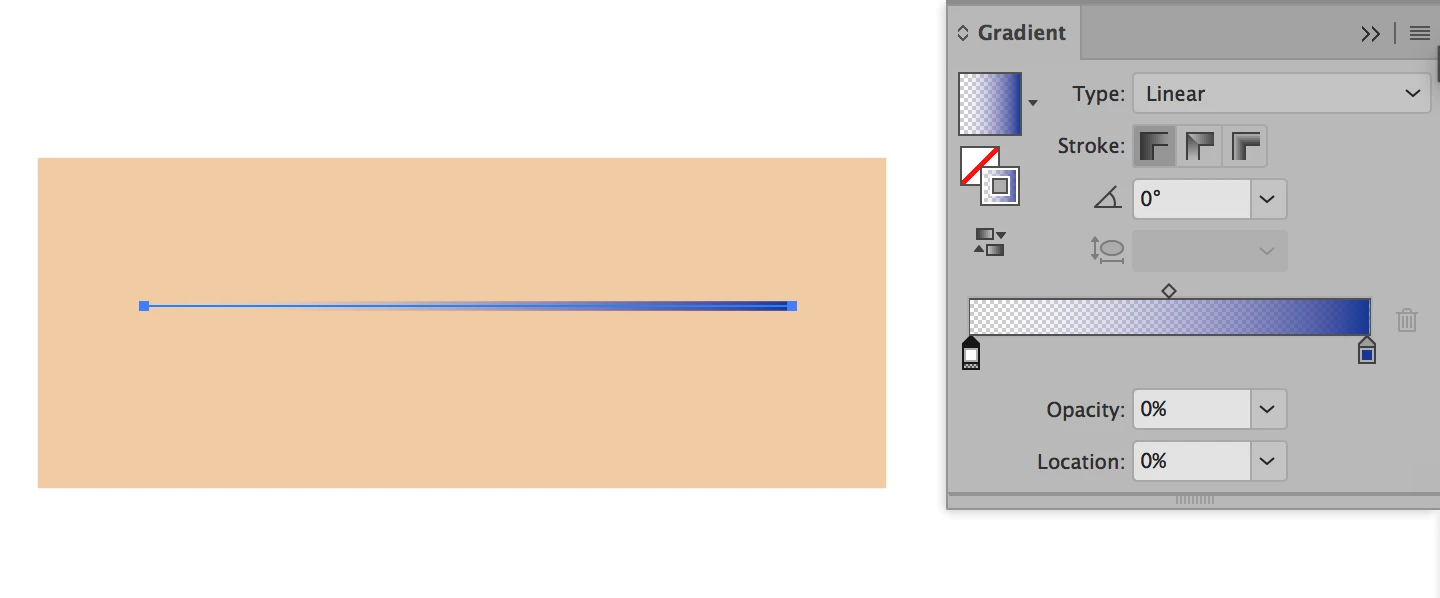
     Apply a gradient to your stroke, then change the "white" opacity in the gradient slider to 0%. Then save it as a graphics style. Then you can use the graphic style for any subsequent strokes or lines that you draw.


    2 답변

    Inspiring
    September 17, 2019

    Meganchi's answer is basically correct except one thing...


    You should use should use the exact same color or swatch on both ends of the gradient otherwide the color will not only fade from a 100% opacity to 0% opacity but it will also be shaded by the other color as it progresses. You probably dont want that.

    SusanSherman
    SusanSherman작성자
    Inspiring
    September 18, 2019
    Thank you! This was a critical piece of information for me as my lines were to be WHITE!
    meganchi
    meganchi답변
    Legend
    September 17, 2019

     Apply a gradient to your stroke, then change the "white" opacity in the gradient slider to 0%. Then save it as a graphics style. Then you can use the graphic style for any subsequent strokes or lines that you draw.


    SusanSherman
    SusanSherman작성자
    Inspiring
    September 18, 2019
    Thank you! This after seeing the additional helpful hint from Matthew (below), this worked beautifully! I am so pleased with the final product!