Participating Frequently
May 20, 2018
Answered

Need help with a 3D schemitical drawing of the black hole in Adobe Illustrator.
  • May 20, 2018
  • 4 replies
  • 5270 views

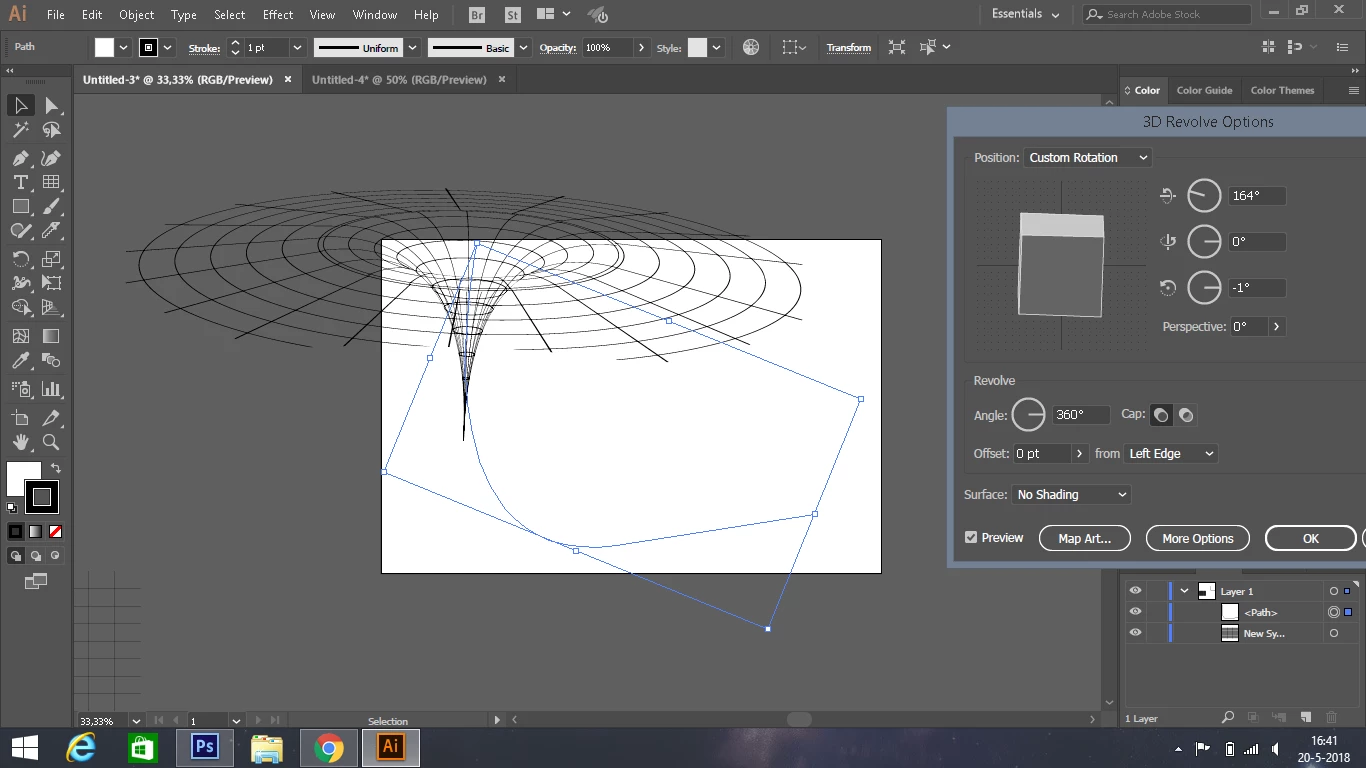
This is what I have created. The blue line is the shape I made with the pen tool.

As you can see, the outside of the 3D shape is circular. I want it to be a square as seen in the picture below

and also I want the hole to be wider and closed, exactly like in the picture I put a circle around.
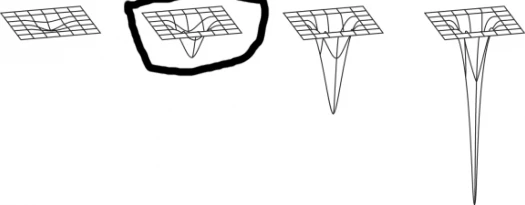
Another example:
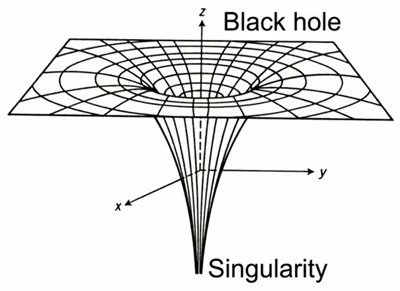
So basically, I just want to create a 3D traffic cone to flip upside down.

Really would appreciate if someone answered with what I should draw to get a similair shape in 3D. Thanks in advance!

This topic has been closed for replies.
Correct answer rayek.elfin

Here are two (very rough and basic) tutorials. The second one is more complicated, because of the rounded curves. No sound, just a couple of text balloons. If you are familiar with Blender these should prove easy to follow along.

These tutorials do NOT explain how to use Blender. Look online for many basic beginner tutorials. You might be able to watch the first one without any foreknowledge of Blender, though. Download blender v2.79 at www.blender.org.

You will need the SVG exporter addon Python script:

http://www.upl.co/uploads/exportsvg1527031449.zip

I couldn't find it online anymore.

Unzip to your desktop, and follow the first tutorial for the steps how to install the addon.

Btw, you could use FreeStyle to render your black&white lines as a bitmap, and use Illustrator's bitmap-->vector conversion tools to convert to a vector version as well, of course.

4 replies

rayek.elfin
rayek.elfinCorrect answer
Legend
May 22, 2018

Here are two (very rough and basic) tutorials. The second one is more complicated, because of the rounded curves. No sound, just a couple of text balloons. If you are familiar with Blender these should prove easy to follow along.

These tutorials do NOT explain how to use Blender. Look online for many basic beginner tutorials. You might be able to watch the first one without any foreknowledge of Blender, though. Download blender v2.79 at www.blender.org.

You will need the SVG exporter addon Python script:

http://www.upl.co/uploads/exportsvg1527031449.zip

I couldn't find it online anymore.

Unzip to your desktop, and follow the first tutorial for the steps how to install the addon.

Btw, you could use FreeStyle to render your black&white lines as a bitmap, and use Illustrator's bitmap-->vector conversion tools to convert to a vector version as well, of course.

Participating Frequently
May 23, 2018

Thank you so much for your effort to help me! I really appreciate this! My only problem when doing this is that I can't "Export SVG". I've downloaded the addon but when  I click  "Export SVG", it just gives me an error, or the SVG opens in Photoshop CC instead.

rayek.elfin
Legend
May 23, 2018

1) Does Blender give you that error, or Illustrator when you try opening the SVG? Did you turn off the stroke settings? Any stroke setting may result in an error message. I just tried the addon in the latest 2.79b build of Blender, and it still works, otherwise.

2) When you say the SVG open in Photoshop CC, do you mean you double-click the generated SVG? If so, Photoshop is probably (somehow) assigned to open SVG files by default. When I open the file directly in Illustrator (File-->Open) it opens fine.

3) don't forget to change the output folder before exporting. The Desktop is a safe place.

rayek.elfin
Legend
May 22, 2018

This is very, very easy to do in Blender with the math surface object. Both circular as well as a rectangular grid can be achieved. Some steps are involved, though, and if you've never worked with Blender before...

If you like, I can record a small tutorial for you that shows how various versions are done, and how you can export the result to actual vectors (SVG) for further processing in Illustrator.

Monika Gause
Community Expert
Community Expert
May 22, 2018

rayek.elfin  schrieb

If you like, I can record a small tutorial for you that shows how various versions are done, and how you can export the result to actual vectors (SVG) for further processing in Illustrator.

You can export this as SVG out of Blender? Interesting, that's cool.

rayek.elfin
Legend
May 22, 2018

Yes! Two options: either use the Freestyle SVG line export, or use the Export SVG addon. The latter allows for coloured fills and various effects. Freestyle exports nicely rounded curves, so it is possible to combine the two in vector drawing software as well.

And both support SVG animation as well (but I believe the frames will have to be combined later).

A bisect plane is possible too.

Here are a couple of quick examples:

Monika Gause
Community Expert
Community Expert
May 20, 2018

You cannot do that in Illustrator without editing afterwards.

You will need to either mask it. Or expand and then edit the paths.

Participating Frequently
May 20, 2018

Thank you! I'm a beginner so I don't really understand what I'm supposed to do. It would be very helpfull if you could show me how to do it with pictures.

Monika Gause
Community Expert
Community Expert
May 20, 2018

To expand your artwork you can: Object > Expand appearance. You would then need to use the layers panel to inspect it to check out what you need to edit. That step completely depends on how the artwork has been built.

Then delete stuff, add other shapes, shorten paths, move anchors around n order to get what you want.

How to use layers in Illustrator

How to edit and reshape paths in Illustrator

Or you apply a clipping mask:

How to use and edit clipping masks in Illustrator

And then again add shapes as you need.

This is not a beginner's project, you need quite a bit of knowledge about how vector graphics works.

I would strongle suggest you start with some basic tutorials:

https://helpx.adobe.com/illustrator/get-started.html

Participating Frequently
May 20, 2018

3D revolve:

Participating Frequently
May 20, 2018

Thanks but I want the outside to be a square shape and not round (as seen in the photos).

Monika Gause
Community Expert
Community Expert
May 20, 2018

alexandroamigos  schrieb

Thanks but I want the outside to be a square shape and not round (as seen in the photos).

That's what you already said.

You. Can't. Do. That. With. The 3D-effect.