

Davide_Barranca12040269
Legend
January 18, 2018
Answered

Printing issue (Color Management / Epson Driver)

  • January 18, 2018
  • 2 replies
  • 3768 views

Hello,

I'm facing a problem concerning printing in Illustrator vs. Photoshop. I'm far more experienced in the latter, so I'm on new grounds here.

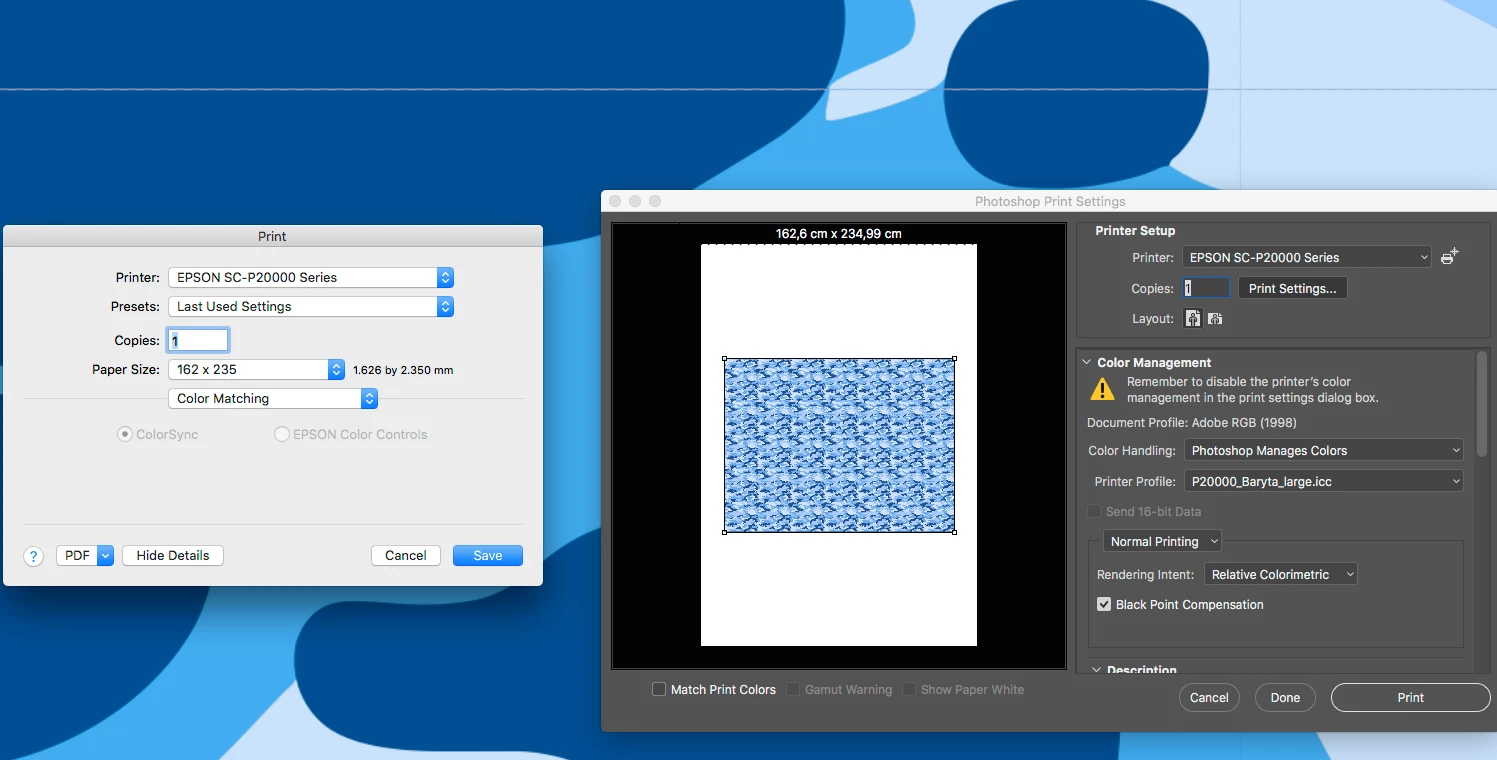
This is the printing dialog in PS, where PS manages the color. PS does the conversion (AdobeRGB -> Printer ICC), handles the converted file to the printer driver, which in turn doesn't touch it anymore – in fact the Color Matching section of the Epson driver is grayed out.
Conversely, this is the printing dialog in IL, where as far as I get IL manages the color. IL should do the conversion (AdobeRGB -> Printer ICC), should handle the converted file to the printer driver, which in turn shouldn't touch it anymore – fact is that the Color Matching section of the Epson printer is not grayed out.
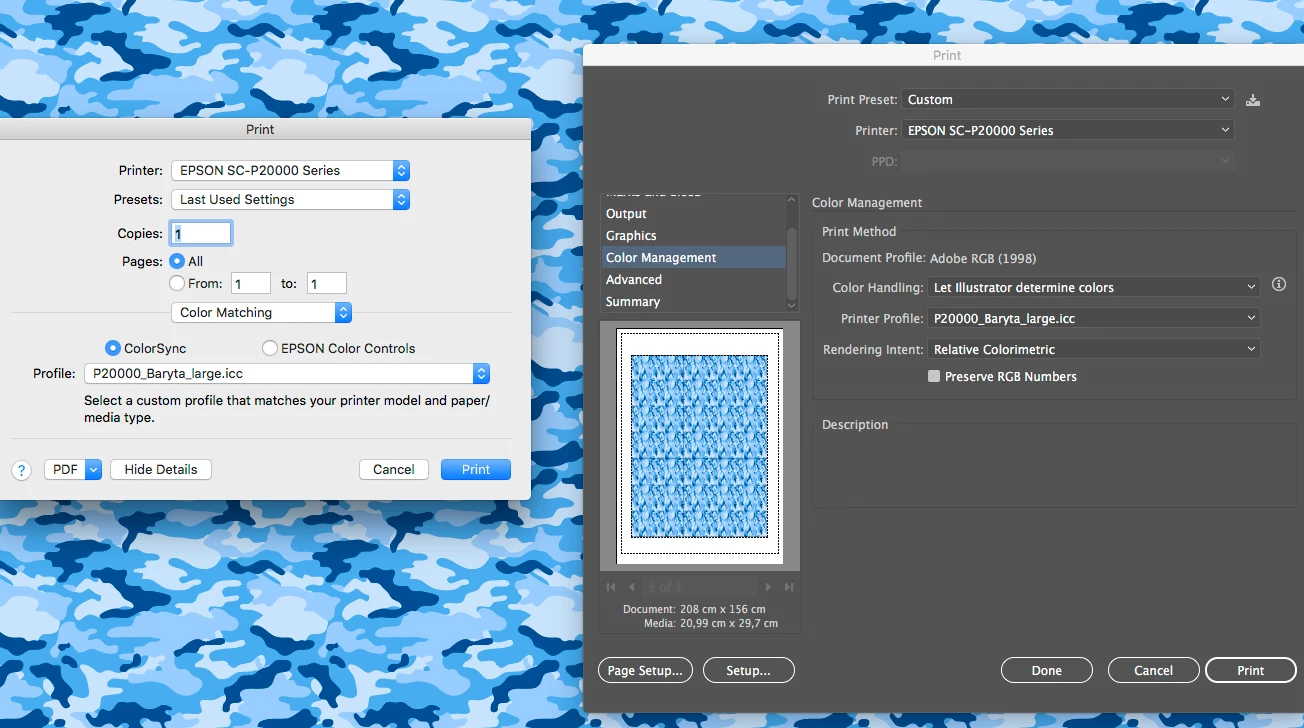
I thought that setting the same Printer profile in the Epson driver would have (in the worst case) lead to a sort-of innocuous double conversion (like printerICC -> printerICC = some rounding errors), but, in fact, the colors are way, way (way!) out compared to my reference, the Photoshop print. By Photoshop print I mean importing in PS the .ai with the assigned profile, rasterizing it, and printing it as I use to do, with CMS in PS and not in the printer driver.

Since I'm unable to not color manage the document in IL (PS has a "Printer Color Management" option in the printing dialog that IL appears to miss), I've thought to check "preserve RGB numbers" – that is to say: send them without conversion, straight to the Epson driver – and then do there the proper conversion setting the Printer ICC in the Color Matching section, but again, I've another different result (a third one). I wasn't particularly hopeful, but perhaps, I was wondering, it's the IL way to say "let the printer do the color management".

So basically I've:

Print A – the PS reference with proper CMS (aka the correct one)

Print B – the IL with proper printer profile in the IL dialog, and same printer profile in the Epson driver

Print C – the IL with proper printer profile in the IL dialog, preserve number checked, and same printer profile in the Epson driver

A != B != C, being A the reference.

Am I missing something very obvious here?

Thank you!

Davide Barranca

PS

In case you're wondering why I still do bother to print in IL and not just import in PS and print there, I'm having severe troubles with Seamless Patterns: what is actually a seamless pattern in Illustrator (both visually in the application, and in the printed paper), gets "stroked tiles" when rasterized in PS – I assume this is a bug. Known or unknown, I can't say... any help is appreciated on this side as well. Below is a rectangle filled with such pattern.

E.g. Illustrator crop of adjacent pattern tiles:

Photoshop, importing the .ai and rasterizing at printing res:

This topic has been closed for replies.
Correct answer Ton Frederiks

Davide_Barranca  wrote

Thanks for your replies guys, my comments below.

https://forums.adobe.com/people/Ton+Frederiks  I'll check that! My pattern in exactly 30cmx30cm, should I have used pixel dimensions instead? In fact, I was rasterizing at 300ppi and not 360ppi – what I originally used back when I printed with the Epson 11880 (which native resolution was 1440, whereas the Epson P20000 has 1400).

If your pattern tile (not the object filled with the pattern) is 30 cm it would be 850,394 px, that could cause an anti-aliased line.

It is better to work with (or check) the pixel size when your destination is a rasterized object.

You can check the pixel size of your pattern tile by setting the units of your document to pixels, double click the pattern in the Swatches panel and check the dimensions in the Pattern Options panel.

288 or 360 as multiples of 72 would be fine.

2 replies

Inspiring
January 18, 2018

It is common to think there could be and could not be double color management in the print process.  I use both HP and Epson drivers using both Ps and Ai.  The only difference in output is the individual printer's physical capabilities ( color saturation via the printheads ).  My approach delivers bulletproof results.  It may be because I use consistent application Color Settings.  I do not use "Let Illustrator Determine Color" in the drivers.  Instead, I use "Let Printer Determine Color", because each printer's driver has been engineered to do the conversion in the driver.  That is typically based on the "paper" you choose.  That and the quality you choose.  I recommend you get a reference guide to help you because color management is difficult to put into practice.  Take a look at Adobe's Print Publishing Guide.  There is significant experiementation involved ( as you have done your fair share up to this point ) when establishing your workflow.  When you have it in place, it does not matter if you rasterize or not, both applications will match.

Ton Frederiks
Community Expert
Community Expert
January 18, 2018

Davide_Barranca  wrote

In case you're wondering why I still do bother to print in IL and not just import in PS and print there, I'm having severe troubles with Seamless Patterns: what is actually a seamless pattern in Illustrator (both visually in the application, and in the printed paper), gets "stroked tiles" when rasterized in PS – I assume this is a bug. Known or unknown, I can't say... any help is appreciated on this side as well. Below is a rectangle filled with such pattern.

Davide, regarding your last question:

you can get those anti-aliased lines when the resampling is not a multiple of 72, 144 would be OK, but 150 can cause problems.

Another reason could be if the pixel dimensions of your pattern tile in Illustrator contain fractions and are not whole pixels.

Davide_Barranca12040269
Legend
January 18, 2018

Thanks for your replies guys, my comments below.

Ton Frederiks I'll check that! My pattern in exactly 30cmx30cm, should I have used pixel dimensions instead? In fact, I was rasterizing at 300ppi and not 360ppi – what I originally used back when I printed with the Epson 11880 (which native resolution was 1440, whereas the Epson P20000 has 1400).

jdanek I wish I could let the printer do the Color Management, but it's not an option I'm presented in the printing dialog (I have absolutely no idea why)

Thank you again,

Davide

Davide Barranca - PS developer and authorwww.ps-scripting.com
Ton Frederiks
Community Expert
Ton FrederiksCommunity ExpertCorrect answer
Community Expert
January 18, 2018

Davide_Barranca  wrote

Thanks for your replies guys, my comments below.

https://forums.adobe.com/people/Ton+Frederiks  I'll check that! My pattern in exactly 30cmx30cm, should I have used pixel dimensions instead? In fact, I was rasterizing at 300ppi and not 360ppi – what I originally used back when I printed with the Epson 11880 (which native resolution was 1440, whereas the Epson P20000 has 1400).

If your pattern tile (not the object filled with the pattern) is 30 cm it would be 850,394 px, that could cause an anti-aliased line.

It is better to work with (or check) the pixel size when your destination is a rasterized object.

You can check the pixel size of your pattern tile by setting the units of your document to pixels, double click the pattern in the Swatches panel and check the dimensions in the Pattern Options panel.

288 or 360 as multiples of 72 would be fine.