Participant
April 27, 2022
Answered

Transparency with Text on top of shape

  • April 27, 2022
  • 5 replies
  • 1493 views

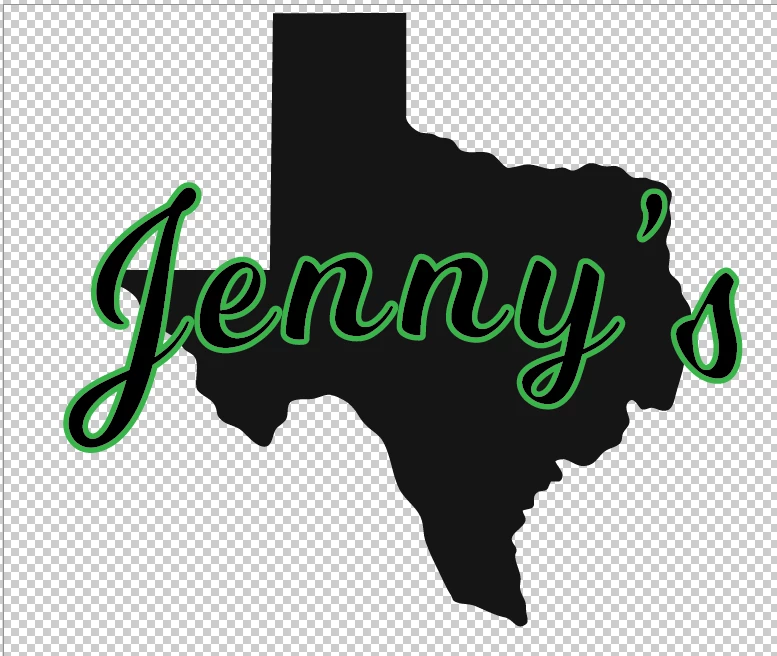
Hello! I'm stuck on an issue- I'm still learning Illustrator but I've hit a wall (though I'm sure it's a simple step I'm missing.) Basically all I'm trying to do is fix this where in the picture you see a green stroke in text. I want that stroke to be totally transparent. I know about changing the opacity- but I think my problem is somewhere between doing something to the Texas shape and the text. Can some one please provide insights?

I have the text placed where I want it. I'm just trying to figure out what to do so that I see the transparency grid instead of the green. Thank you for the info and help!

This topic has been closed for replies.
Correct answer pixxxelschubser

Note:

Non-destructive process and fully editable.
Text content, size, colour
Width of the transparent contour
Shape and colour of the background area


---------------------------------------------------------------------------

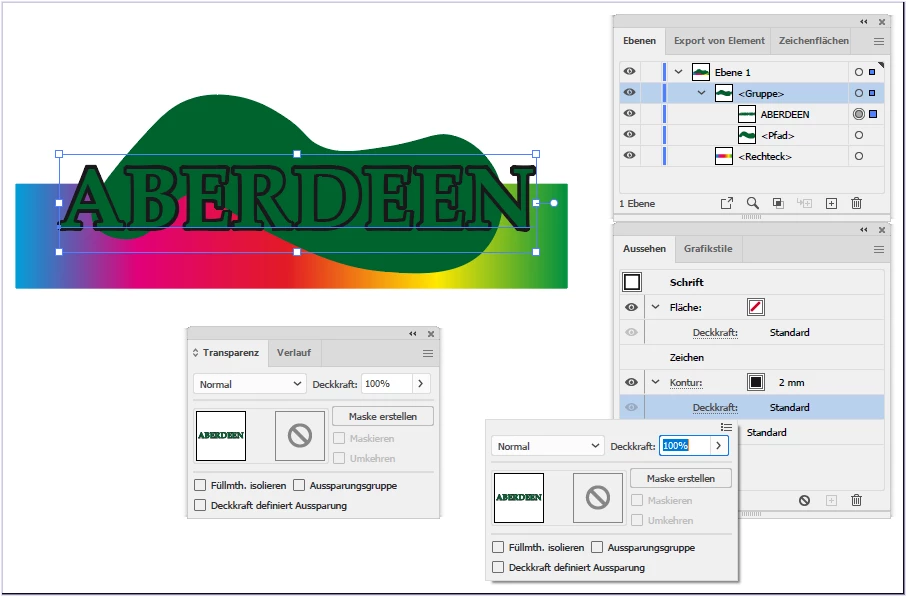
Stroke on text (color does not matter)

Shape under your text

both are grouped

but only text is selected


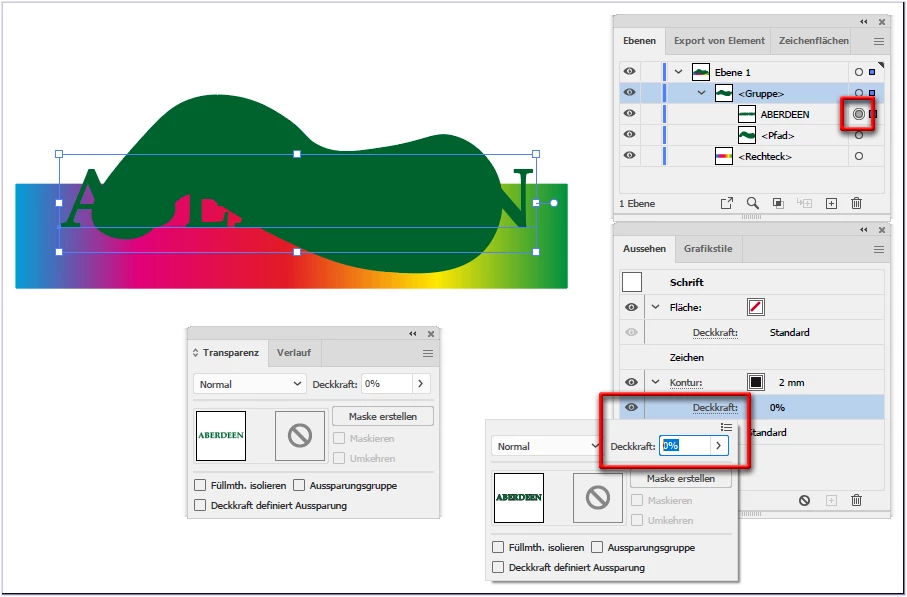
change opacity of (only) text stroke to 0% in Appereance Panel


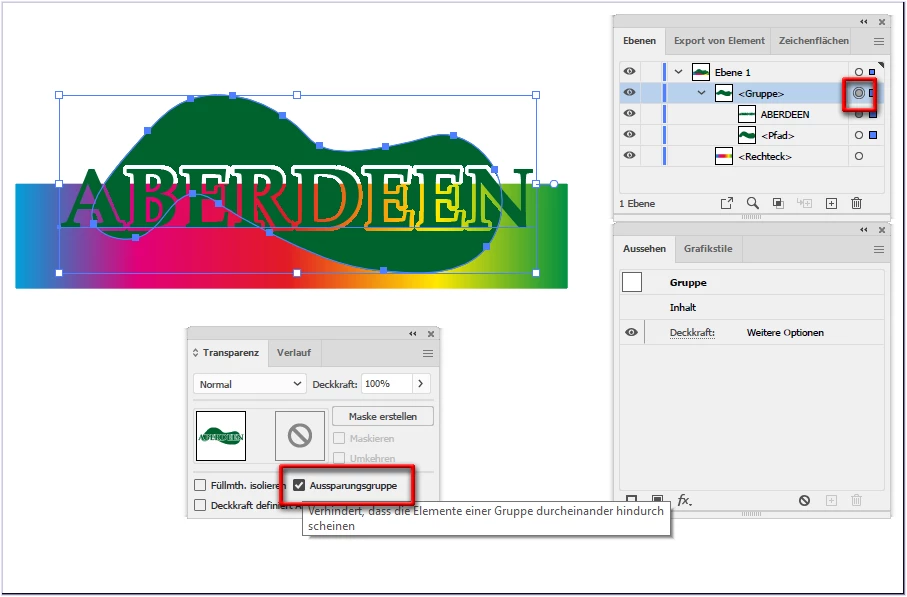
select the group and set Knockout Group in Transparency Panel

result:


5 replies

pixxxelschubser
Community Expert
pixxxelschubserCommunity ExpertCorrect answer
Community Expert
April 27, 2022

Note:

Non-destructive process and fully editable.
Text content, size, colour
Width of the transparent contour
Shape and colour of the background area


---------------------------------------------------------------------------

Stroke on text (color does not matter)

Shape under your text

both are grouped

but only text is selected


change opacity of (only) text stroke to 0% in Appereance Panel


select the group and set Knockout Group in Transparency Panel

result:


pixxxelschubser
Community Expert
Community Expert
April 27, 2022

Hi @augradgirl12 

for a transparent outline on text you can use different methods.


I prefer a non-destructive way with knockout group in the Appearance Panel like in this old thread:


Hi johnw49810379​,

use a knockout group and a second fill and stroke in the appearence panel (instead of a second object) for editable shadow.


set transparency of stroke to 0%


if the shadow is correct in size and position > save > then flatten transparency and clean your artwork for the plotter.


Have fun


By @pixxxelschubser

                                                                                             --> jump to quoted post


Mike_Gondek10189183
Community Expert
Community Expert
April 27, 2022

From this point, copy the type to your clipboard.


type >> create Outlines

obhject >> expand Appearance

object stroke>> expand

pathfinder pallete > unite


Select >> All

Pathfinder >> Minus Front

Paste in front

Remove the stroke for live type


Keep in mind I always set my stoke to outwards, as from a designers point the type is designed to be most attractive that way. Illustrators default is to put the stroke half in and half out. Someone of their software development team  might eventually realize they should change the default to outwards.


Mike_Gondek10189183
Community Expert
Community Expert
April 27, 2022

From there you can  copy that text, and paste an extra copy on top (but not in the tranparency, jsut on a new layer if taht helps)  with no stroke.

John Mensinger
Community Expert
Community Expert
April 27, 2022

Change the Stroke color from Green to White

Select both the text and the map

In the Transparency panel, click Make Mask, then un-tick the Clip checkbox and tick the Invert Mask checkbox

Participant
April 27, 2022

Hi John!


Thank you for the assistance! I followed the instructions as you shared and while I did "sort of" get what I wanted, I lost the J and s of my text. Do I need to try a different method? (The text I have was live text if that makes a difference)


This is what I'm trying to get (I just made like a mock-up verison in photoshop to illustrate what I want- but I'm trying to stay in illustrator to actually create this properly)👇


Thank you so much for your help! I appreciate your time and assistance!

Inspiring
April 27, 2022

Select all > Pathfinder > Divide ( create outlines of the Stroke first ). Probably old school, but should work. Just delete what was the stroke inside the state shape, while resting the stroke outside the state shape ( always work on a copy of your original artwork ).