
Dalski K
Known Participant
December 4, 2018
Answered

A4 (Single Page Numbering) To A3 (2 Page #'s per Page).

  • December 4, 2018
  • 2 replies
  • 1961 views

I'm tyring to make an A3 folder which I am going to bind. I am importing lots of single page A4 pdfs in CS6, so the majority of the document I have an A4 master page, with page numbering, which I then export as a pdf & then use pdf readers to print double paged at A3 size; and it works well.

However at certain points in the document I need to have A3 pages. As there are 2 pages in an A3 page I need to reflect this in the numbering. Anyone know how to do this?
    This topic has been closed for replies.
    Correct answer vinny38

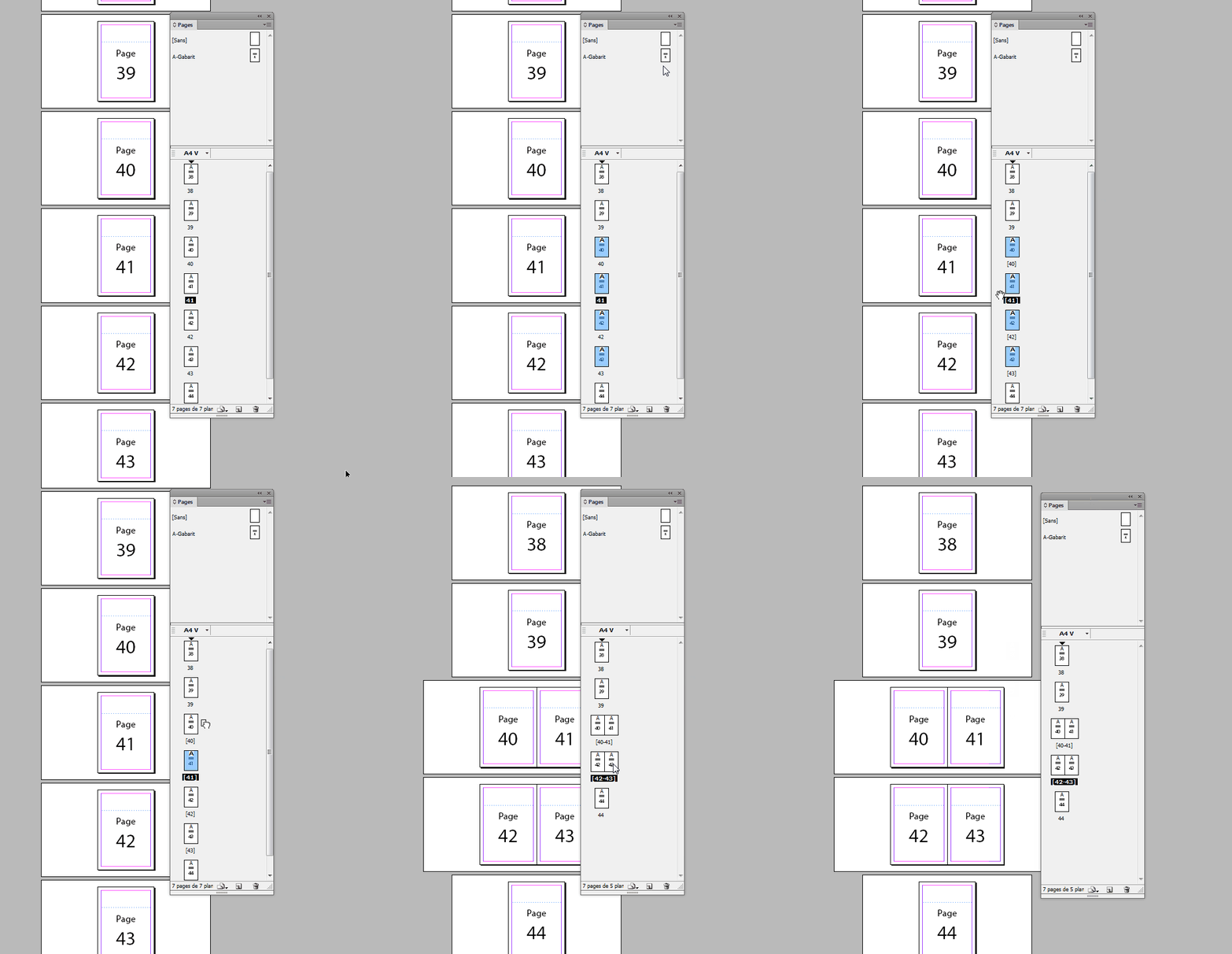
    Select the pages that you want to kkep together as spreads (here: pages 40 to 43) in the Pages panel, and then deselect Allow Selected Spread To Shuffle in the Pages panel menu.

    Finally, drag those pages in the pages panel:

    2 replies

    Dalski K
    Dalski KAuthor
    Known Participant
    December 4, 2018

    Lol, it is both for screen viewing & for printing. Ultimately it will be in A3 format for both.

    Don't worry you've both solved it, with my many thanks.

    Community Expert
    December 4, 2018

    Hi,

    you can start a new section from every page in your document you like and change the page number start.

    Read about "Define Section Numbering" here:

    Learn how to number pages, chapters, and sections in InDesign

    Regards,
    Uwe

    Dalski K
    Dalski KAuthor
    Known Participant
    December 4, 2018

    Hi Laubender, thanks for your suggestion. Sorry I should've listed in the op that I am already using sections, also I couldn't do that here as the A4 & A3 pages are not necessarily different sections.

    Also that wouldn't display 2 different page numbers for the master of an A3 page would it? I thinik that would only restart the page numbering which isn't the issue.

    Page 40 should be 40 - 41 & p41 should be 42 & 43.

    vinny38
    vinny38Correct answer
    Legend
    December 4, 2018

    Select the pages that you want to kkep together as spreads (here: pages 40 to 43) in the Pages panel, and then deselect Allow Selected Spread To Shuffle in the Pages panel menu.

    Finally, drag those pages in the pages panel: