seanh79133642
Participant
December 5, 2018
Answered

Accidentally applied master page over everything

  • December 5, 2018
  • 1 reply
  • 1823 views

Hello all. I am an InDesign novice, but it's required for my job. I am learning as I go.

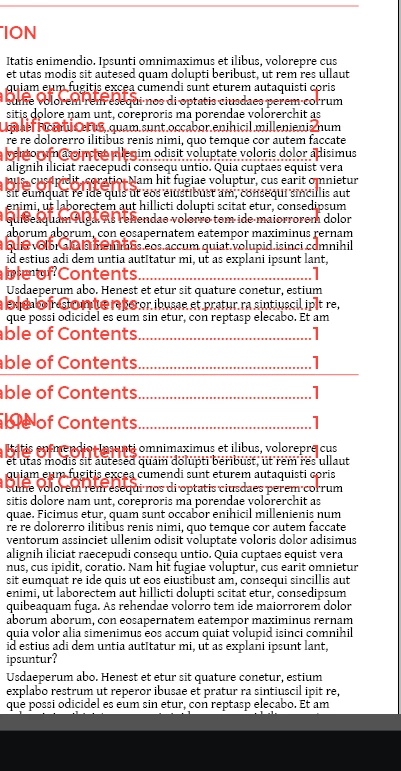
I am about 20 pages into a proposal and I accidentally applied a master page over every existing page. I don't know when I did it, as I didn't realize until I went back to change information on a previous page. I can't "undo" as it may have been a while ago and I closed and saved since then. Is there a way to remove this? I tried to remove master items but it's also removing valuable pieces of information. I'm including an example, although there is sensitive information on every page so I have to crop it pretty tight. Any help would be incredible.
    This topic has been closed for replies.
    Correct answer Kevin Stohlmeyer

    As much as I agree with that, and trust me I plan on doing a lot of learning, this proposal I am working on is due tomorrow and it was given to me as an assignment. I'm just trying to undo the mistake I made.


    Simple fix.

    Go to your pages panel and select the affected pages.

    Then use the pages drop down to Apply Master to Pages.

    Either select the original master page or [None] to remove.

    1 reply

    JonathanArias
    Legend
    December 5, 2018

    you need to create a new master page, add the components you need on it and apply that master page to the range of pages you need.

    here:

    Creating and Applying Master Pages in Adobe InDesign - YouTube

    seanh79133642
    Participant
    December 5, 2018

    Is there not anything I can do to recover the already completed pages?

    JonathanArias
    Legend
    December 5, 2018

    if you apply the wrong master all you have to do is apply none or apply whatever other master you do want. if you pasted items on a page and you need them to be on a master, cut them from the page you had them in, paste them to the master and apply that master.