Participant
February 27, 2019
Answered

Add Color

  • February 27, 2019
  • 4 replies
  • 678 views

How do I add the color brown to an object. I have a tiff of a logo for a customer in B/W and I need to change it to brown for use in a flyer. the question is now do I make it brown?

    This topic has been closed for replies.
    Correct answer Michael Bullo

    Hi claudef50212348,

    Create a brown swatch. Select the black and white logo and apply the brown swatch as a fill. Assuming the logo is a solid image with no transparency you won't see a visual change.
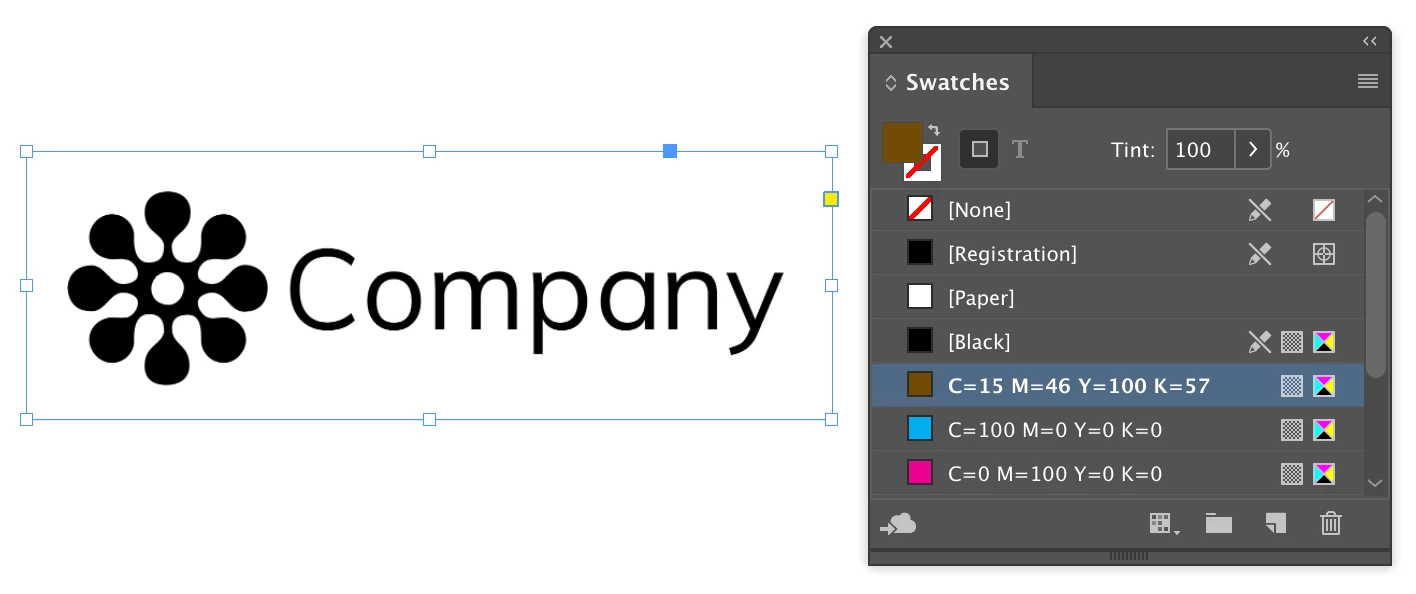
    Next you need to select the image and not the frame containing it. You can do this by clicking once on the Content Grabber (donut looking thing) in the middle of the image. From the Properties panel go to the Appearance section and click on Opacity. From the drop down list change the blend mode to whatever works for the look you are trying to achieve. The Lighten mode should do the trick in this case.
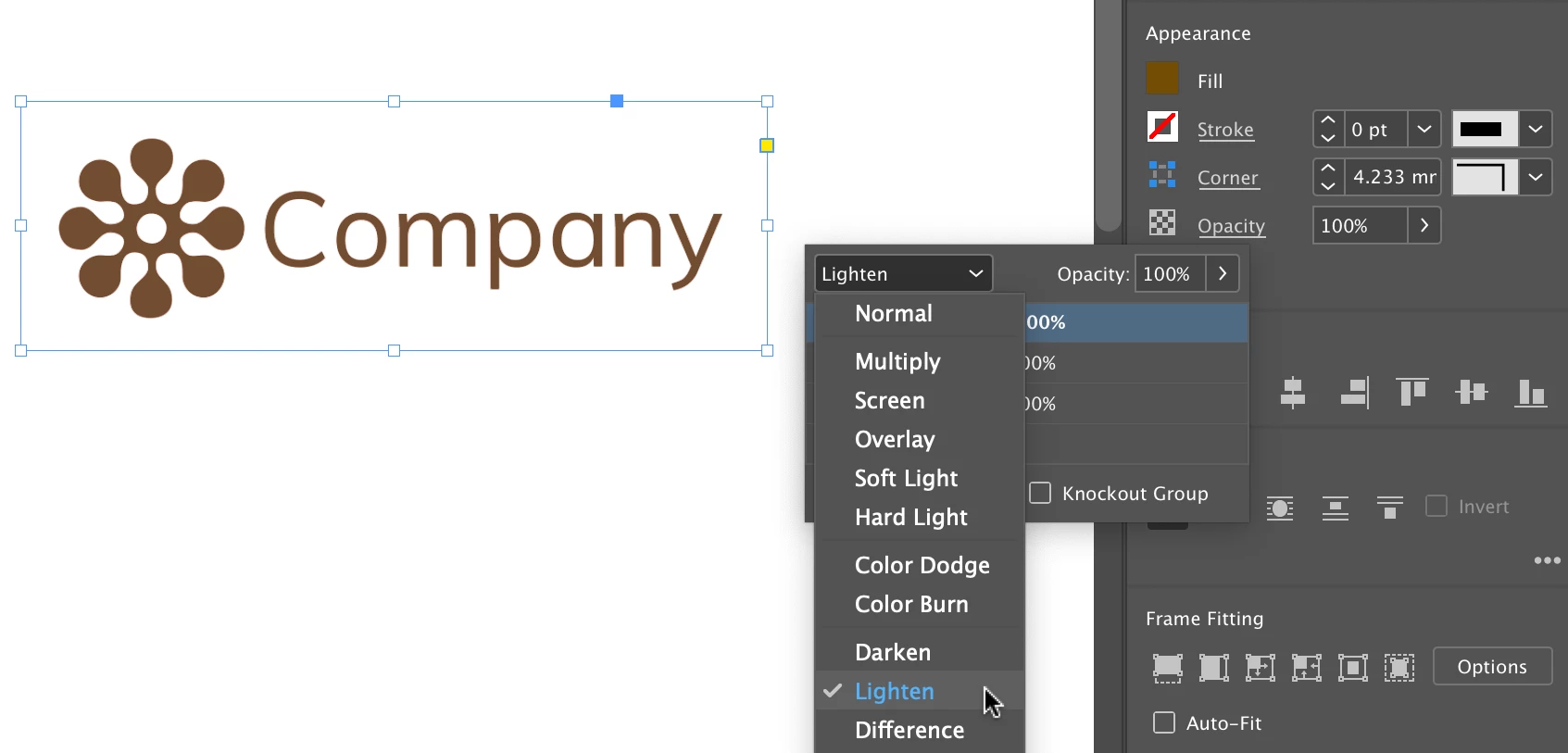
    While I have done this many times in InDesign I have never professionally printed such an example. I have always made such a colour change first in either Photoshop or Illustrator. Perhaps someone with experience in this area could weigh in?

    Cheers,

    Michael

    4 replies

    chanaart
    Community Expert
    Community Expert
    February 27, 2019

    If you place a grayscale tiff in Indesign you can change the color while selecting the contents. Has to be Grayscale. Take the Tiff to photoshop and change it to gray scale mode.

    Here is a sample:

    Michael Bullo
    Community Expert
    Michael BulloCommunity ExpertCorrect answer
    Community Expert
    February 27, 2019

    Hi claudef50212348,

    Create a brown swatch. Select the black and white logo and apply the brown swatch as a fill. Assuming the logo is a solid image with no transparency you won't see a visual change.

    Next you need to select the image and not the frame containing it. You can do this by clicking once on the Content Grabber (donut looking thing) in the middle of the image. From the Properties panel go to the Appearance section and click on Opacity. From the drop down list change the blend mode to whatever works for the look you are trying to achieve. The Lighten mode should do the trick in this case.

    While I have done this many times in InDesign I have never professionally printed such an example. I have always made such a colour change first in either Photoshop or Illustrator. Perhaps someone with experience in this area could weigh in?

    Cheers,

    Michael

    rob day
    Community Expert
    Community Expert
    February 27, 2019

    I have a tiff of a logo for a customer in B/W and I need to change it to brown for use in a flyer.

    If you want to assign a color to a grayscale image it can not contain transparency—in Photoshop it can be layered, but it has to include a locked Background layer.

    Michel Lemieux
    Inspiring
    February 27, 2019

    Hi Claude,

    After placing your TIFF image on a page, select the CONTENT of your image box and apply your desired fill color.

    HTH

    Michel