
Inspiring
November 13, 2019
Question

Adding tabs/leader to multiple rows in one column

  • November 13, 2019
  • 5 replies
  • 1646 views

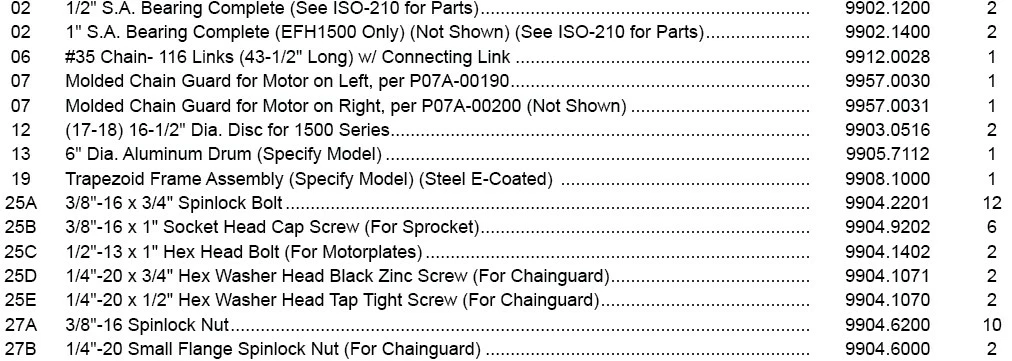
This may be a very elementary question but trying to figure out an easy way to add tabs (with a leader) to multiple rows in an indesign table....versus manually inserting the tab in each row of the middle column to create the look below. The information is pasted from an excel document and I just add each leader tab indvidually. Just wondered if anyone has any insight on a quicker way...have to update hundreds of these throughout a year so its worth a shot to see... 
 

This topic has been closed for replies.

5 replies

Legend
November 13, 2019

You can use a GREP find and replace to add a tab into each cell. Select the column, and use this

Find:   .$

Change to:  $0\t

This will add the tab. If you set up your paragraph style with the tab settng and leader, you can include the paragraph style in the replace, and fix it all at once.

JSW6Author
Inspiring
November 13, 2019

SJRiegel - this WORKED! I made a new query and a paragraph style and seems to work perfectly...just two clicks or so! Thank you!!! 

Randy Hagan
Community Expert
Community Expert
November 13, 2019

I think I see your problem.


In the screen capture you supplied, the Tabs Ruler doesn't extend all the way across the text. Drag the lower-right corner of the ruler to the right and you'll be able to see tabs all the way across the text. The right-align tab won't align to absolutely nothing. I'll bet you a nickel if you put a space in at the tab, your dot leader will appear. Another option would be to apply that dot leader to the next tab, your center-align tab for the parts numbers, and the dots will go all the way to the edge of your part numbers.


For what it's worth, I don't know this because I'm Rhodes Scholar-bright; I know this because I've messed up that way before.

rob day
Community Expert
Community Expert
November 13, 2019

Tabbed leaders can be part of a Paragraph Style. So set the tabbed line with the leader and save it as a Paragraph Style and then apply the style as needed:


JSW6Author
Inspiring
November 13, 2019

Randy thank you - I do have them set however they dont "appear" I have to hit Control Tab (I am on a PC) to insert the tab with the leader in each row (which may be the case was just hoping there was an auto way to insert them all at once) .Also to be clear the imported info has four columns - so I was inaccurate in saying the middle column that is actually the second column, so I am just trying to get leader tabs at the end of every row in the second column only.... not sure if that will make a difference. 


Randy Hagan
Community Expert
Community Expert
November 13, 2019

Sure.


  1. Highlight all the text, then select the Type>Tabs menu command (Cmd/Ctrl+Shift+T keyboard shortcut, depending on whether you're on a Mac/Windows system, respectively).
  2. Place your tabs, per your example right-align for the second column and centered for the third.
  3. Click on the second, right-aligned tab. Put a period in the Leader: edit box and admire your handiwork. You should see dot leaders leading to the second tab for every row you highlighted.


Hope this helps,


Randy