
erbe89911451
Known Participant
January 31, 2019
Answered

Adjust font size & textfield automatically (font size)

  • January 31, 2019
  • 4 replies
  • 9331 views

Hello,

I tried many options, but I can't achieve the true solution...

I want that, if the textfield content is on one line, it should look like this: (font size larger, and position in the middle)

1)

2) if the content is displayed on several lines, the font should be smaller:

At the moment, it is like this, when the content is on one line.... but it should fill up the whole textfield, and get the font size like screenshot nr.1.

The question is, how can I adjust the textfield and fontsize of my textfield content automatically?

FYI: the data comes from csv file (data merge)
    This topic has been closed for replies.
    Correct answer vinny38

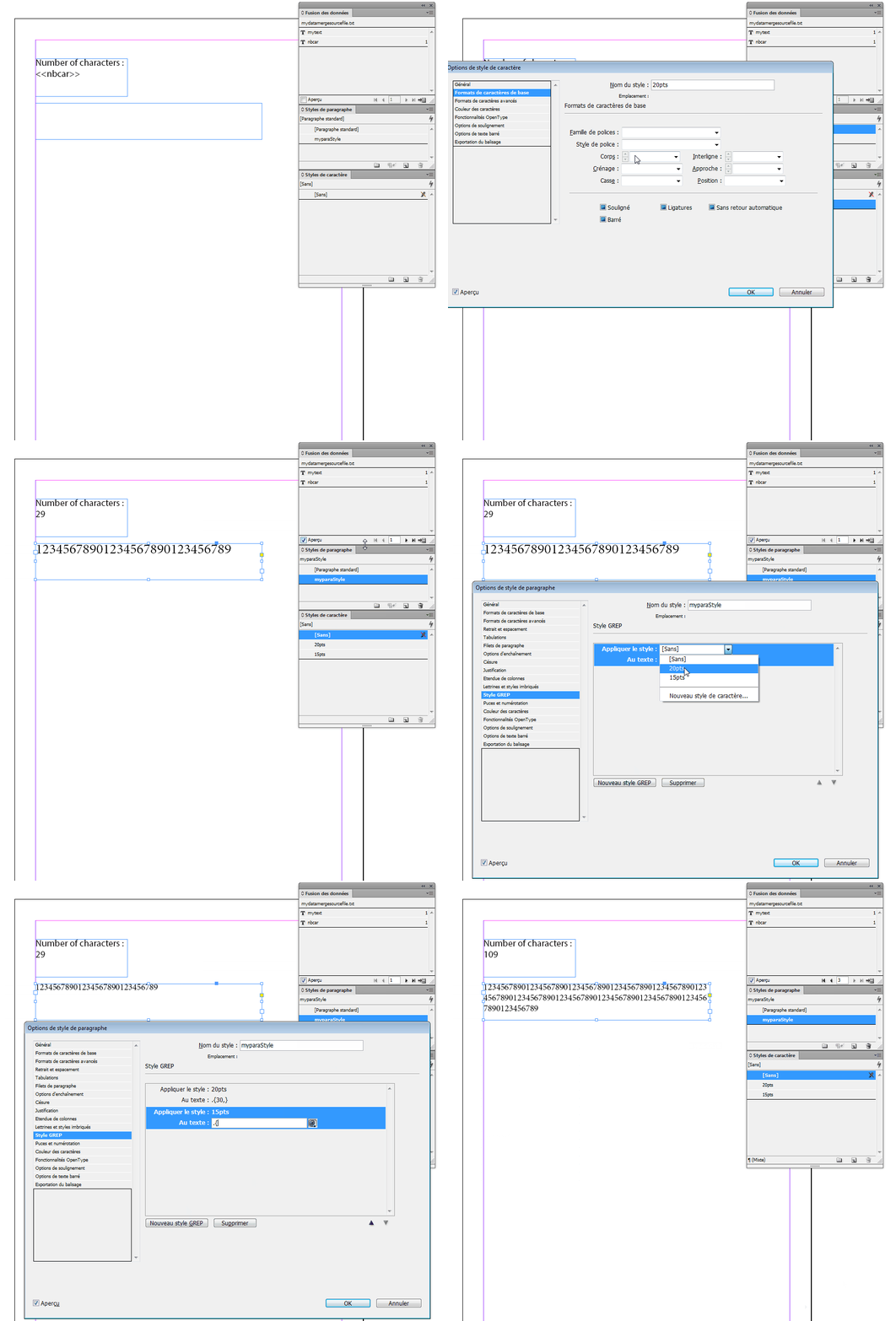
    My example is based on a unique paragraph style.

    Since you use data merge, you insert a data-field in your document.

    Apply this paragraph style to your data field.

    Now, you need to create character styles with smaller font size.

    In the example, I created two character styles: one for medium size (20pts), one for smaller size (15pts). Or you can use H&V scaling values too.

    Do not apply manually those character styles to your data-field.

    You are now going to use a Grep style in order to automatically apply those character styles to the entire paragraph depending on the number of characters in your paragraph.

    If you want to learn more about Grep styles, see Drop caps and nested styles in InDesign

    In the example, I used two Grep styles:

    .{30,} means "if there are 30 or more characters

    .{80,} means "if there are 80 or more characters

    Of course, you will have to adjust the values accordingly to your needs.

    I personally use this technique for data merging business cards. ^^

    Here's the animated version of the example. I know it's not in English, but hopefully it'll help you to figure out the idea:

    4 replies

    vinny38
    Legend
    January 31, 2019

    You could use Grep styles to set a specific font size depending on the number of characters in the paragraph.

    Please note that if you don't use a monospace font, it will be approximate but will fit text in most cases.

    Now, if you're looking for something more robust, you can try scripts.

    Have a look at this one (not tested): http://www.id-extras.com/products/fit-text-to-frame/

    erbe89911451
    Known Participant
    February 7, 2019

    Hello,

    thank you for answering. Could you please help me out, how it works automatically? I made 2 paragraph styles, but the fontsize get smaller only, when I'm selecting the right paragraph style. (I made one with 4pt, and the second style with 6pt)

    Is your solution above completely? What are the other steps?

    This cost me so much time, that I don't know how to solve this problem.

    TᴀW
    Legend
    February 7, 2019

    erbe89911451,

    Are you talking about text fields, or text frames?

    They are 2 different things, and that's why you're getting different answers. Some people think you're talking about text fields, and some about text frames.

    A text frame is just the regular container for text in InDesign. It doesn't have anything to do with Acrobat or form fields.

    A text field is a type of form field for interactive PDF forms. In InDesign, you can click on a text frame, open the Buttons and Forms panel, and convert the frame into a text field. When the document is exported to an interactive PDF and opened in Acrobat, that text frame will show up as a text field into which text can be typed.

    If you are creating a text field, you'll see a dropdown in the Buttons and Forms panel in InDesign that lets you choose the font size for the text field. The first option in that dropdown is "Auto". If you choose that, then in Acrobat the size of the text in the field will adjust automatically to fill the available space.

    However, if the question is about text frames, there is no such option in InDesign (and Acrobat is not relevant). You will have to manually adjust the size of the text in frame to make it fit, or use one of the scripts referred to above.

    Ariel

    Visit www.id-extras.com for powerful InDesign scripts that save hours of work — automation, batch tools, and workflow boosters for serious designers.
    jane-e
    Community Expert
    Community Expert
    January 31, 2019

    Note that if it’s a form, you will only see it in the PDF, not in InDesign.

    Steve Werner
    Community Expert
    Community Expert
    January 31, 2019

    Jane is correct. That is the place where the person who fills the form adds their information. You can set a starting size and font in InDesign or in Acrobat, but it will be automatically rescaled as the field content is added. No way to preview that in InDesign ahead of time. You can test it out in Acrobat Pro in the Prepare Form tool and tweak the form there.

    Steve Werner
    Community Expert
    Community Expert
    January 31, 2019

    Version of InDesign?

    Are you working the Text field of a form?

    I'd suggest opening the resulting PDF file in Acrobat Pro. If you have designed a Text Field, Acrobat or Reader will automatically scale down text to fit the field. No special setting necessary.

    Barb Binder
    Community Expert
    Community Expert
    January 31, 2019

    Hi erbe89911451:

    There is an option in InDesign to auto-size a frame, but not one to auto-size the text within a frame.

    ~Barb

    ~Barb at Rocky Mountain Training