Inspiring
May 20, 2026
Question

Adobe Fonts Synced in Creative Cloud but Missing in InDesign and Photoshop on macOS

  • May 20, 2026
  • 2 replies
  • 28 views

I’ve been wrestling with Adobe Fonts for several days now, and none of the workarounds have fixed anything.


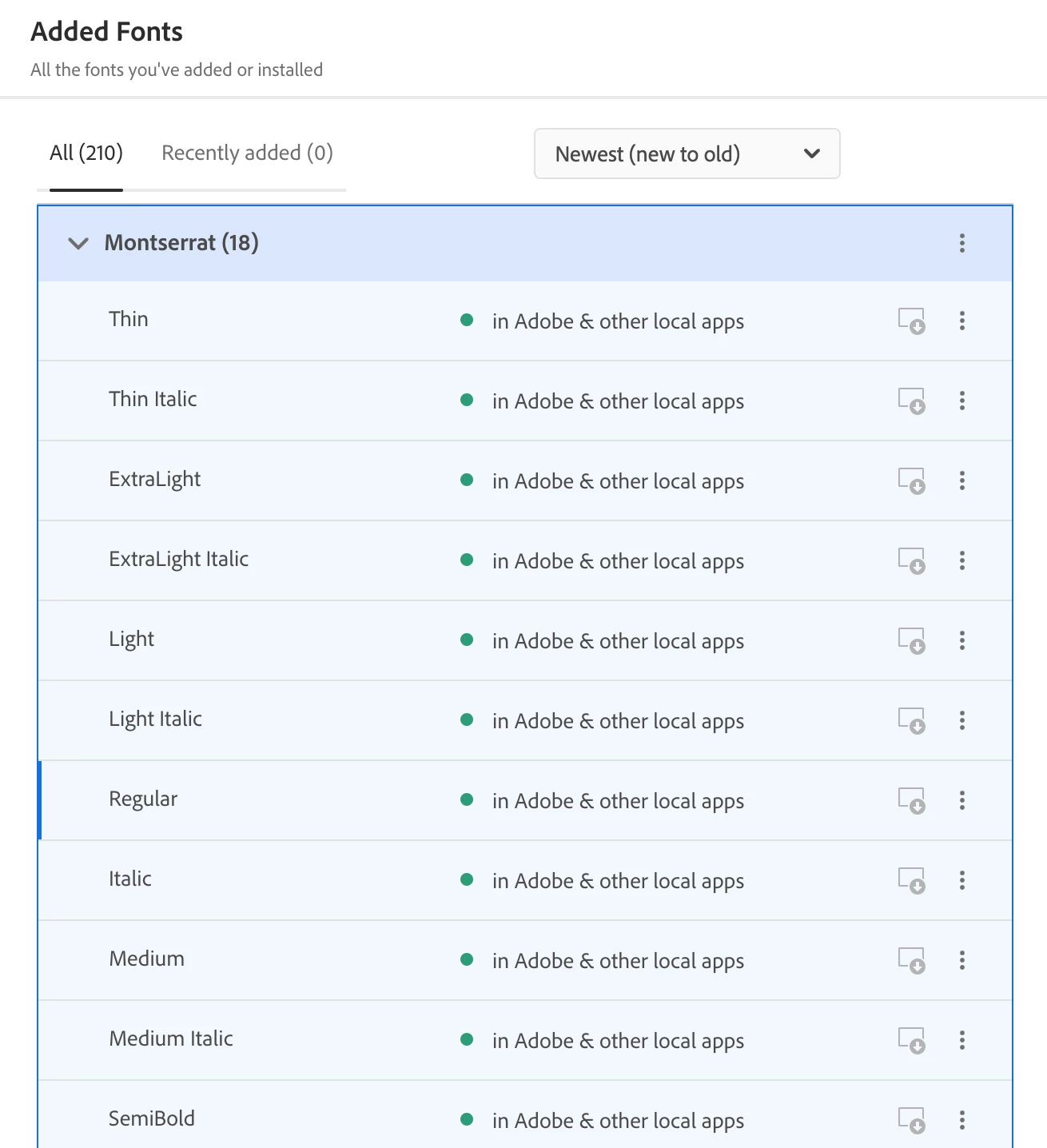
Creative Cloud shows that Adobe Fonts are synced and installed, but none of those typefaces show up in InDesign or Photoshop. All apps are up to date (including CC), I’ve tried disabling fonts, logging out, and enabling them again, restarted my computer multiple times (2019 iMac running Sequoia 15.7.3), clearing the font cache in Terminal, validating fonts in FontBook—basically anything that I’ve seen suggested, I’ve tried, and nothing has worked. Typefaces outside of Adobe Fonts are all working perfectly fine.

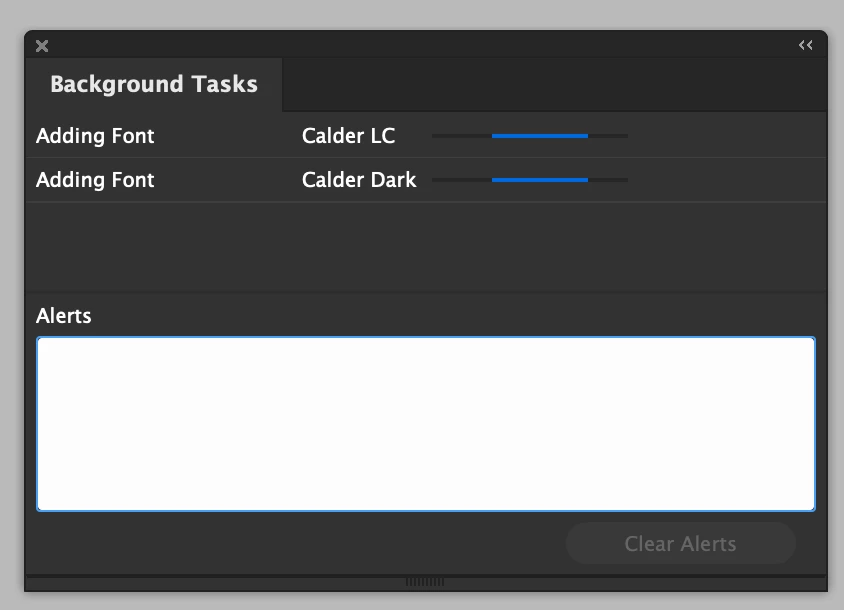
I currently can’t work on any existing InDesign documents because it has “adding fonts” as a never-ending background task. I’m once again (thanks adobe!) paying for software that’s locked itself.

Is there some other magical workaround I’ve overlooked? Ideally something that you don’t have to do every time you launch a program.
 

    2 replies

    Bill Silbert
    Community Expert
    Community Expert
    May 22, 2026

    Do you have any third-party plugins either for InDesign or the Macintosh operating system that may be interfering with the fonts loading? If so try disabling them and see if that helps.

    Community Expert
    May 22, 2026

    That “Adding Font” task hanging forever usually points to Adobe Fonts syncing getting stuck internally rather than the fonts actually being unavailable.

    A few things I’d try beyond the usual logout/restart/cache clear cycle:

    • Quit ALL Adobe apps including Creative Cloud completely
    • Kill the macOS font service in Terminal:

    sudo atsutil databases -remove
    atsutil server -shutdown
    atsutil server -ping

    Then reboot.

    Also manually clear Adobe font caches here:

    ~/Library/Application Support/Adobe/CoreSync/plugins/livetype
    ~/Library/Application Support/Adobe/CoreSync
    ~/Library/Caches/Adobe

    Another common culprit lately is Creative Cloud Desktop itself half-authenticating. Sometimes the only thing that fixes it is:

    1. Uninstall Creative Cloud Desktop
    2. Run Adobe Creative Cloud Cleaner Tool
    3. Reinstall CC Desktop fresh
    4. Re-enable Adobe Fonts sync

    I’ve also seen local font conflicts cause Adobe Fonts to silently fail activation. If there are old versions of the same families installed locally (especially variable/static duplicates), disable/remove them temporarily in Font Book and test again.

    The infinite “Adding Font” background task in InDesign is usually the giveaway that the font activation handshake itself is jammed somewhere between CoreSync, fontd, and Adobe Fonts.