Hosun
Inspiring
May 28, 2024
Answered

alignment of image on EPUB

  • May 28, 2024
  • 1 reply
  • 1133 views

Hi,


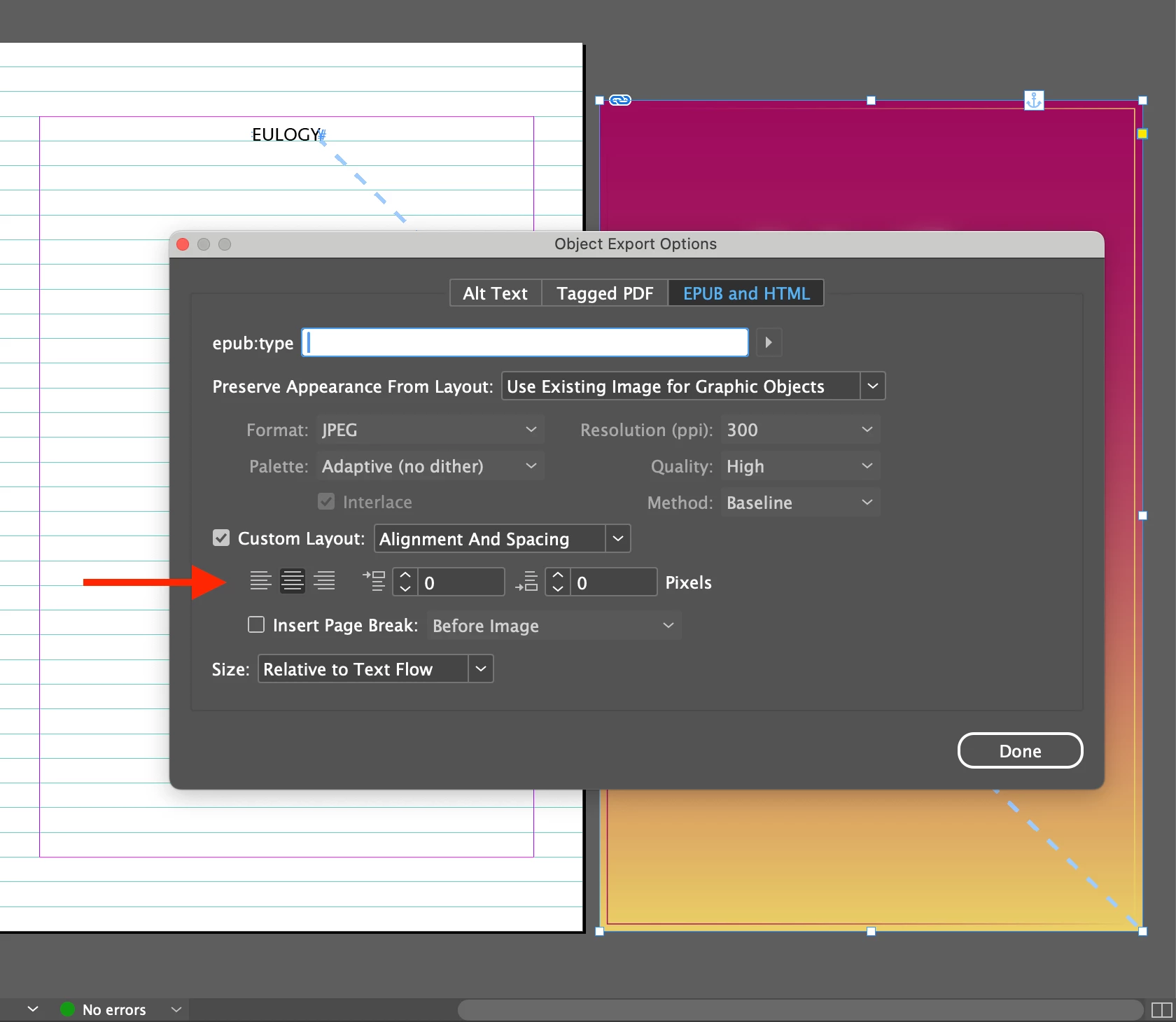
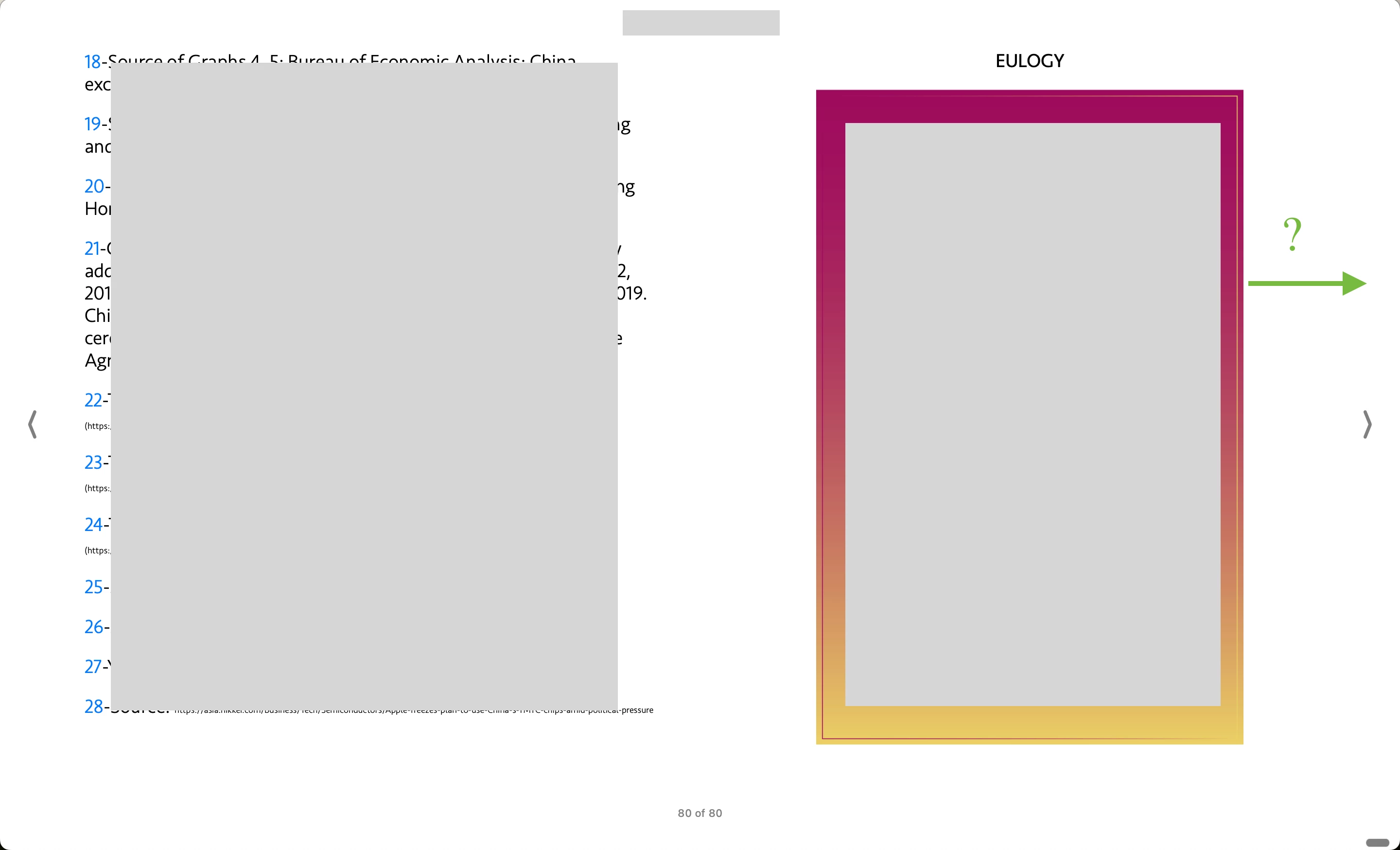
Is there any way to keep the image in the center on EPUB? (Screenshot 1)


Object Export Options doesn't work. (Screenshot 2)

When an image file is within a text, it works.


Hosun
 

This topic has been closed for replies.
Correct answer James Gifford—NitroPress

There are three options to make images wider:

  • Set the global setting to Text Flow, not Fixed. Fixed will make all the images rather small; Text Flow will make them all rather large.
  • For any images that aren't right, use Object Export Options to either make them a smaller fixed size, or use one of two options to make them large:
    • Set Width to 100%; or
    • Set size to None.


The last should make images as large as possible, somewhat beyond margins but not full screen, but it often makes the image break to its own page as well.

1 reply

James Gifford—NitroPress
Legend
May 28, 2024

Images are always "within text," in a sense — they must be anchored to a paragraph, preferably the end of a paragraph, to lock them into the flow of the EPUB export.


If properly anchored, I don't think I have ever had them fail to center in the viewport, especially if the global Export is set that way (EPUB Export | Object | Layout: Align Center). Setting the individual object export to center, as you show, should be absolute. I don't think any other settings, as applied to the layout frame or anchor, make any difference.


BTW, I recommend always centering images. Flowing text around any but tiny ones is a poor option, and images set left or right just look weird to me.

Hosun
HosunAuthor
Inspiring
May 28, 2024

I was mistaken.

I added a text and check the alignment. Image is in the center. (Screenshots 1 and 2)


I want to revise the question.

Is there any way to increase the width of image on EPUB? (Screenshot 3)


I apply

#_idContainer151 {width: 70%;}

to make image fit on one page.

In addition, I want to make the width of image larger, if possible.


Hosun


James Gifford—NitroPress
Legend
May 28, 2024

There are three options to make images wider:

  • Set the global setting to Text Flow, not Fixed. Fixed will make all the images rather small; Text Flow will make them all rather large.
  • For any images that aren't right, use Object Export Options to either make them a smaller fixed size, or use one of two options to make them large:
    • Set Width to 100%; or
    • Set size to None.


The last should make images as large as possible, somewhat beyond margins but not full screen, but it often makes the image break to its own page as well.