
Amazon Book layout check
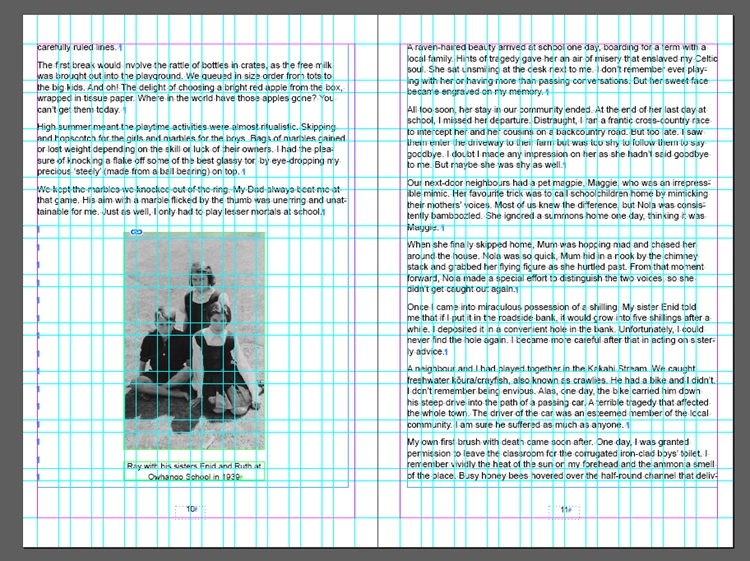
Hi I’m hoping to put my book onto Amazon for print and Kindle. Please do you mind taking a look at my screenshot below to see if it all looks set up properly. I’m asking as I’m still relatively new to InDesign and really appreciate all the help here.
Question A. Text against margins
- I’ve set my guides as you’ll see in the screenshot below to align to margins not pages.
- Is it ok to have the text right up against the margins as I have? I know that when I placed a photo right up against the margin, InDesign did not like that so I moved it further inside the margins guides. So I’m wondering if I have to move the text too.
- If I do have to move the text, how far inside the pink line that you see below do I have to move it?
Question B: Paragraph style check:
Here’s how I’ve set up my styles. Keen to know from your experience if I’ll run into any problems with this set-up for Amazon print or Kindle? My book size is: 152.4 x 228.6 mm (6 x 9 inch).
- Main body copy: Font: Arial 11 pt. Leading: 13.5 pt. Space after is the default 2.822 mm.
- Chapter heading: 14 pt bold font with 16.8 pt leading. Page numbers: 10 pt. Captions: 11 pt
Question C: Margins check:
- I’ve left the top and bottom margins as the InDesign default for this book size: 12.7 mm.
- Then I’ve set up the margins for a 24 to150 page book that are in Amazon’s guide as follows:
- Interior pages (no bleed). Inside margins: 9.6 mm and Outside margins 6.4 mm
- Cover (with bleed) 9.6 mm and outside 9.6 mm (with bleed).
Question 😧 Centring photos
Please can you confirm how to centre photos correctly? I googled it and it said a vertical magenta line will show when a photo is centred. But in practice, often the magenta line is not actually in the centre. As I move the photo around trying to centre it, I’m shown different colour lines and I can’t tell what each one means – there’s dark purple, light purple (which I assume is magenta) and green. Often none of them are actually at the centre of the photo. Also the light purple line shows at different places as I move the same photo, which is extra confusing. I have googled this and looked on YouTube and tried to find a tutorial on this, but can’t find an answer to this question.
Many thanks as always.


 AdChoices