Hosun
Inspiring
February 9, 2025
Answered

apostrophe

  • February 9, 2025
  • 4 replies
  • 825 views

Hi,


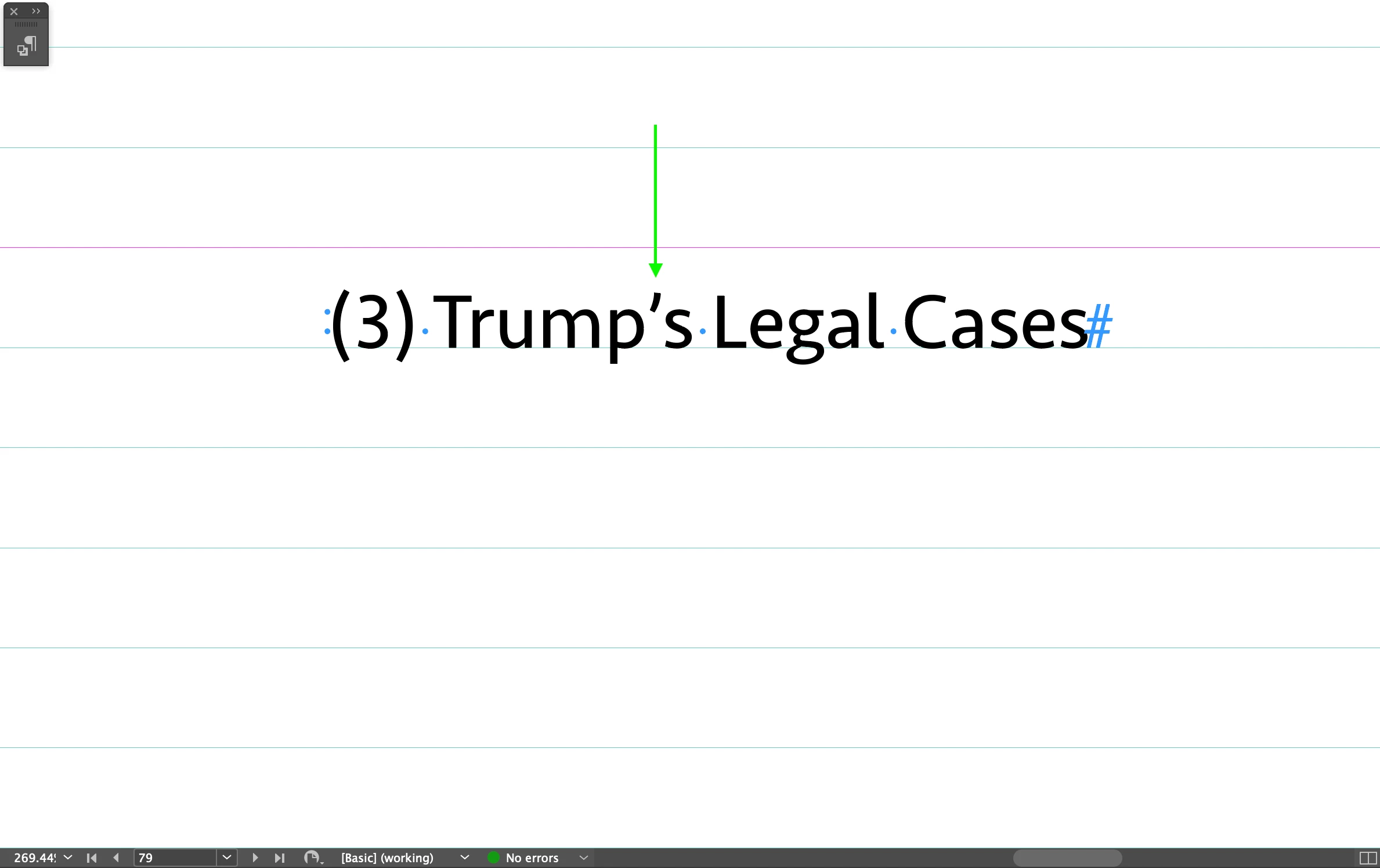
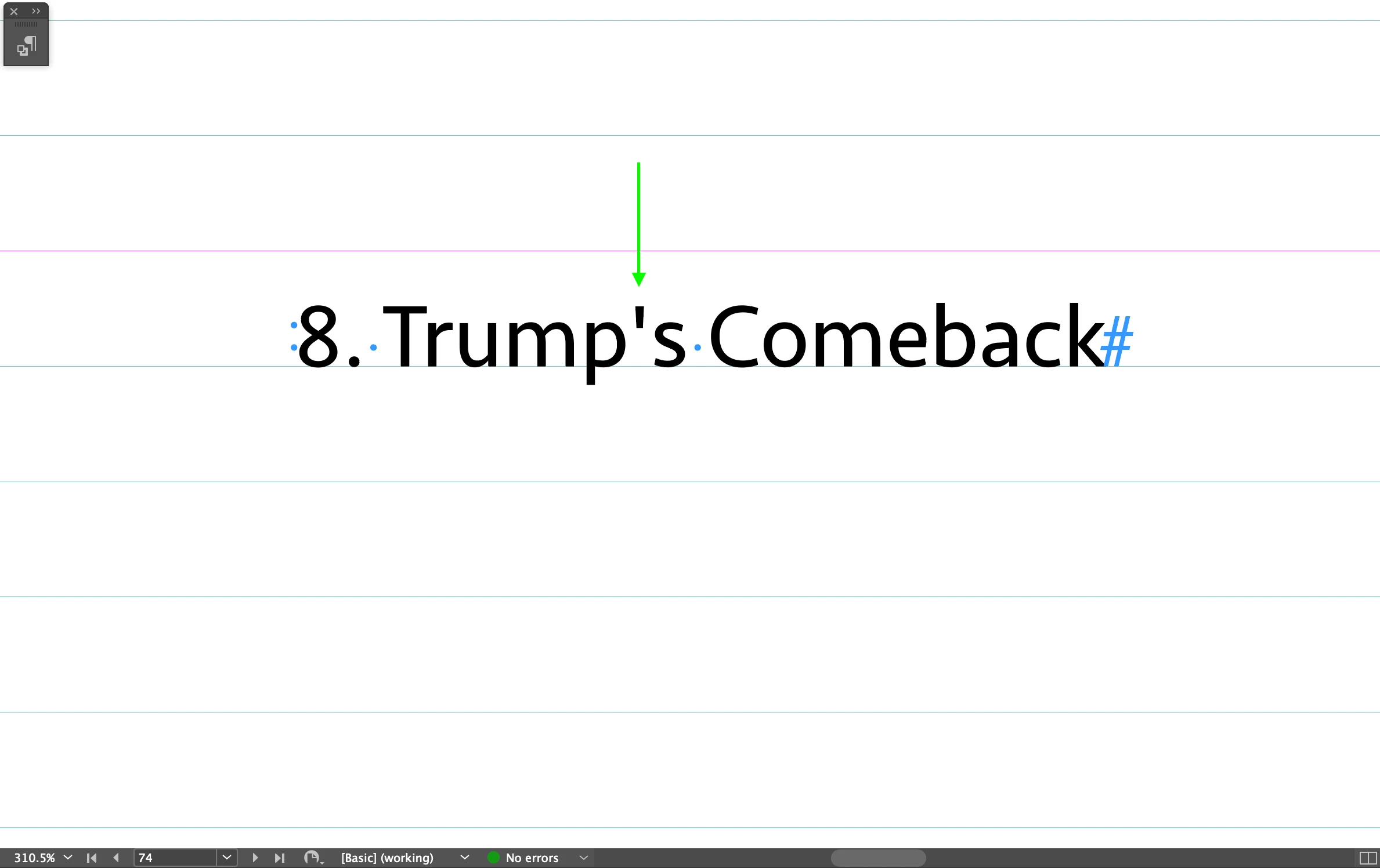
In Screenshot 1, there is a  vertical apostrophe (green arrow).

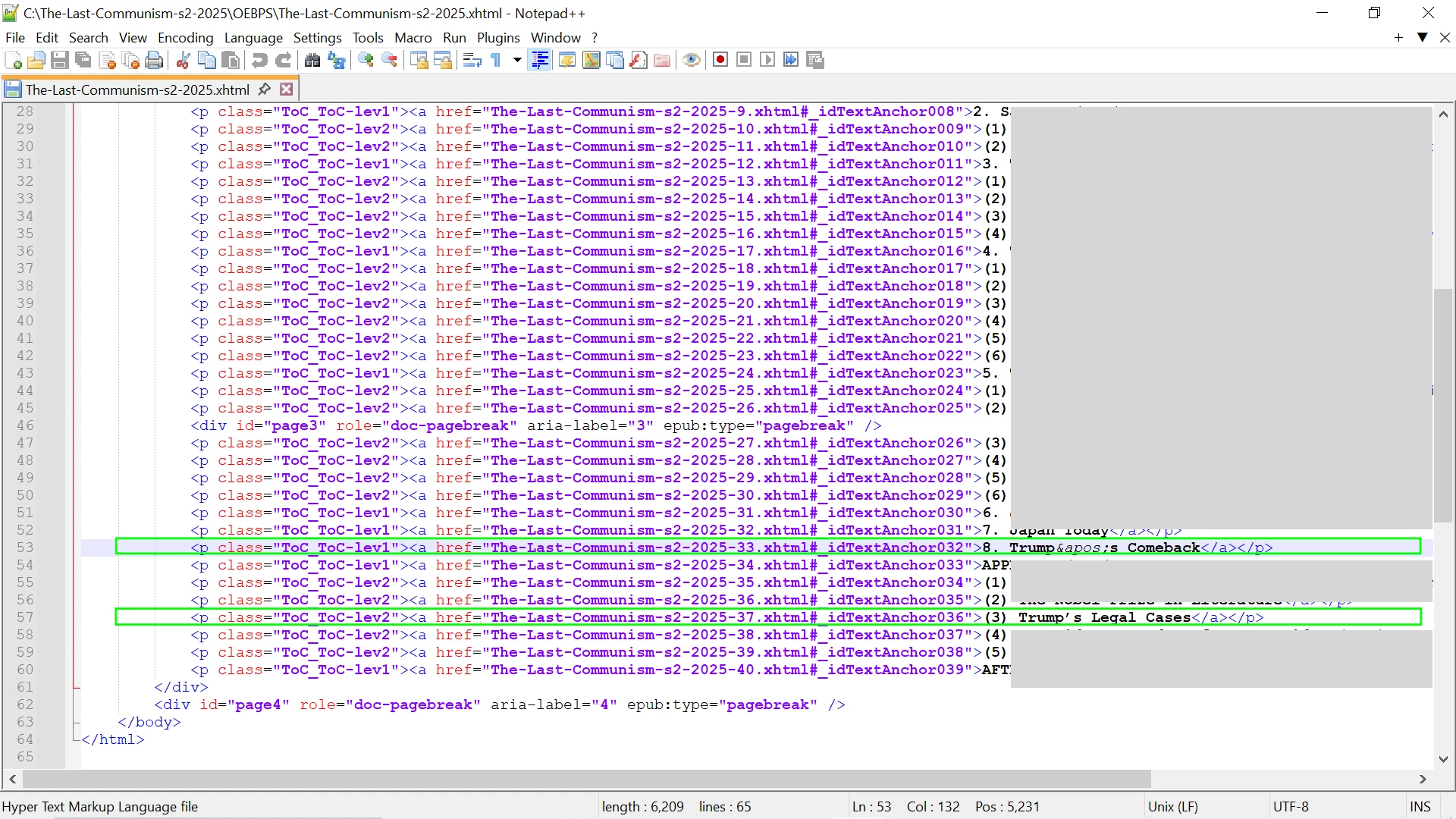
In Screenshot 2, there is a skewed apostrophe (green arrow).


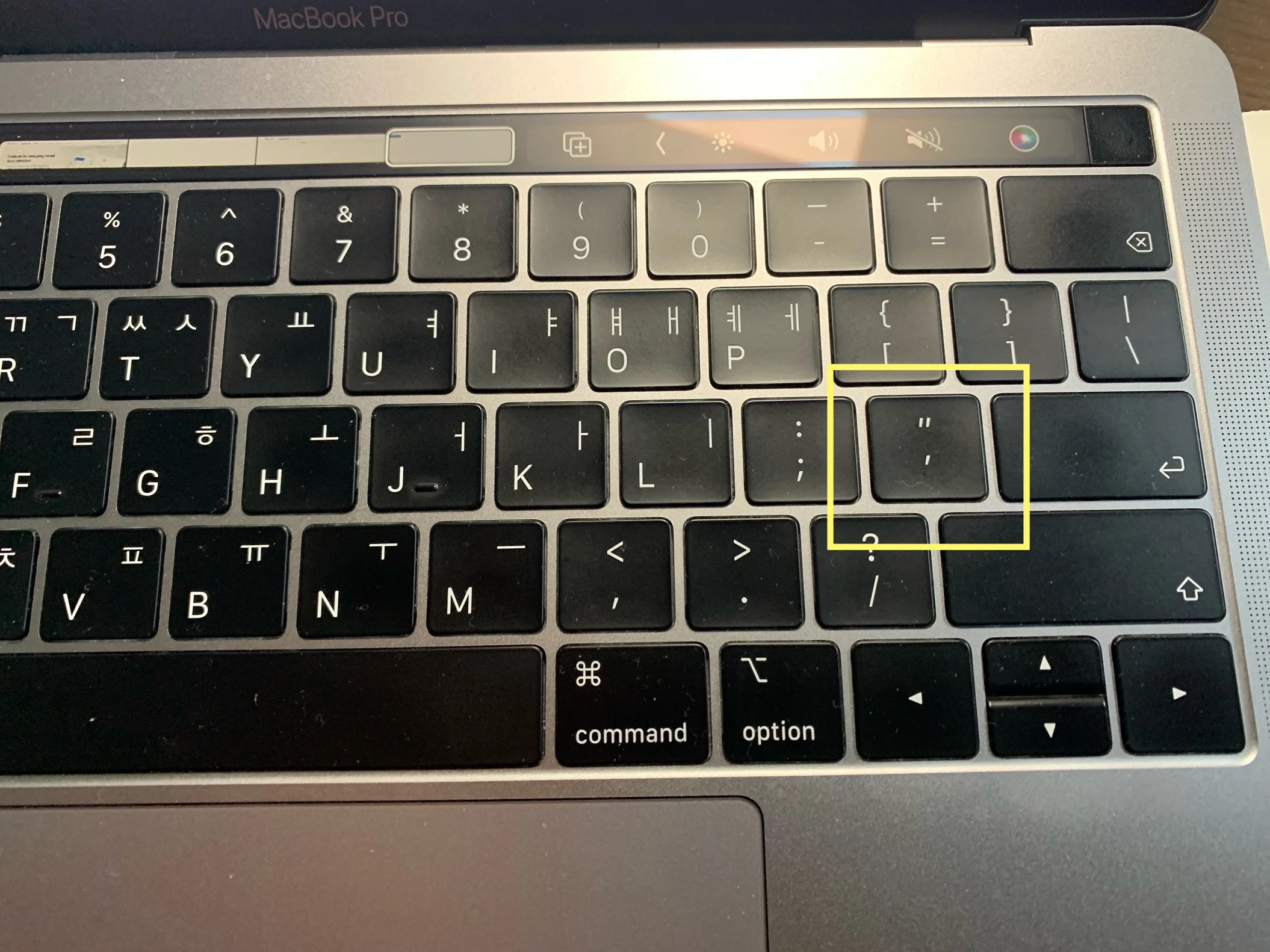
I opened Id file in Screenshot 3.

The first green box has &apos and the second one not.


Where does the differnce come from?


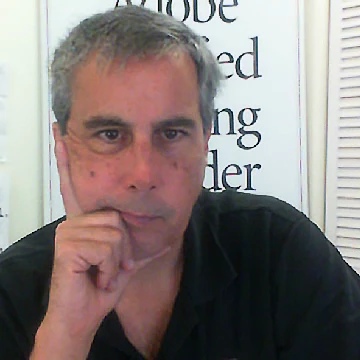
I typed the same key on the keyboard in Screenshot 4.


Hosun


Correct answer Dave Creamer of IDEAS

Just a note: Please don't use ditto marks to denote feet and inches. (Who remembers Spinal Tap?)

Use ft. and in. or--better yet--spell it out as feet and inch for complete clarity. 


4 replies

Mike Witherell
Community Expert
Community Expert
February 9, 2025

InDesign > Preferences > Type > General... Use Typographer's Quotes

With this preference normally defaulted to ON, InDesign will give you a curly/skewed apostrophe/quote mark.

Call it a Smart Quote (as Word terms it) or a true typographical quote mark.

The straight ones come from the ancient world of the typewriter keyboard and are called ditto marks. Dittoes are straight up and down. They are often preferred to denote feet and inches. 

Sometimes you see straight yet slanted marks: these are called primes, used in math stuff.

If InDesign defaults to making typographical quote marks, and you want a ditto mark, then instead of pressing the ditto key on the keyboard, press Opt/Alt plus the ditto key on the (QWERTY) keyboard.

Mike Witherell
Dave Creamer of IDEAS
Community Expert
Dave Creamer of IDEASCommunity ExpertCorrect answer
Community Expert
February 9, 2025

Just a note: Please don't use ditto marks to denote feet and inches. (Who remembers Spinal Tap?)

Use ft. and in. or--better yet--spell it out as feet and inch for complete clarity. 


David Creamer: Community Expert (ACI and ACE 1995-2023)
Robert at ID-Tasker
Legend
February 9, 2025

@Hosun


It can also be set in Edit > Preferences > Dictionary


Randy Hagan
Community Expert
Community Expert
February 9, 2025

If you absolutely want the "skewed apostrophe" in any single instance, you can use the extended keyboard shortcut Option+Right Bracket (the Right Bracket key is immediately above and slightly to the right of the one highlighted on your MacBook keyboard image). If the font you're using has what are called Typographer's Quotes, it will replace with your skewed apostrophe every single time.


As Derek shows above, you can also search for and change the quotes globally in your document, but I would caution you to proof the end result, because sometimes using global commands can sometimes inject unexpected surprises. Those can be quickly corrected as needed while doing that thorough proofing.


Hope this helps,


Randy

Derek Cross
Community Expert
Community Expert
February 9, 2025

One is an apostrophe the other a foot mark (a measurement mark) also known as Minute marks. Check your Glyphs to see which is which. The difference in design between the two will vary depending on the font you select.

There's a useful facility in InDesign's Find/Change (found under the Edit tab) to change them all foot marks (straight) to apostrophe's in one go in InDesign text.