jacksonw74630625
Participant
August 2, 2022
Answered

Applying Paragraph Styles to Type on a Path

  • August 2, 2022
  • 2 replies
  • 549 views

Okay, so there may be a solution to my problem that takes a different form than the way I am going about it, but I'm just going to explain the situation as is. 

—I've created a Paragraph Style with Paragraph Shading and a Border, which creates text with a box around it effectively. Good so far... (See Below)
—The purpose of creating this Paragraph Style is to use it in the creation of Infographics.
—The problem is that as far as I can tell, if I need the text to curve (as in Type on a Path) it keeps the basics of the Paragraph Style but refuses to apply the Border or Shading.
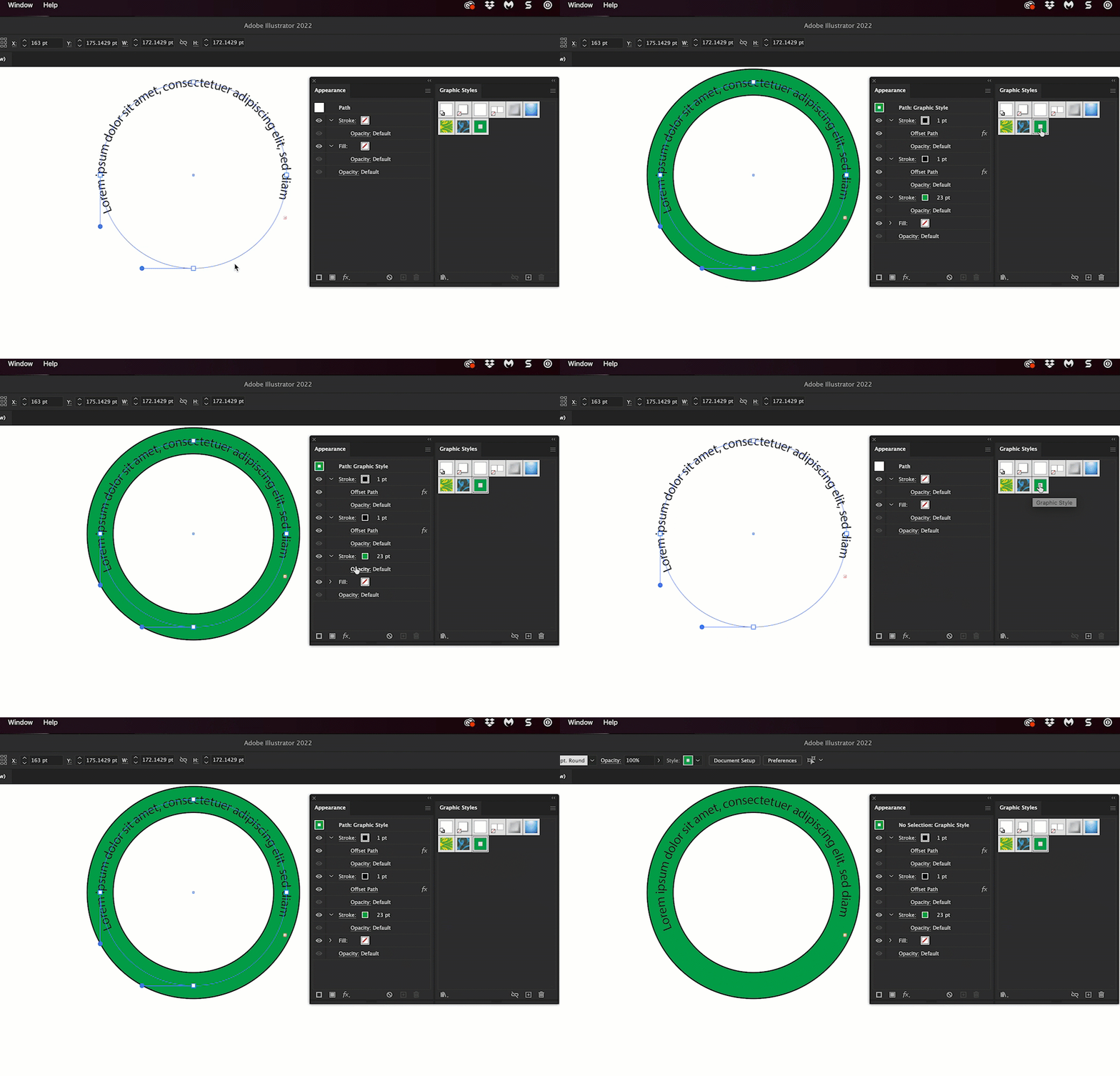
—I basically want to be able to do something like this (see below) automatically, by setting it up somehow.

(PS: It doesn't have to connect like this one does, I just did that quickly to illustrate the idea.)


Is there any way to do what I am trying to do? I'm open to the idea that this might be something better solved by using Illustrator, but I went to InDesign after trying to accomplish this in Illustrator without any success. 
This topic has been closed for replies.
Correct answer Barb Binder

Hi @jacksonw74630625:


Not only do I suggest creating your infographics in Illustrator, I highly recommend taking @tonyharmer's class: https://www.linkedin.com/learning/creating-illustrator-infographics-14896673/creating-illustrator-infographics?autoplay=true


In Illustrator you can create the look in the Appearance panel, save it as a Graphics Style and assign it with a single click.


If you don't have a LinkedIn subscription either initiate a free trial or check your local library. A lot of libraries will offer access to LinkedIn Learning. 


~Barb


2 replies

Barb Binder
Community Expert
Barb BinderCommunity ExpertCorrect answer
Community Expert
August 2, 2022

Hi @jacksonw74630625:


Not only do I suggest creating your infographics in Illustrator, I highly recommend taking @tonyharmer's class: https://www.linkedin.com/learning/creating-illustrator-infographics-14896673/creating-illustrator-infographics?autoplay=true


In Illustrator you can create the look in the Appearance panel, save it as a Graphics Style and assign it with a single click.


If you don't have a LinkedIn subscription either initiate a free trial or check your local library. A lot of libraries will offer access to LinkedIn Learning. 


~Barb


~Barb at Rocky Mountain Training
jacksonw74630625
Participant
August 2, 2022

So that did work for me, but I think there are two important addenda to make:
1:You have to make sure when applying the Graphic Style that you have at least A point on the path selected not the path/have the path selected and not the text or the style will be applied to the text itself and not the path.
2: You will have to manually cut the path off on the ends to avoid having extra space around the text because this solution deals with the path and not the text on it.

Thanks Again!

Robert at ID-Tasker
Legend
August 2, 2022

No access to my computer right now so it's just an idea - how about rule below / above / underscore and maybe another circle beneath to simulate black edge?